Website maintenance mode
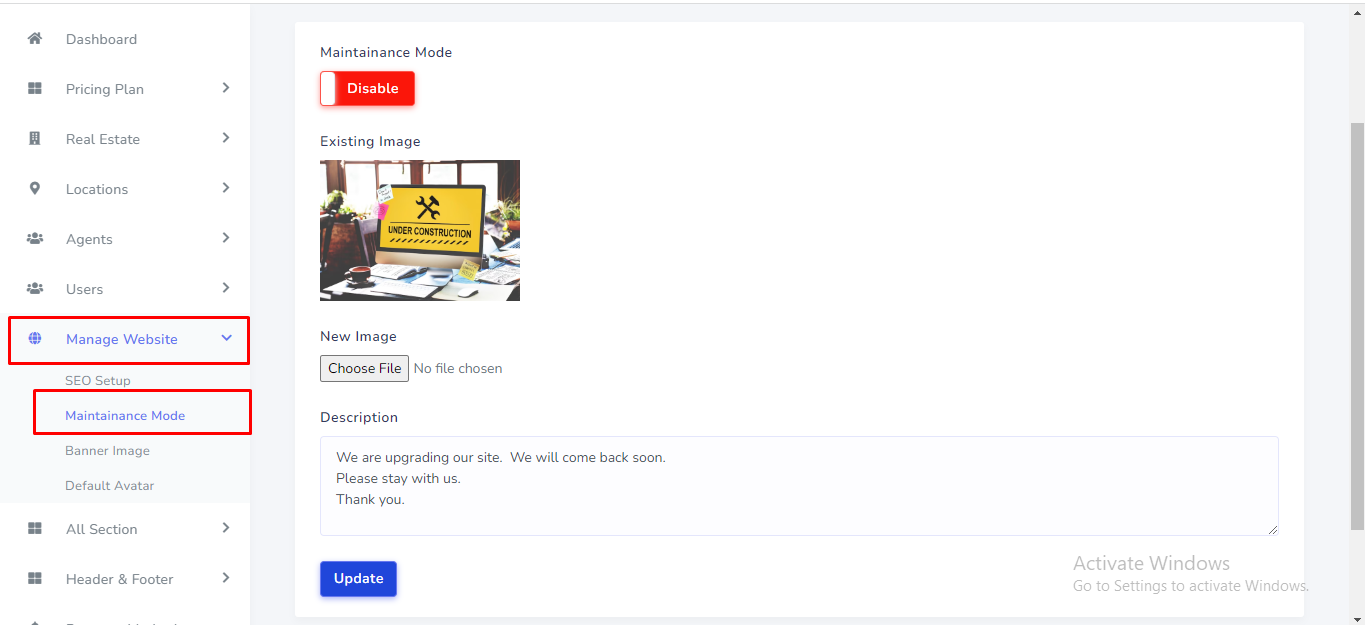
Website maintenance mode can be manage from the admin panel. Go to "Manage website >> Maintenace mode" from sidebar. See:

HomeCo is one of The Best Real Estate Script built with the Php Laravel. HomeCo is a high-quality and well-organized script specially designed to fit all the needs of a Real Estate Business. HomeCo design compatible with Desktop, laptop, mobile and also compatible with major browsers. The Administrator can create subscription plan and The Agent can purchase proper subscription plan to increase the number of listings on the website. Also Visitor or Users can easily contact with the agent to buy or sell properties.
This system was made using the popular Laravel PHP framework. Strong security was maintained during the development and there is no SQL injection, XSS attack, CSRF attack possible.
HomeCo has the following features.
The installation of this script is super easy. If you can install normal php based scripts on your server, you can install our script. We will tell you how to install this script step by step on a server.
If you extract the zip file, you will see that there are total 4 folders.
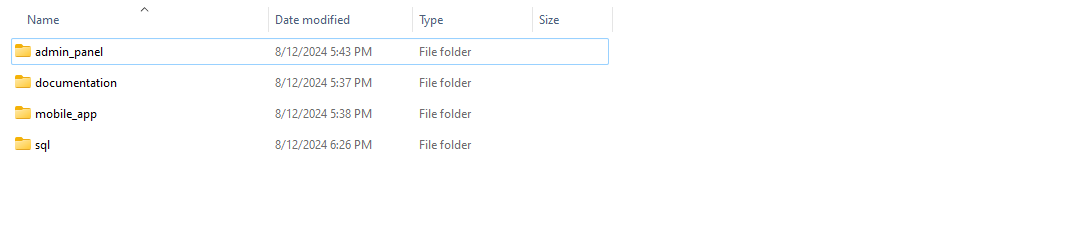
The folder names are: admin_panel, documentation, mobile_app and sql . The "admin_panel" folder is the main laravel source codes. The "sql" folder contains the main database file "database.sql" . Inside the "mobile_app" folder there have flutter source code and apk .
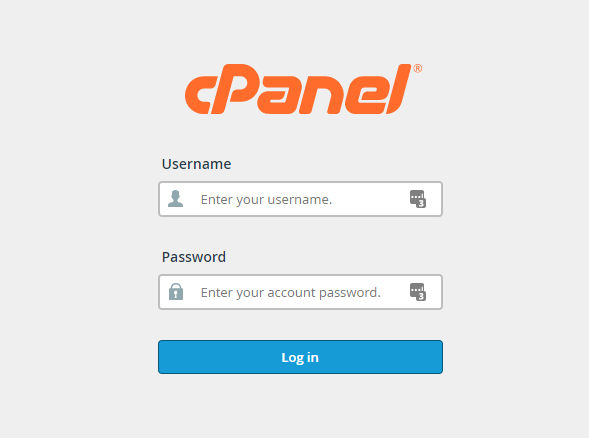
1. Login to your hosting's cpanel using the login information. You will see an interface like this:
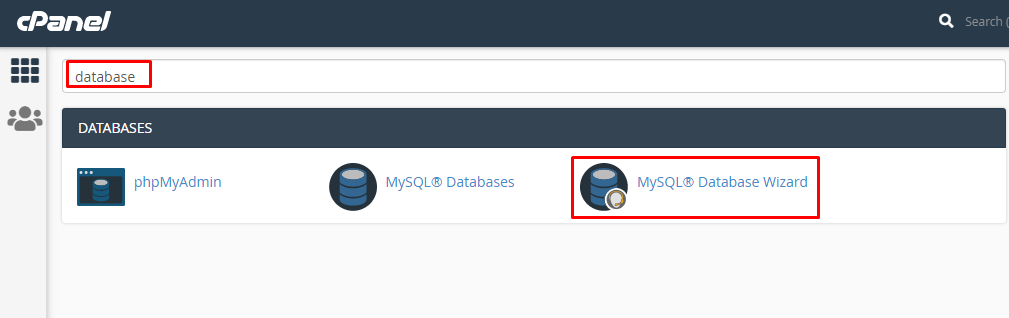
2. You will get a search section in the cpanel. Search there by writing the word "database". You will get some options. Click on "MySQL® Database Wizard" option.
3. Then in Step 1, you will have to create a database. In the text field, give your database name and click on next step.
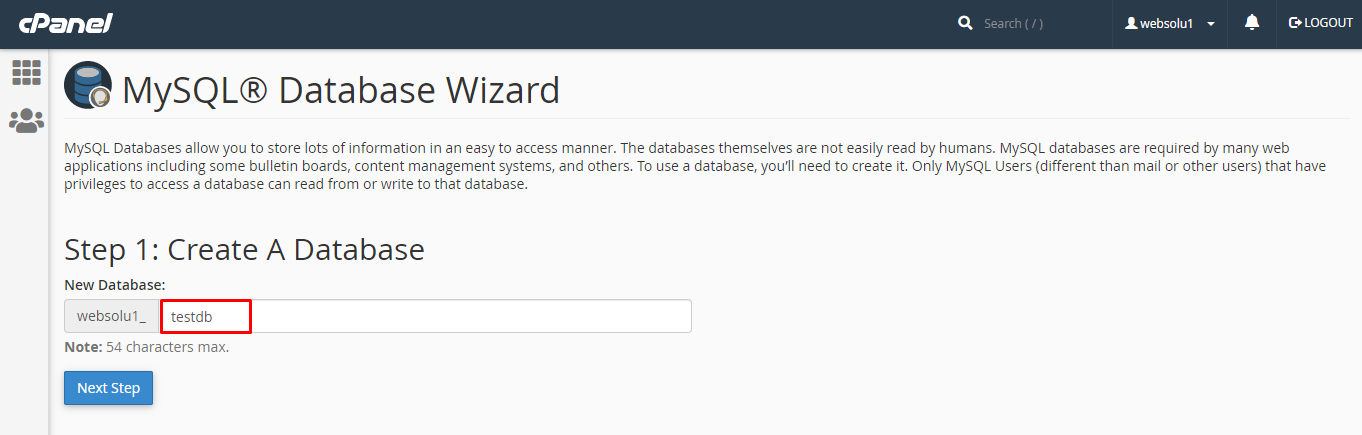
4. Then in Step 2, you will have to create a database user. Give your username and passwords here. Then click on "Create User" button.
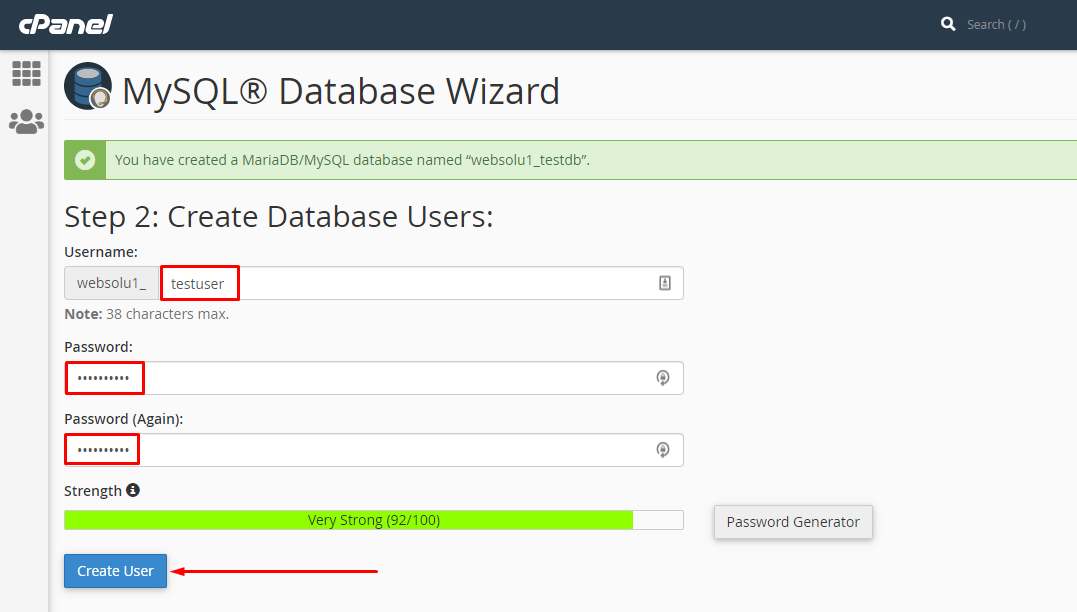
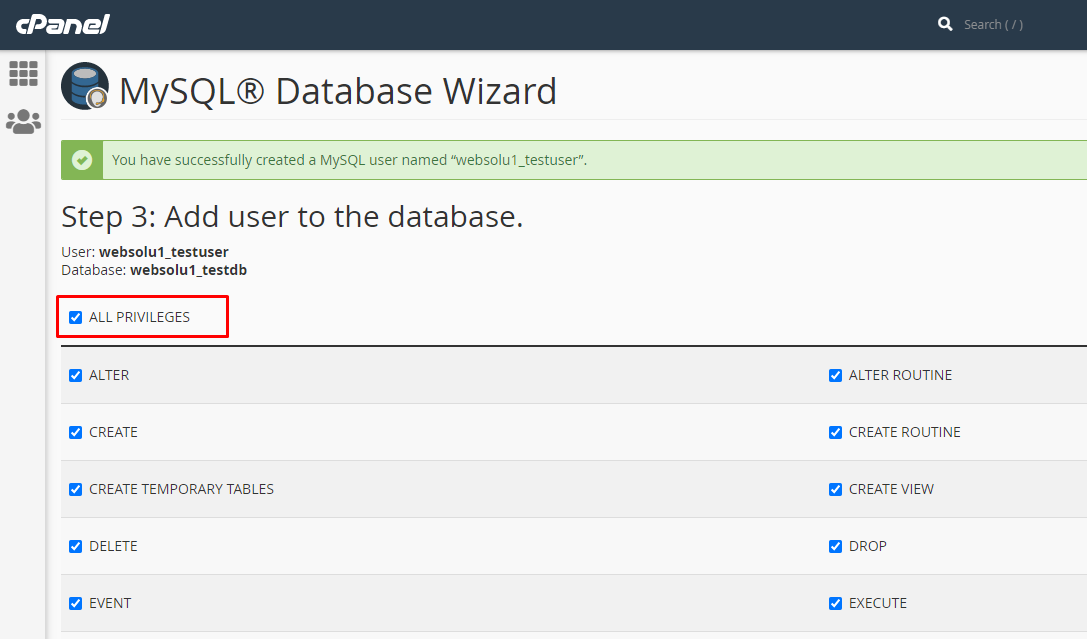
5. Now a permission page will come. Just check the tick mark on "ALL PRIVILEGES" and you will see all the options will be automatically checked.
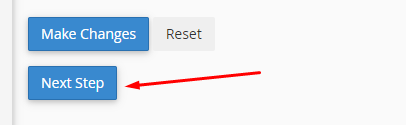
6. Click on the "Next Step" button in the bottom.
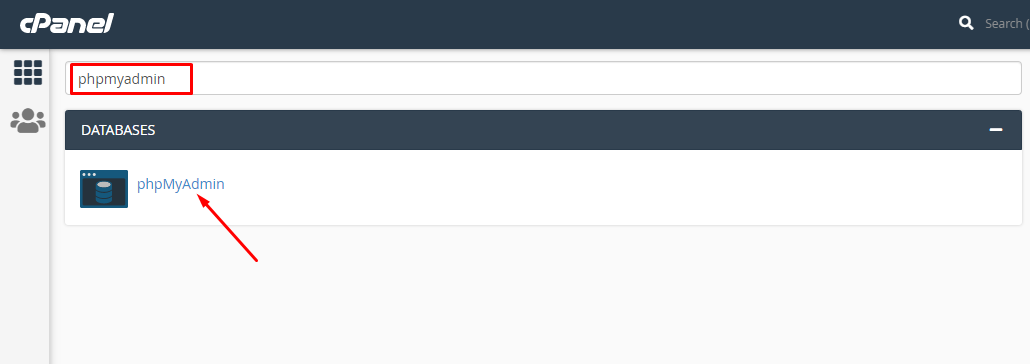
7. Database and user creation step is done. Now go back to home and again search like before with the word "phpmyadmin". Click on the "phpMyAdmin" option.
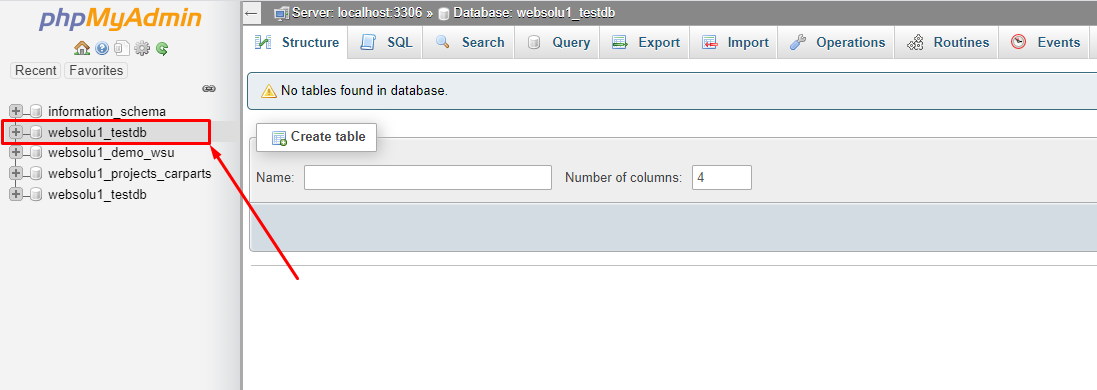
8. Now the main phpmyadmin page will come. Click on the newly created database "websolu1_testdb" from the left side.
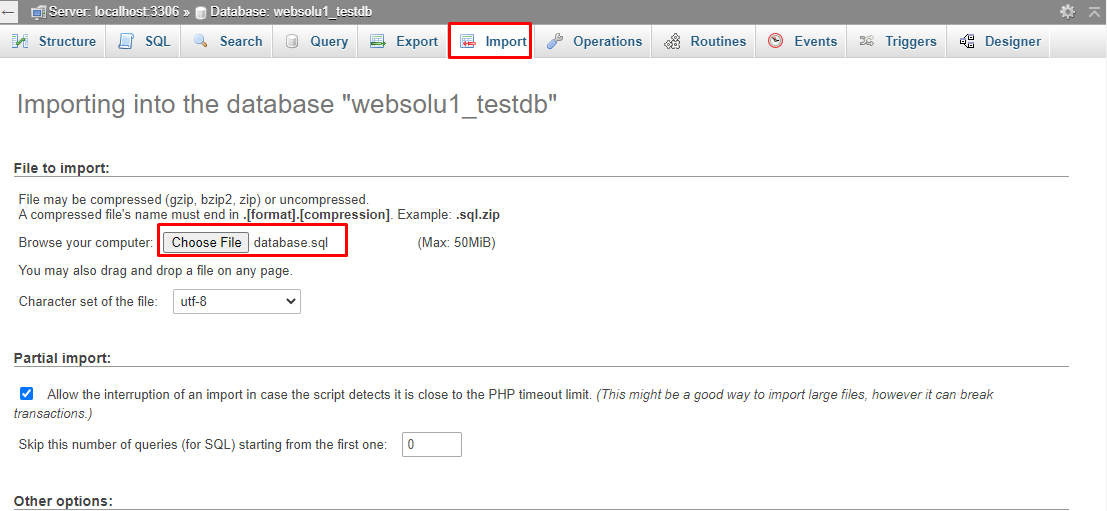
9. Click on the "Import" option from top and then select the file "database.sql" that is in the "sql" folder of the script.
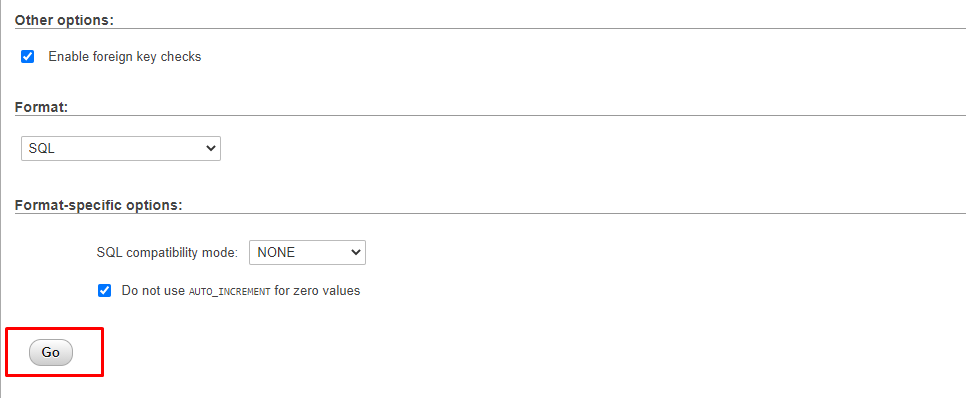
10. Then click on the "Go" button from bottom.
11. After the task is successful, you will get a success message.

12. All task related to database is done.
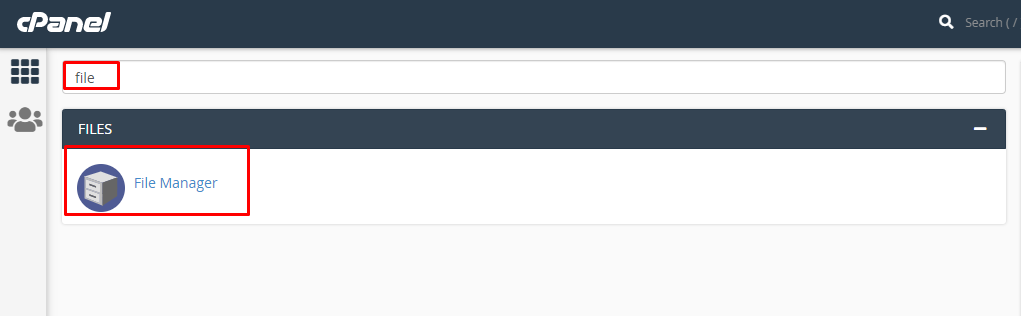
1. In the search field of your cpanel, write the word "file". You will get a "File Manager" option. Click on that option.
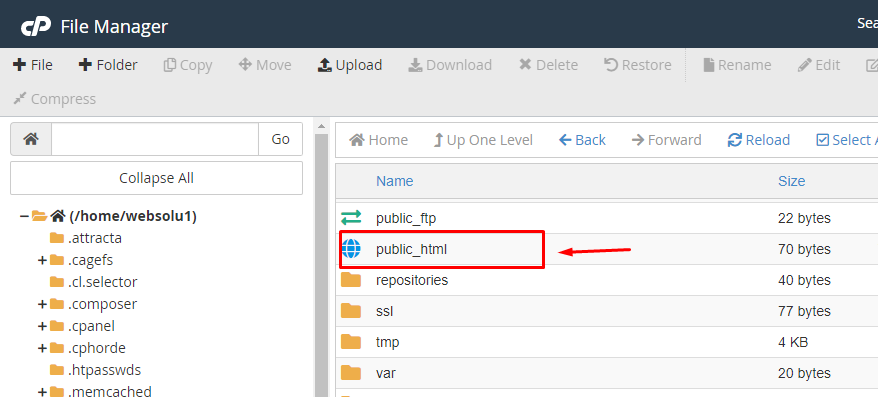
2. Search for the "public_html" and go into there.
3. Now go to the "admin_panel" folders that you got after extracting the main zip.

3.1. Inside this folder you can see 2 folders.

4. Now compress the "main_files" folder.

5. In the cpanel's "public_html", upload this zip file.
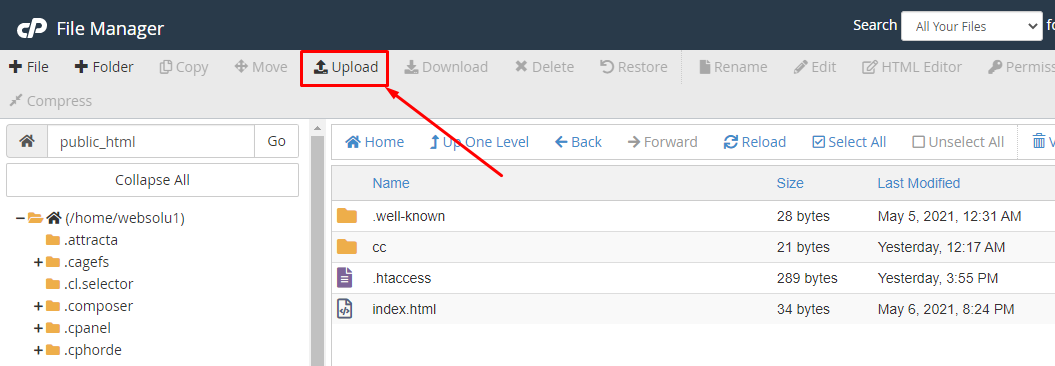
6. You will get an interface like this.
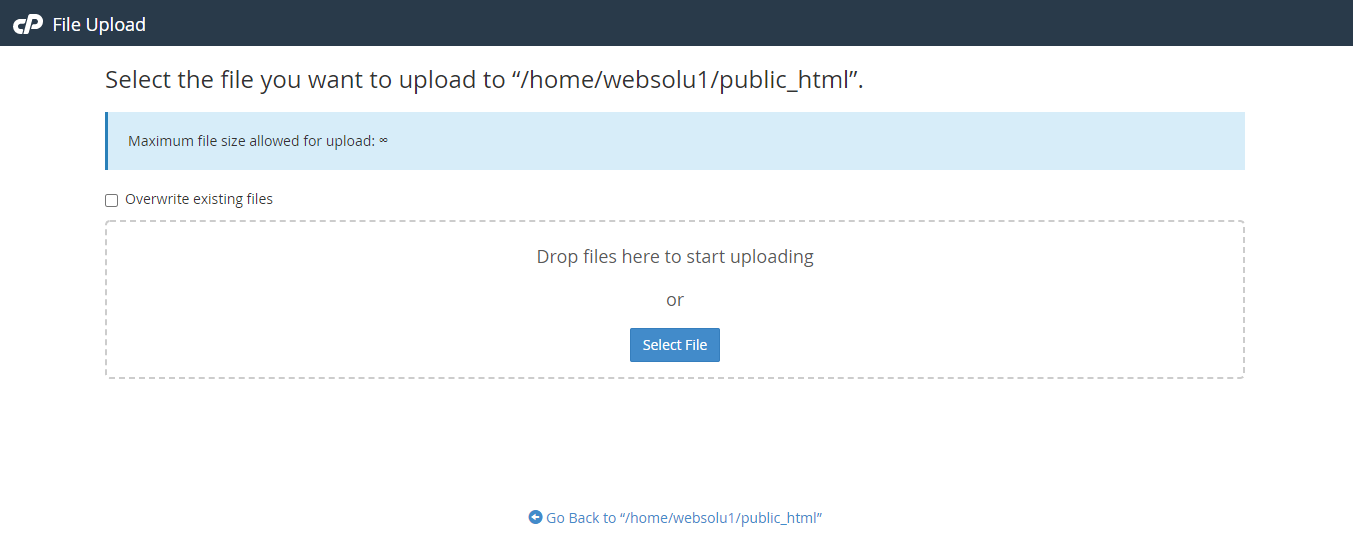
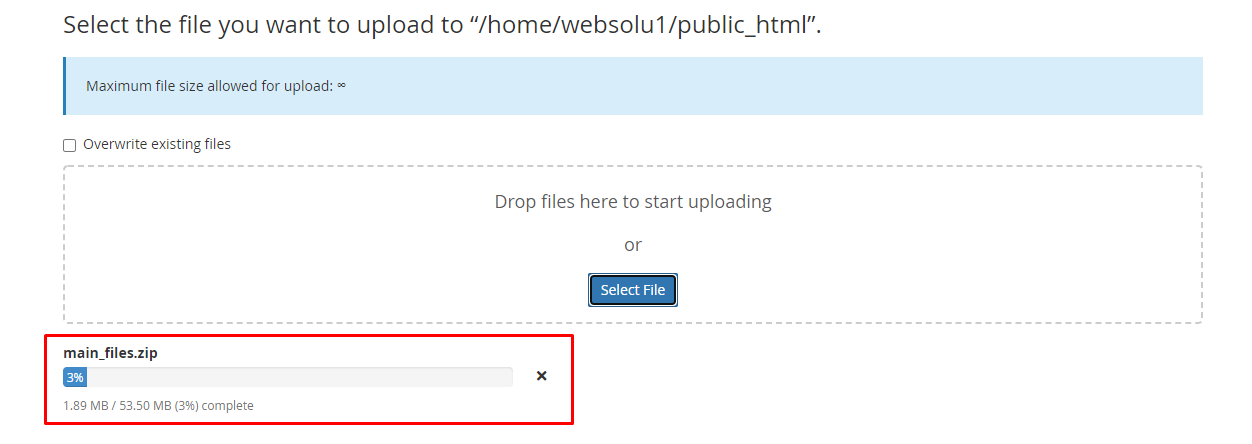
7. Drag and drop the zip file here or just click on the "Select File" and select the file from your computer. You will see a progress of uploading file. Wait until it is finished.
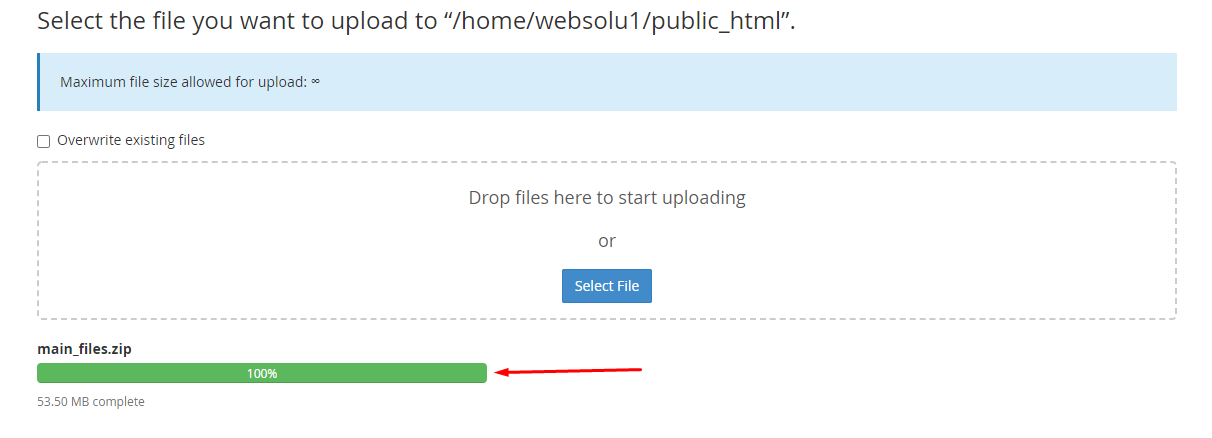
8. After finishing the upload, you will see a green bar. It indicates that upload is successful.
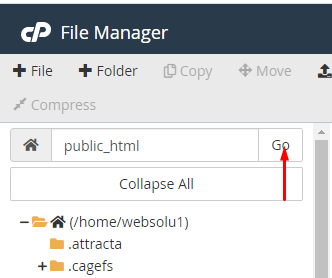
9. Now close the upload window. In the public_html section, press on "Go" button to refresh the page. Then you will see the zip file in the right side.
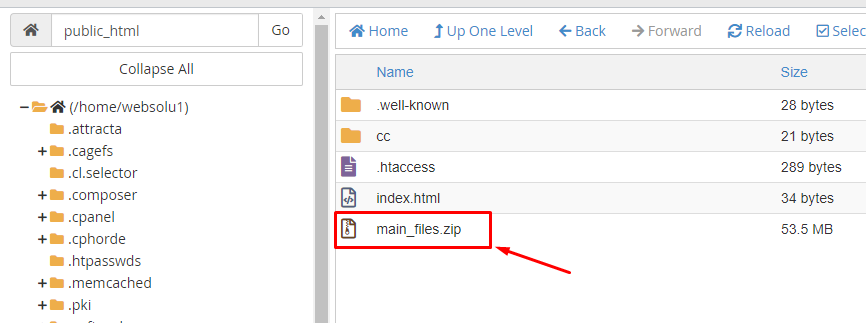
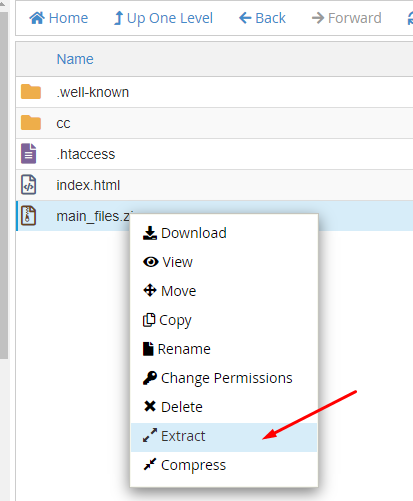
10. Do right click on that file and select "Extract" option.
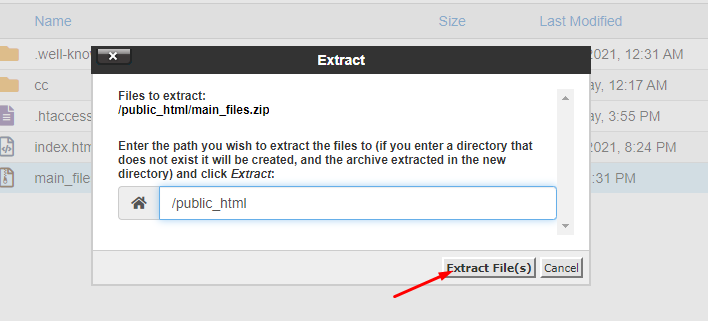
11. Press on "Extract Files" button.
12. It will take only a few minutes. After finish, you will get a window like this.
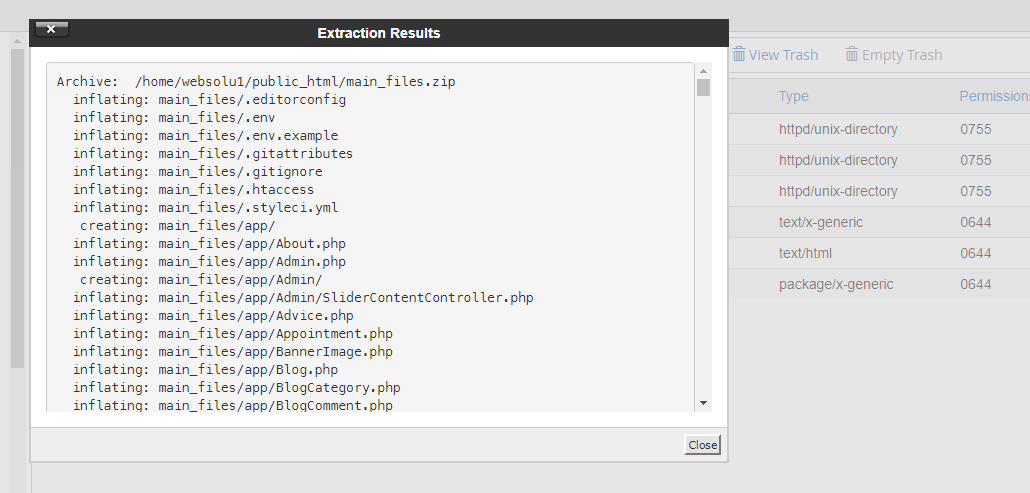
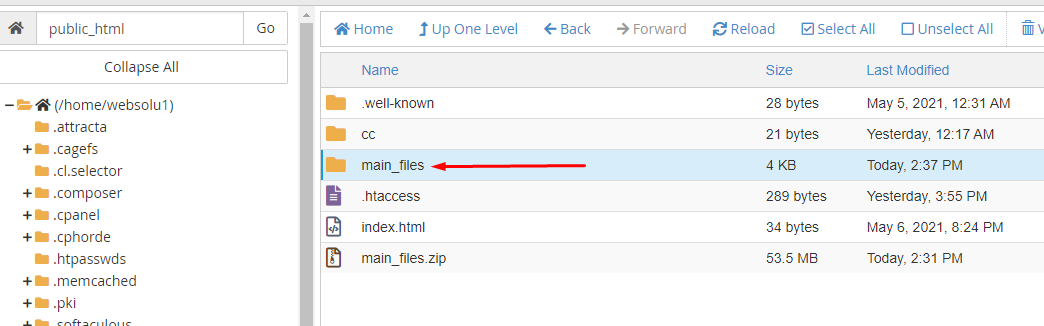
13. Just close this window. Then double click on the "main_files" folder and go into there.
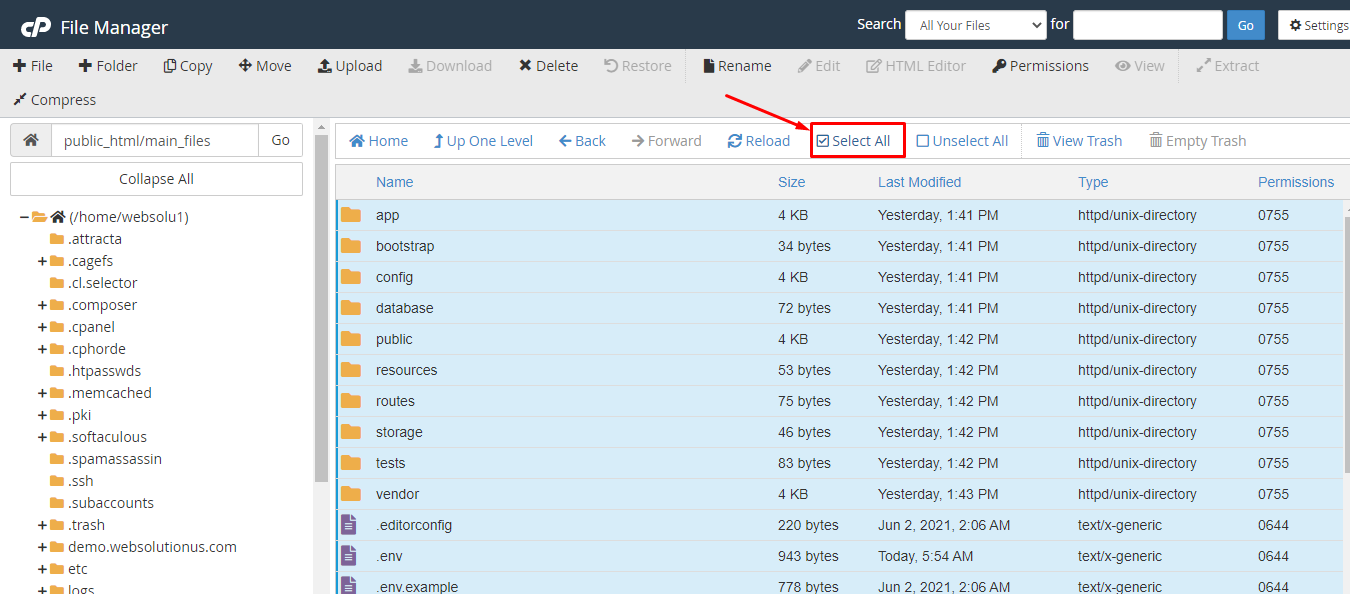
14. Now click on the "Select All" from top section.
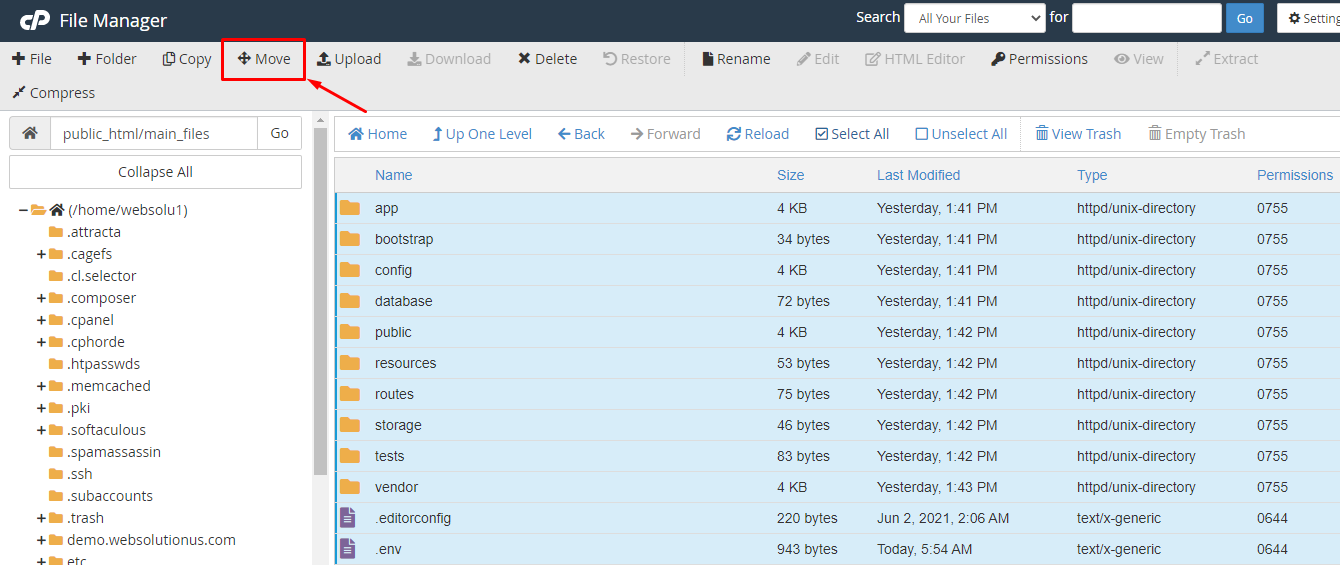
15. Click on the "Move" option.
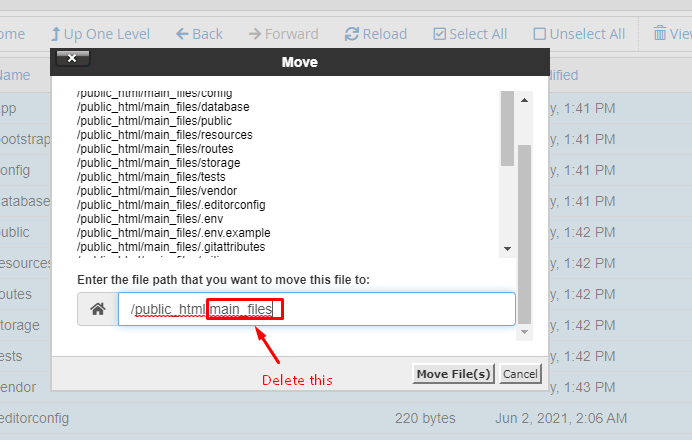
16. Delete the "main_files" from the box. Only keep this "/public_html/". Then click on "Move Files".
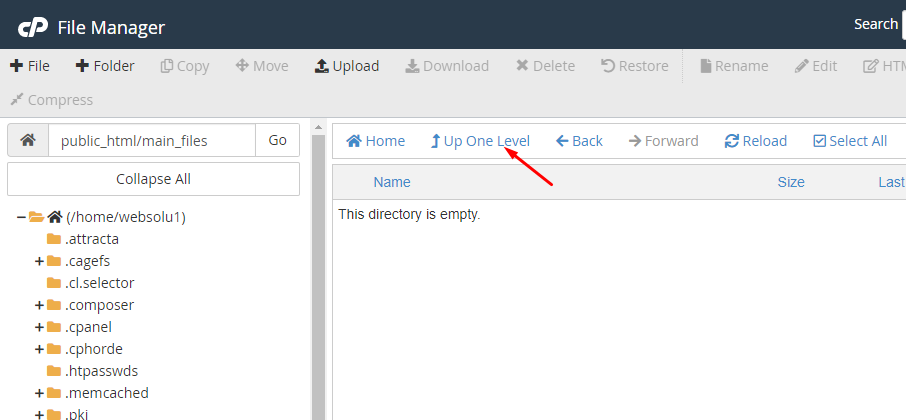
17. Now, click on "Up One Level".
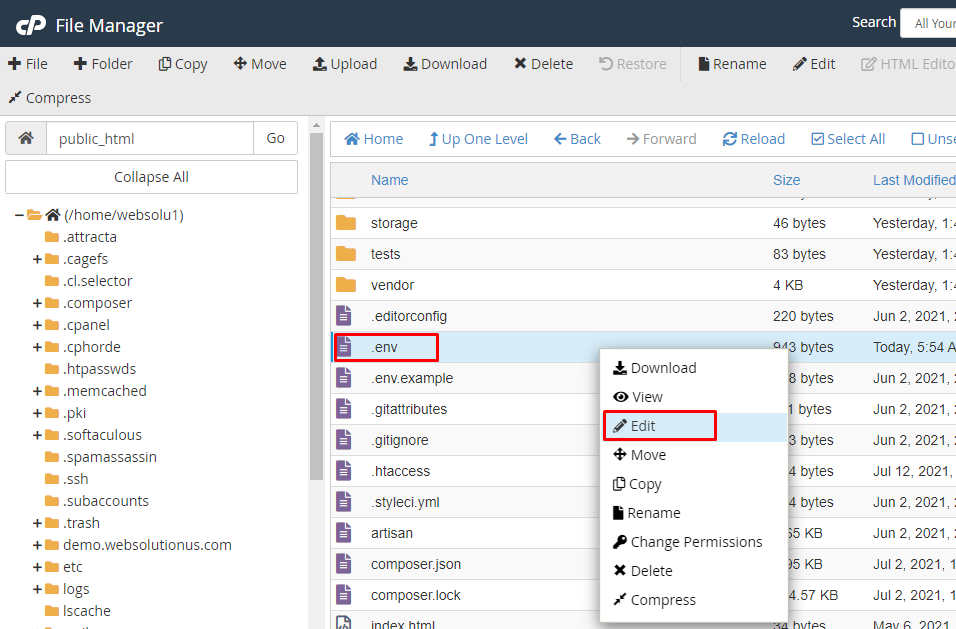
18. Right click on ".env" file and click on "Edit".
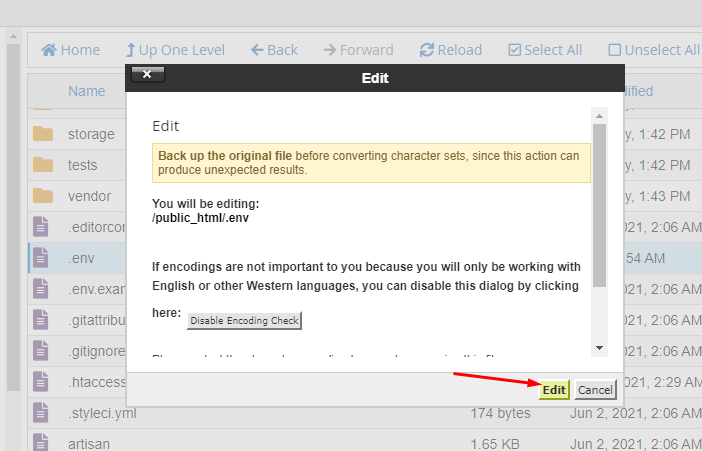
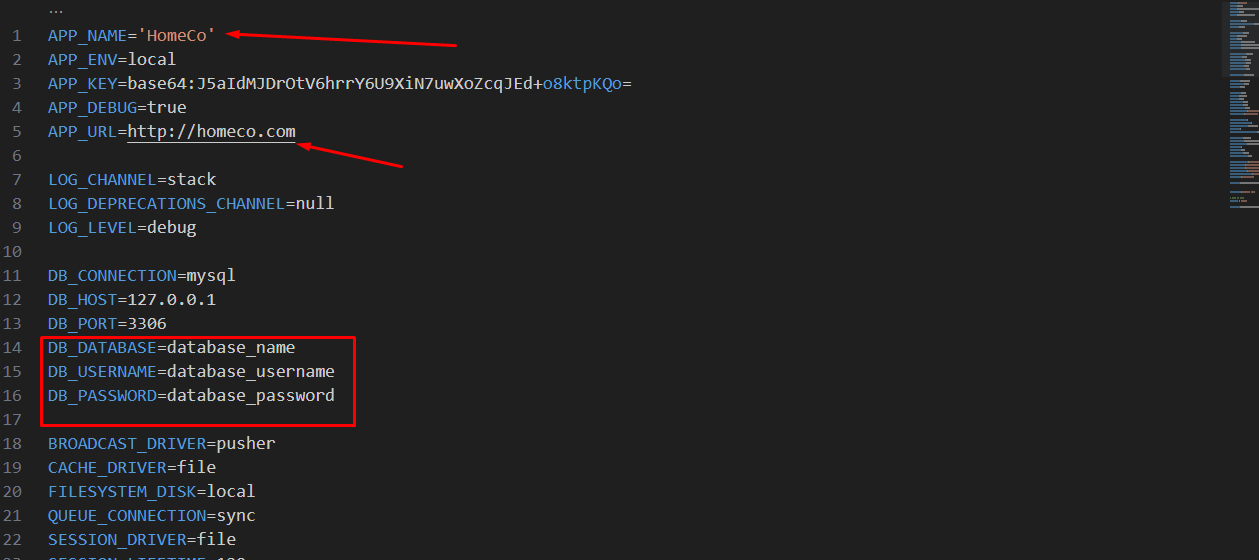
19. Now edit this file and put the app_name, app_url, database name, username and password you created previously here. Then click on the "Save Changes" button.
Your task is done and you can use our script without any problem. :)
1. Download any FTP client on your computer like "FileZilla". Search on Google by "FileZilla" or go to their website to download:
https://filezilla-project.org/
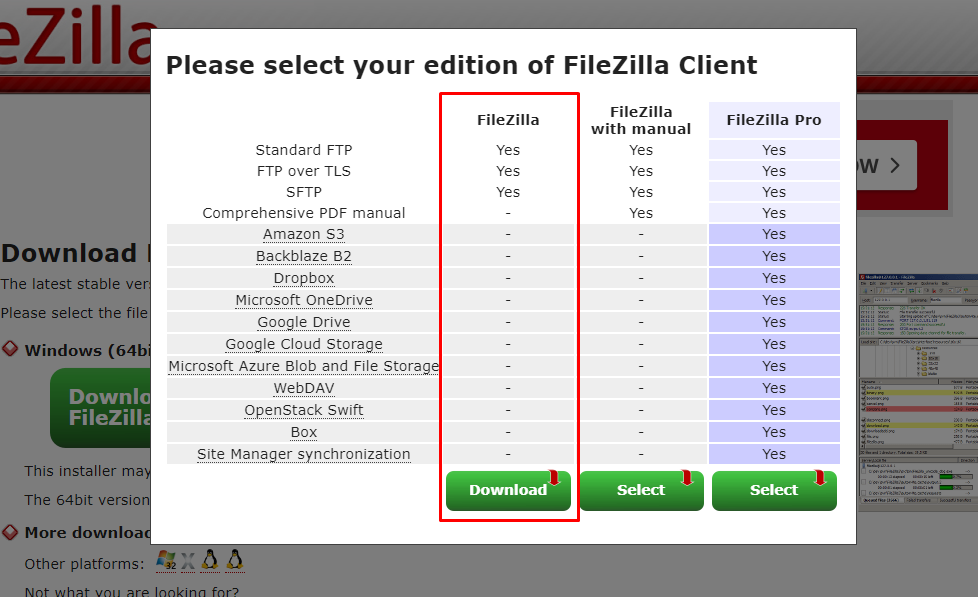
2. Use the first option to download
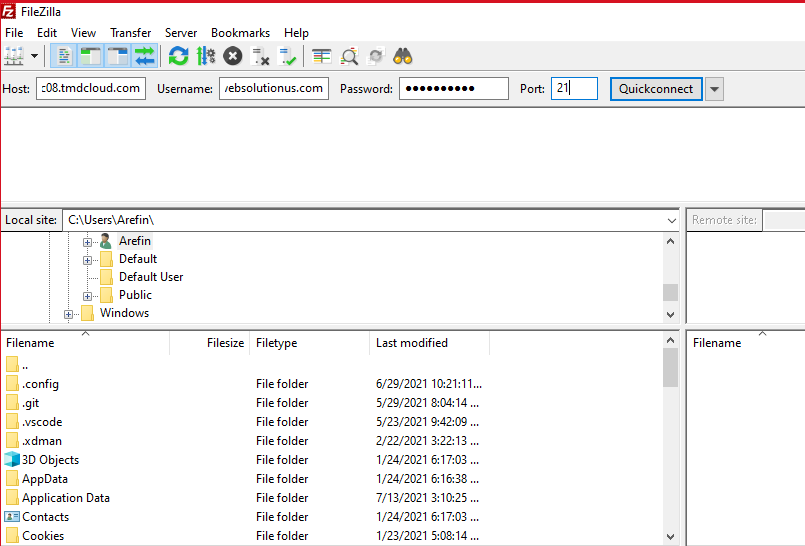
3. After download, install it and open. The interface will be like this:
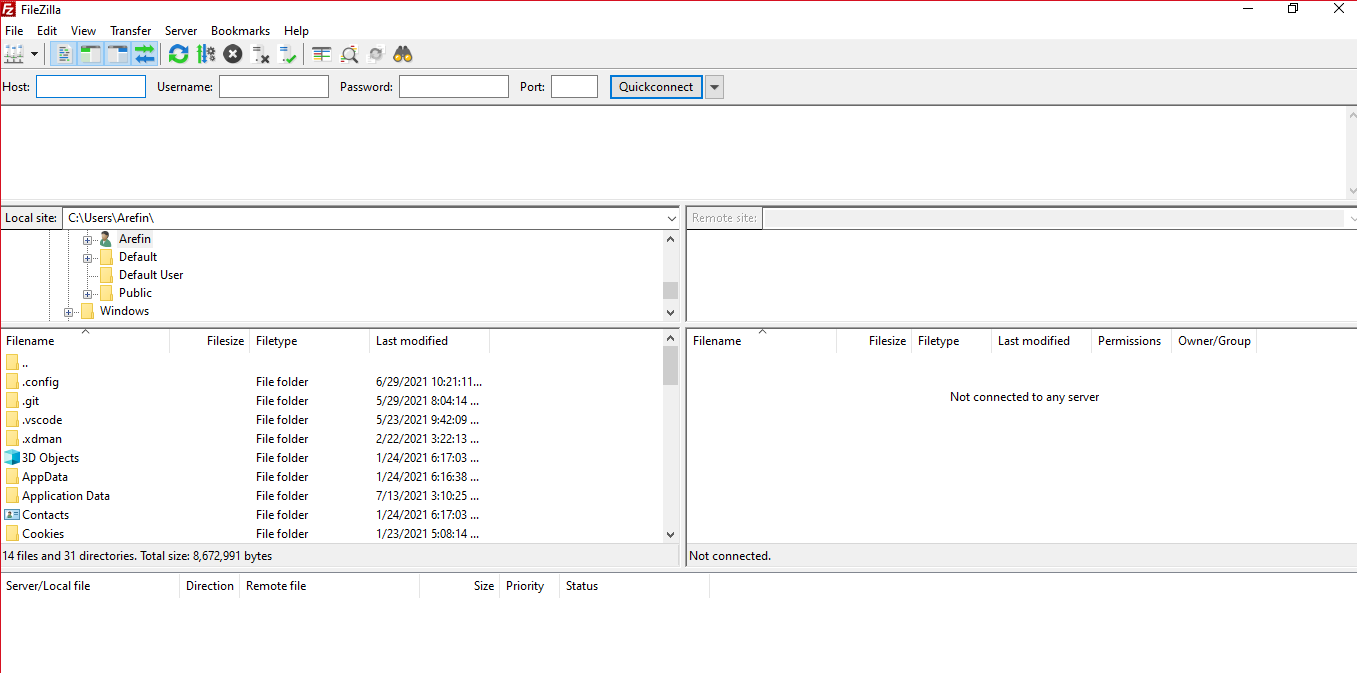
4. You can collect your FTP information contacting your hosting provider. Or, going to cpanel, you can create your FTP. In cpanel, search for "FTP".
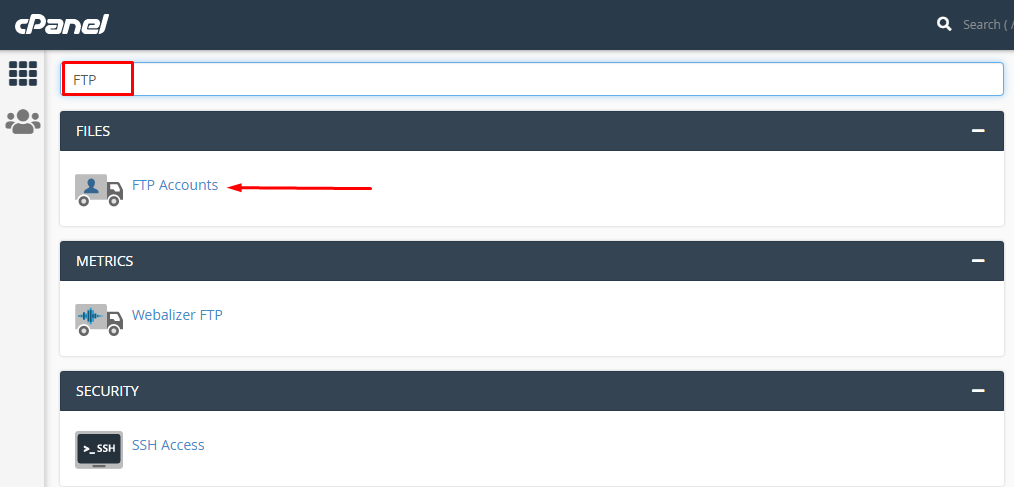
5. Put ftp username, password in the form. Become sure, you delete the marked box data in the following image.
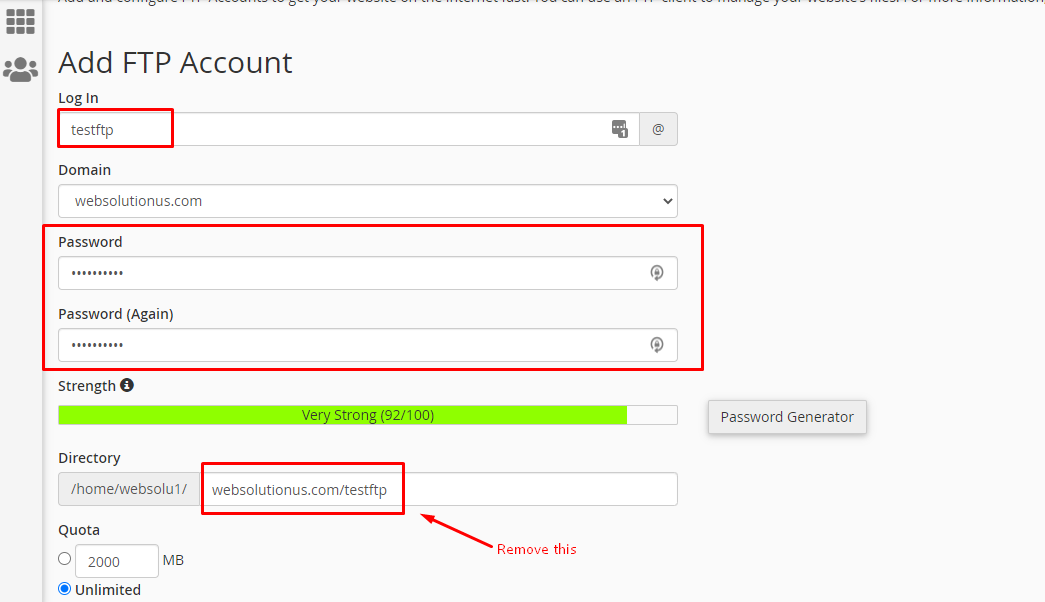
6. Click on "Create FTP Account" button.
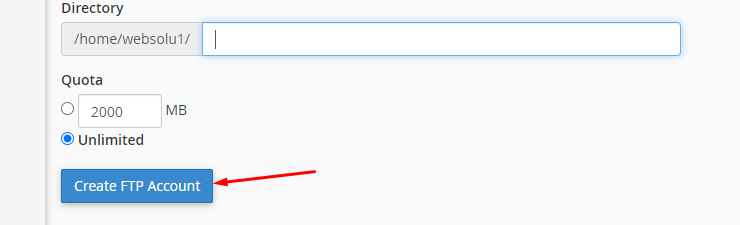
7. Your FTP information will be like this:
FTP Host: {your hosting provider will give you host name}
FTP Port: 21
FTP Username: testftp@quomodotheme.com
FTP Password: {that you gave while creating the FTP}
8. Now in filezilla put those information and click on "Quickconnect" button.
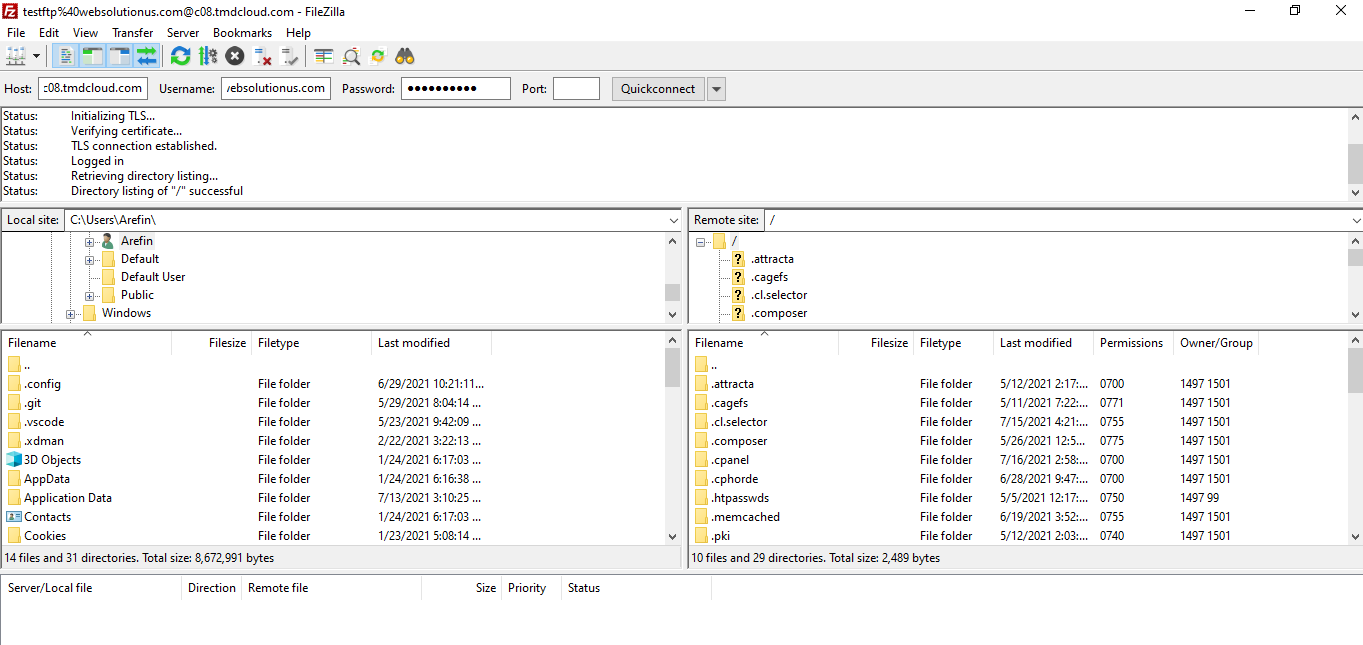
9. If connection is successful, you will get an interface like this:
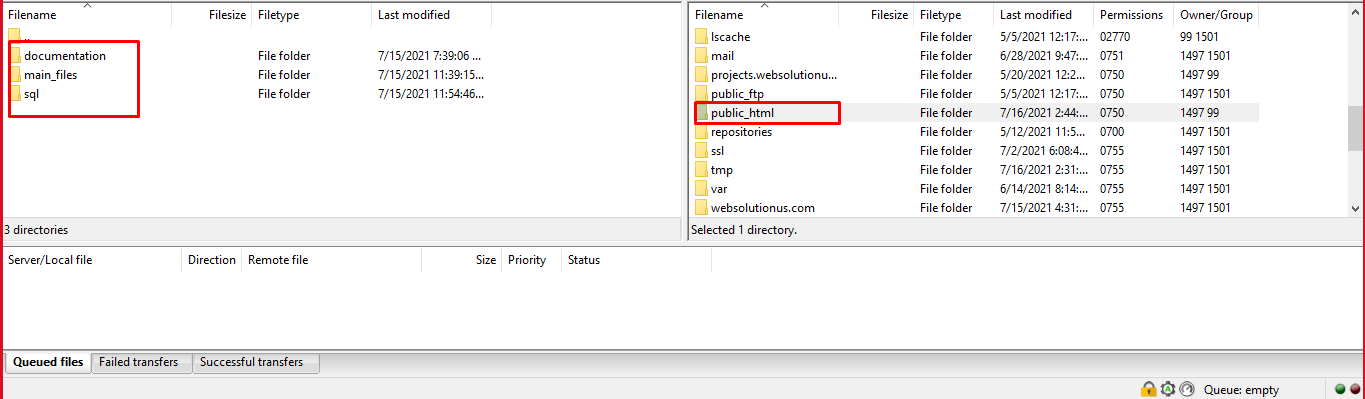
10. Now in the left side box, go to the location where you have extracted the script's file. And in the right side, go to public_html.
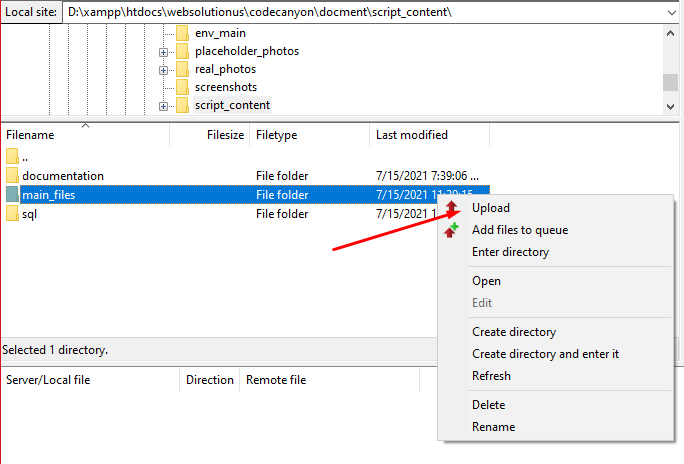
11. Then right click on the "main_files" from left side box and click on "Upload". All the files then will be uploaded into the "public_html" of the right side.
12. Search the ".env" file, right click on it and click on "View/Edit" option.
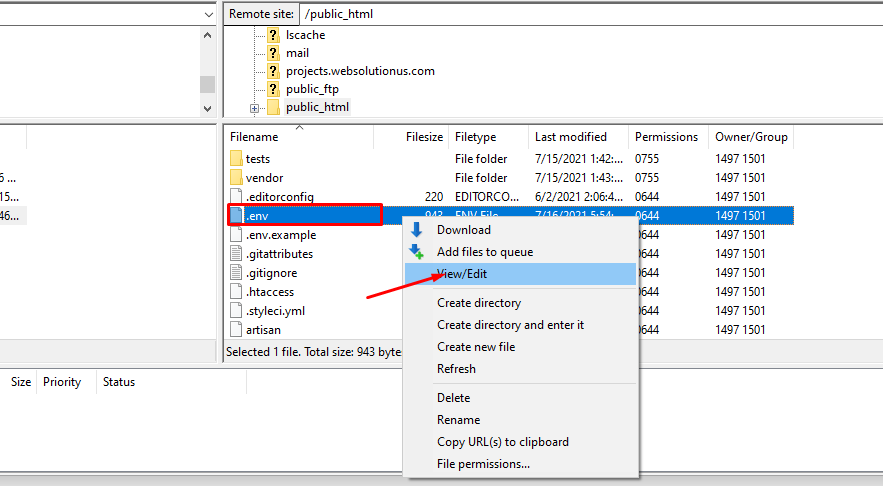
13. You will see an interface like this.
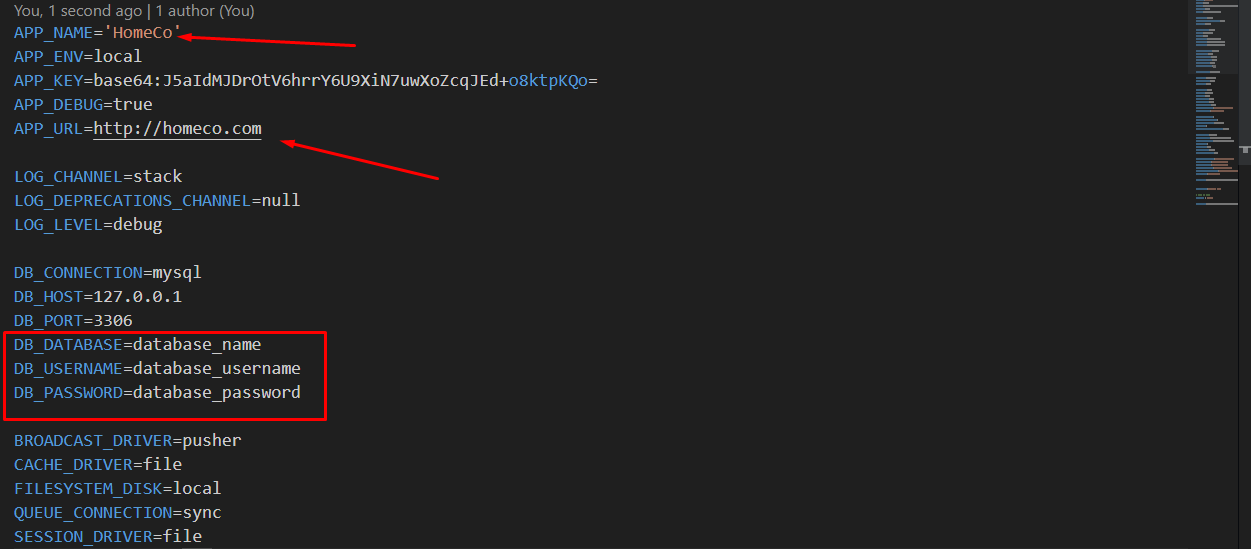
Before using and run this script, you must have to change the following information.
1. Open the .env file with a text editor and change the database settings
2. First, set up the app_name, app_url, database name, database_username and password.
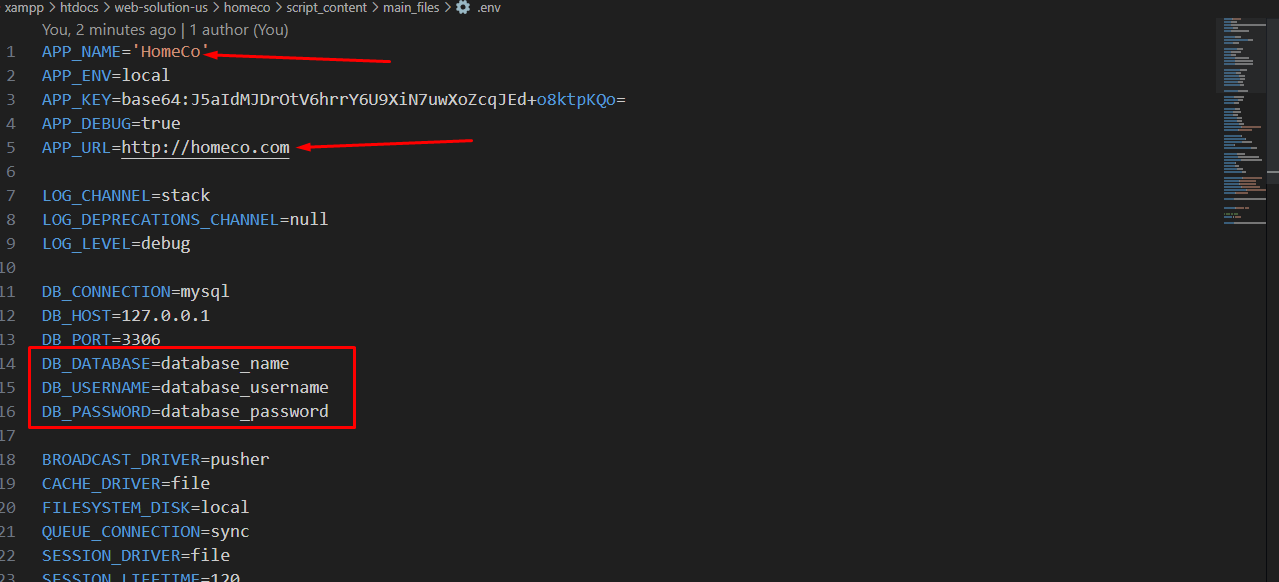
You will need to make sure your server meets the following requirements:
The default credentials of the script are:
URL: https://www.yourwebsite.com/admin
Login Email: admin@gmail.com
Login Password: 1234
URL: https://www.yourwebsite.com/login
Login Email: agent@gmail.com
Login Password: 1234
For the beginning , Admin need to select a theme. Go to Setting >> General Setting. See:
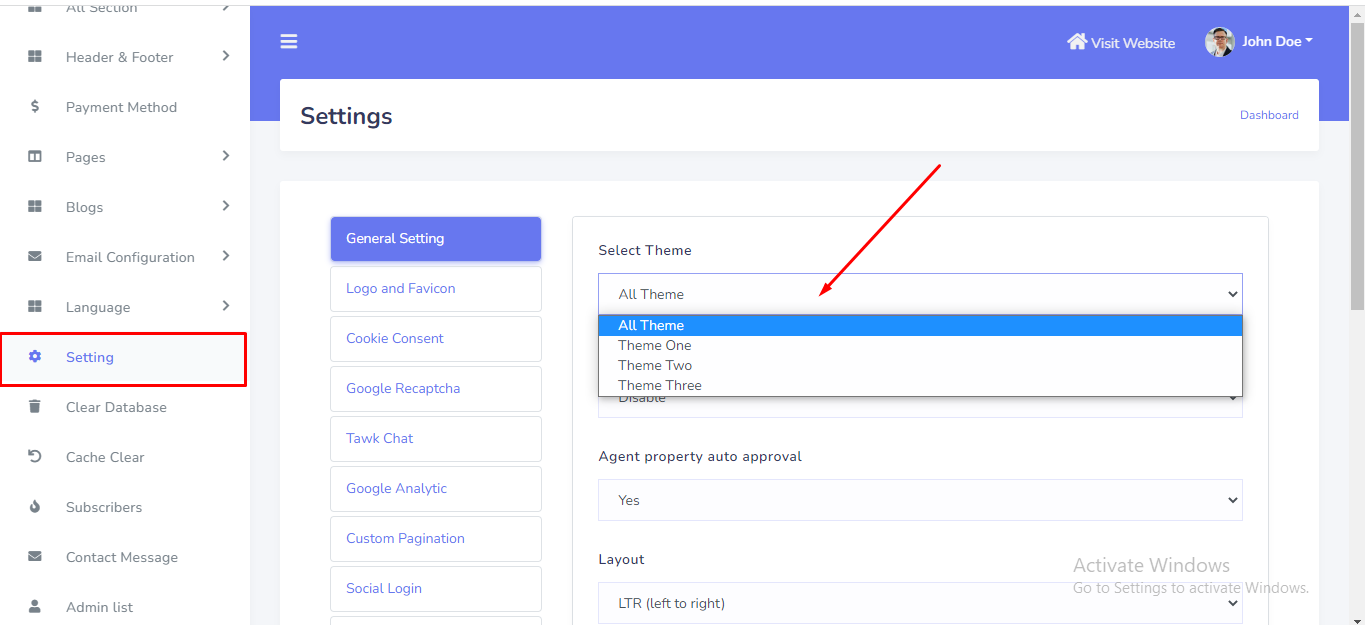
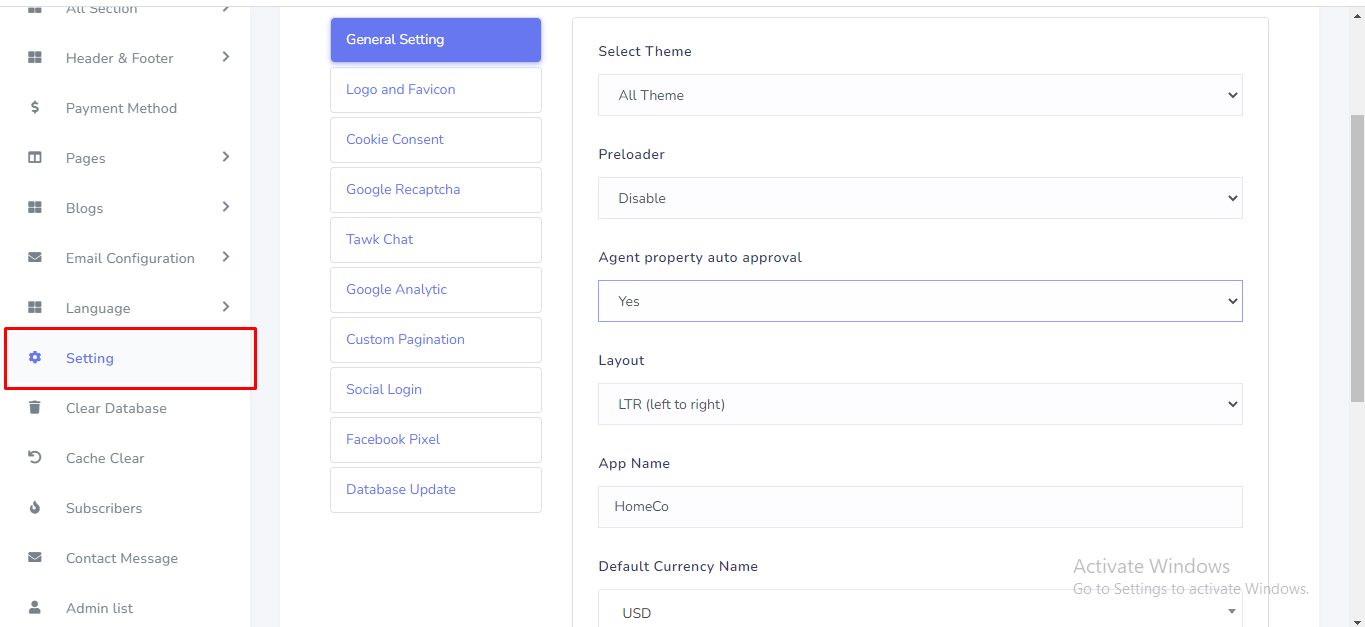
Website General Setting can be set up from the admin panel. In this section admin can be change website layout (RTL or LTR), Default Currency, Timezone, Currency Icon, Preloader ON/OFF, Property Auto Approval, App Name etc. Go to Setting >> General Setting. See:
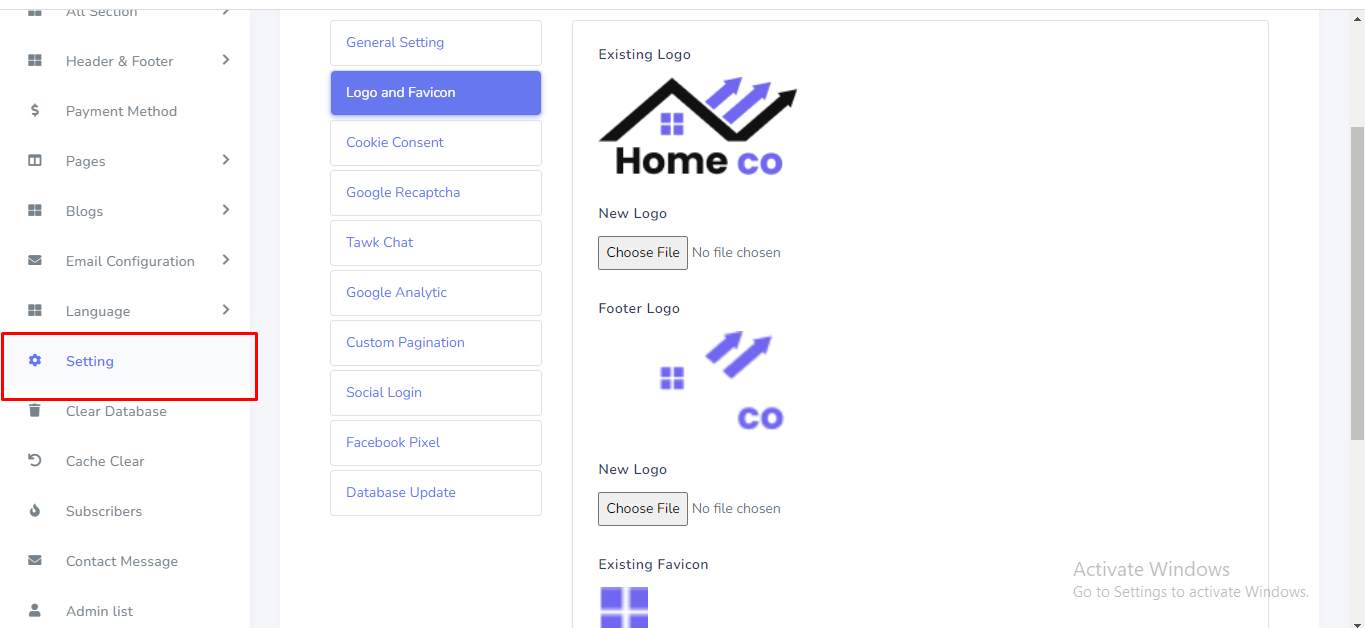
Logo and favicon can be set up from the admin panel. Go to "Setting" from the sidebar. See:
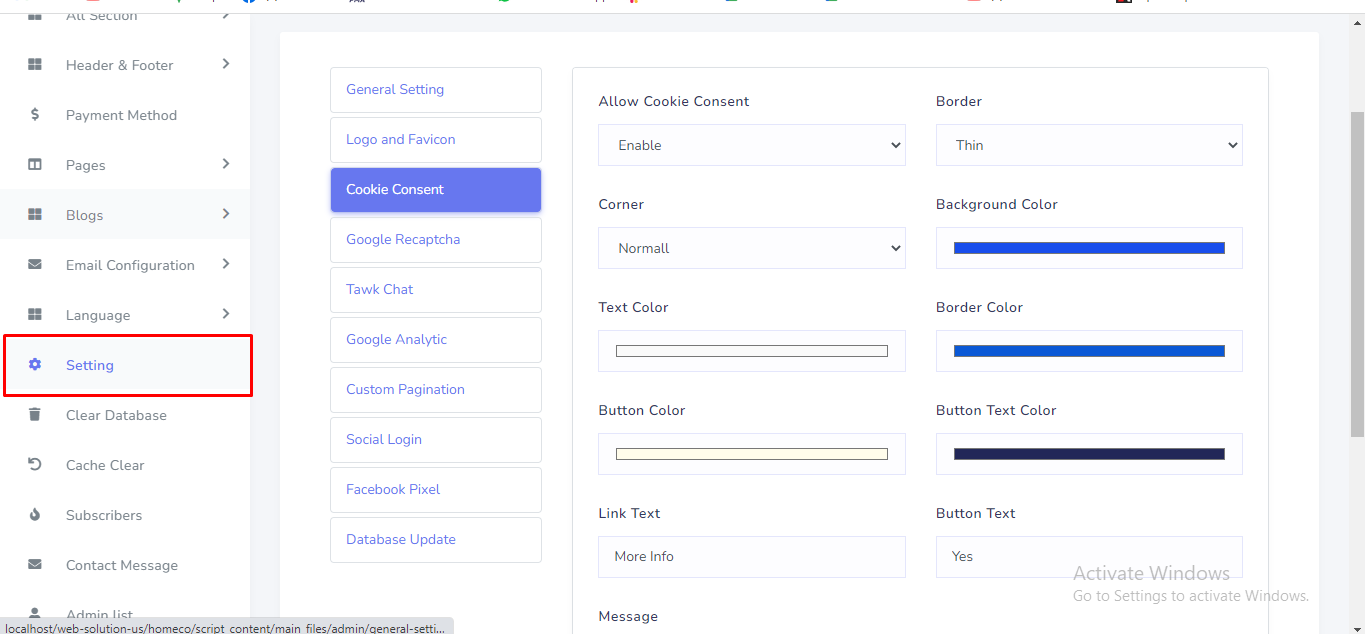
Cookie consent can be set up from the admin panel. Go to "Setting" from the sidebar. See:
Google Recaptcha can be set up from the admin panel. Go to "Setting" from the sidebar. See:
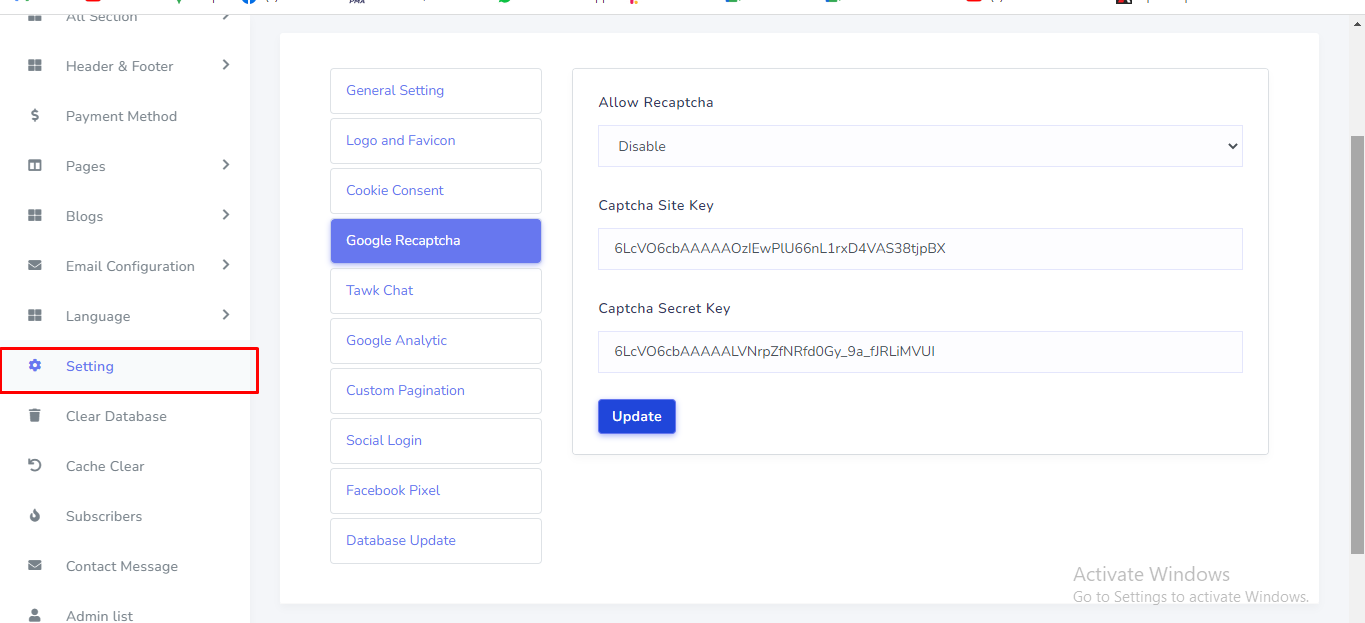
To get your recaptcha keys, go to this link:
https://www.google.com/recaptcha/admin/create
Select version 2.
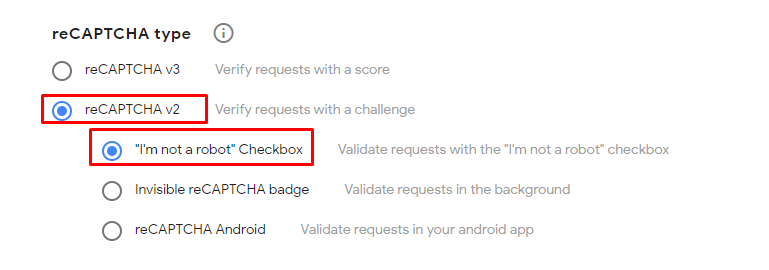
Add your website's domain name or subdomain name here and after submit you will get a site key and secret key.
Tawk Live Chat can be set up from the admin panel. Admin can be enable and disable live chat option. Go to "Setting" from sidebar. See:
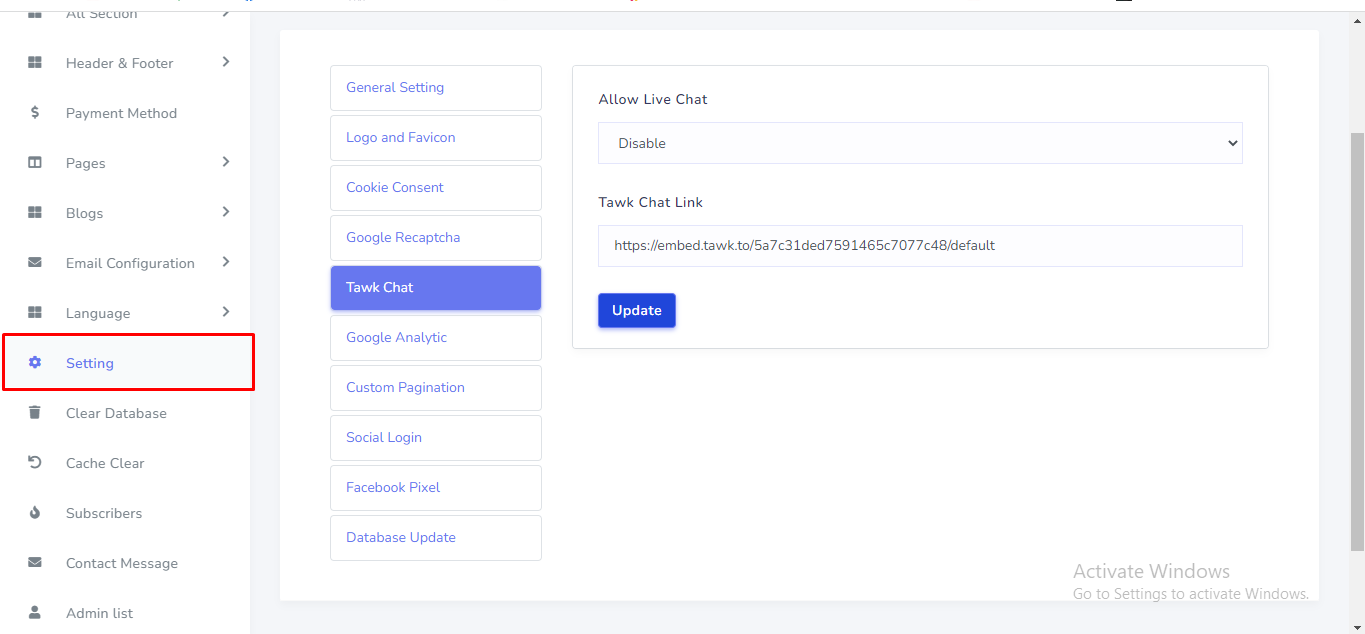
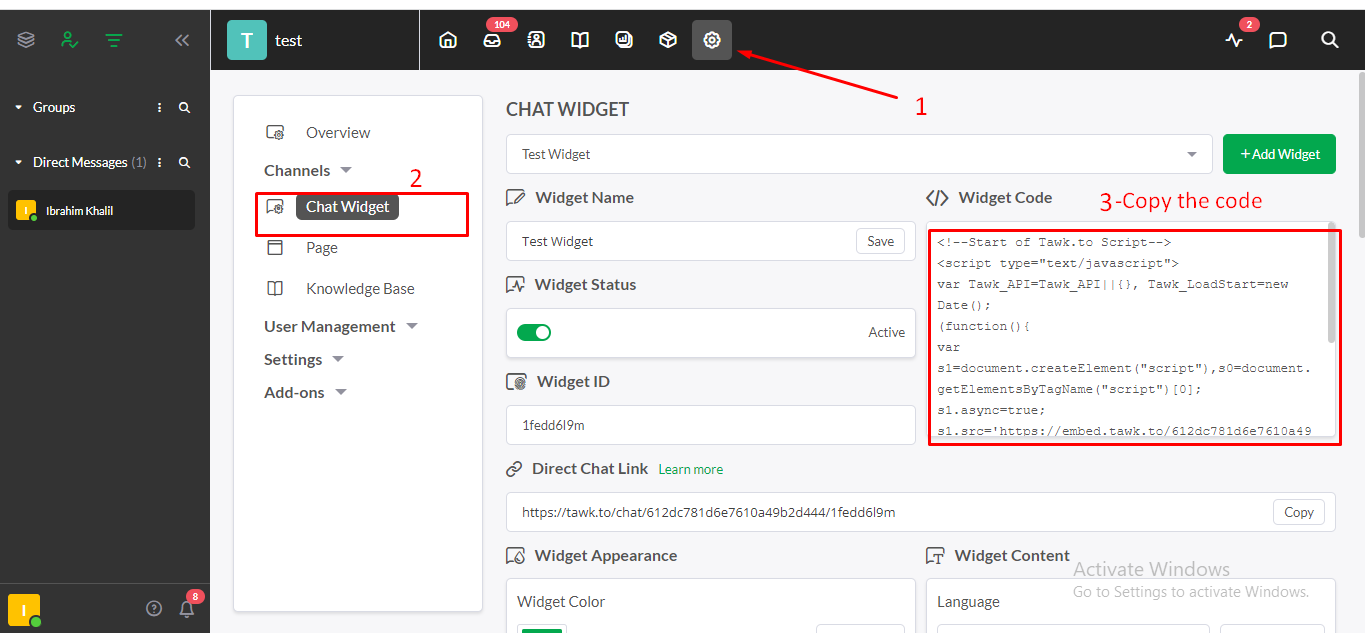
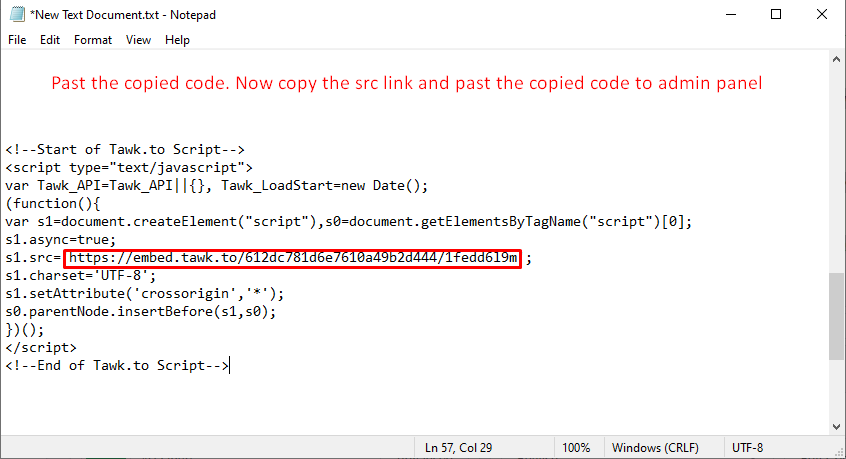
Now open a new text file on your computer and past the copied code. Now Copy the src link and past to the admin panel. See attached file :
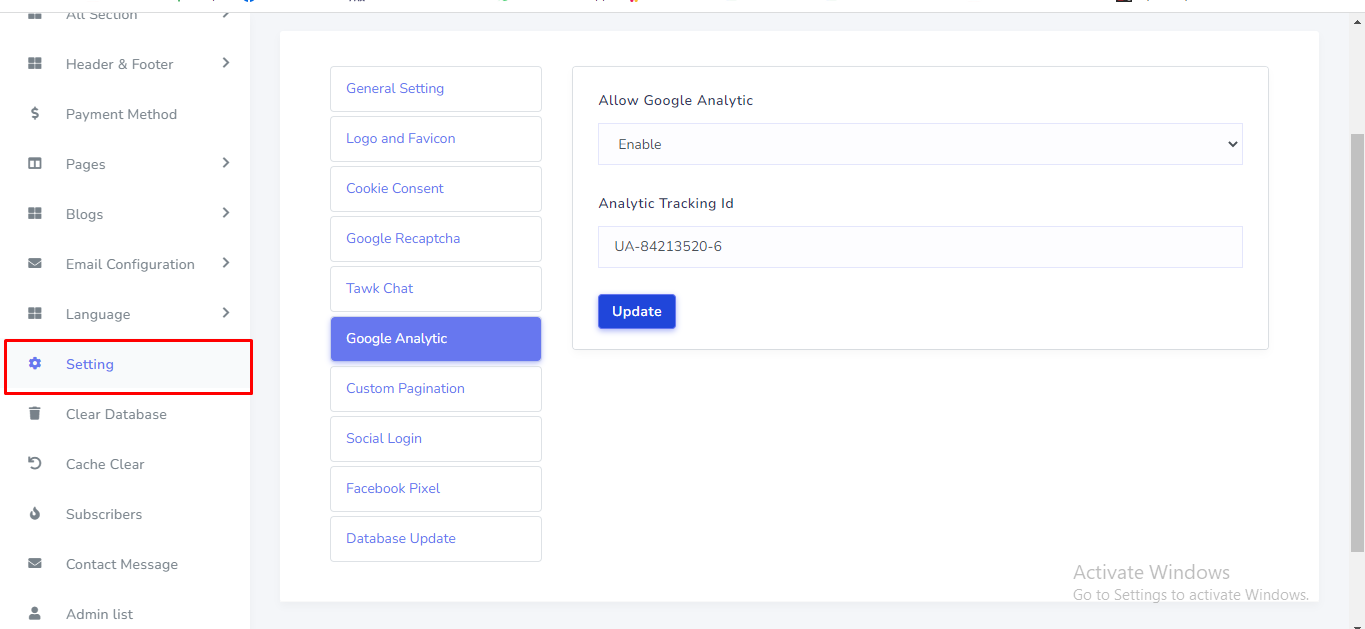
Google Analytic can be set up from the admin panel. Go to "Setting" from sidebar. See:
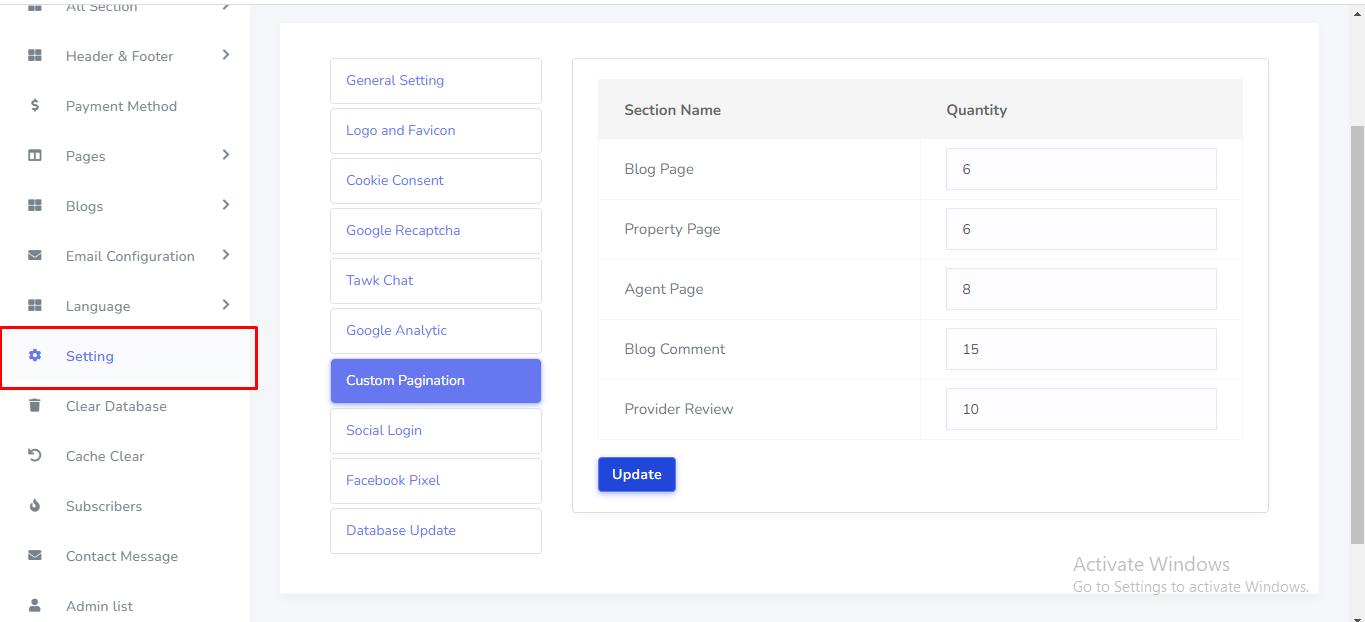
Custom Pagination can be set up from the admin panel. Go to "Setting" from sidebar. See:
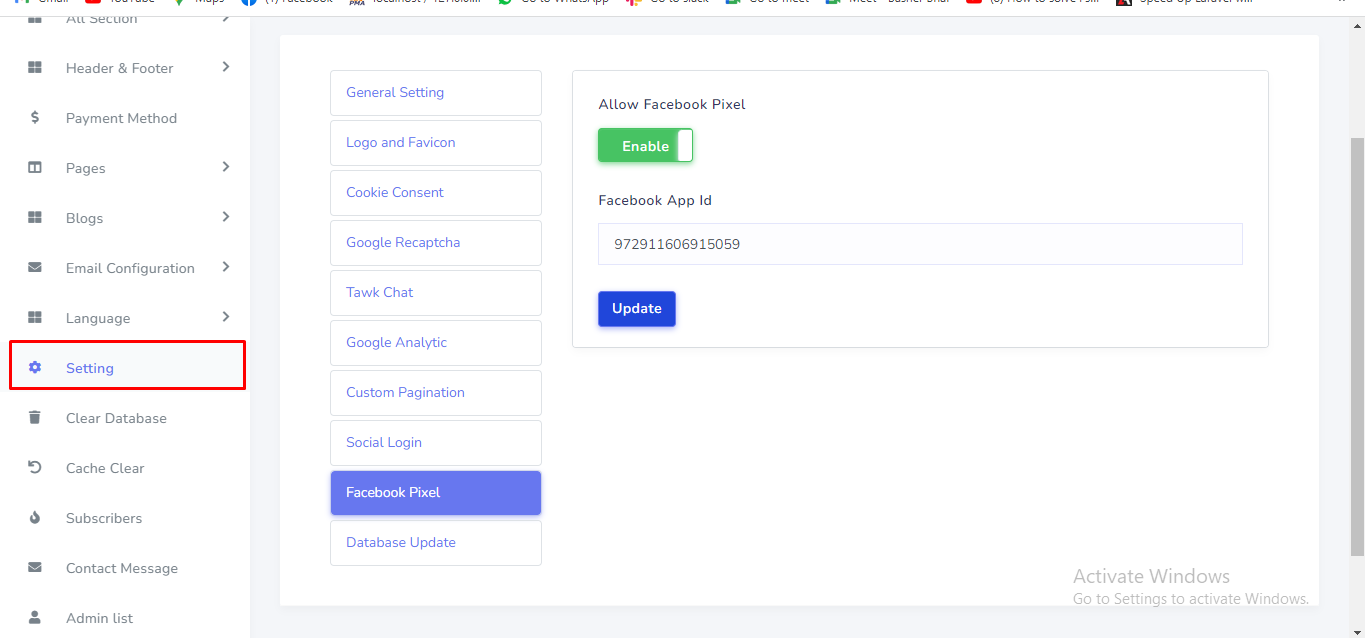
Facebook pixel credential can be set up from the admin panel. Go to "Setting" from sidebar. See:
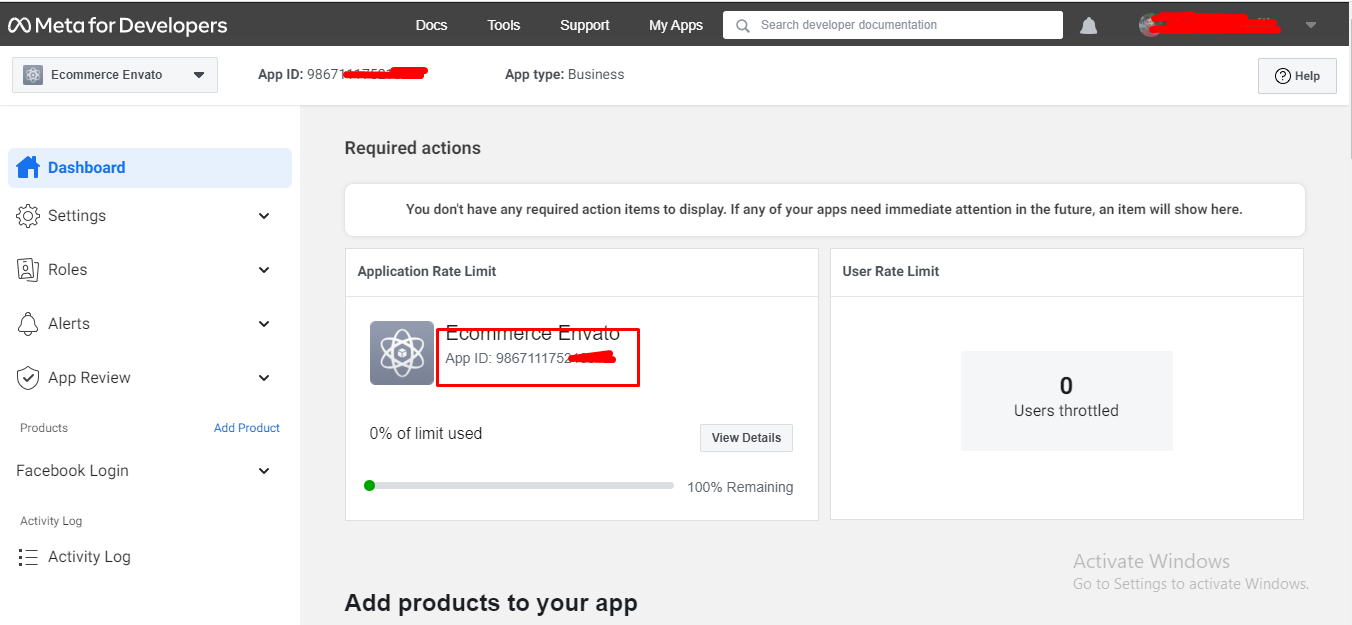
To get your facebook app id. Go to this link and create a new app:
https://developers.facebook.com/
Admin can be change home page each section header and description. What is header and description ? Please See:
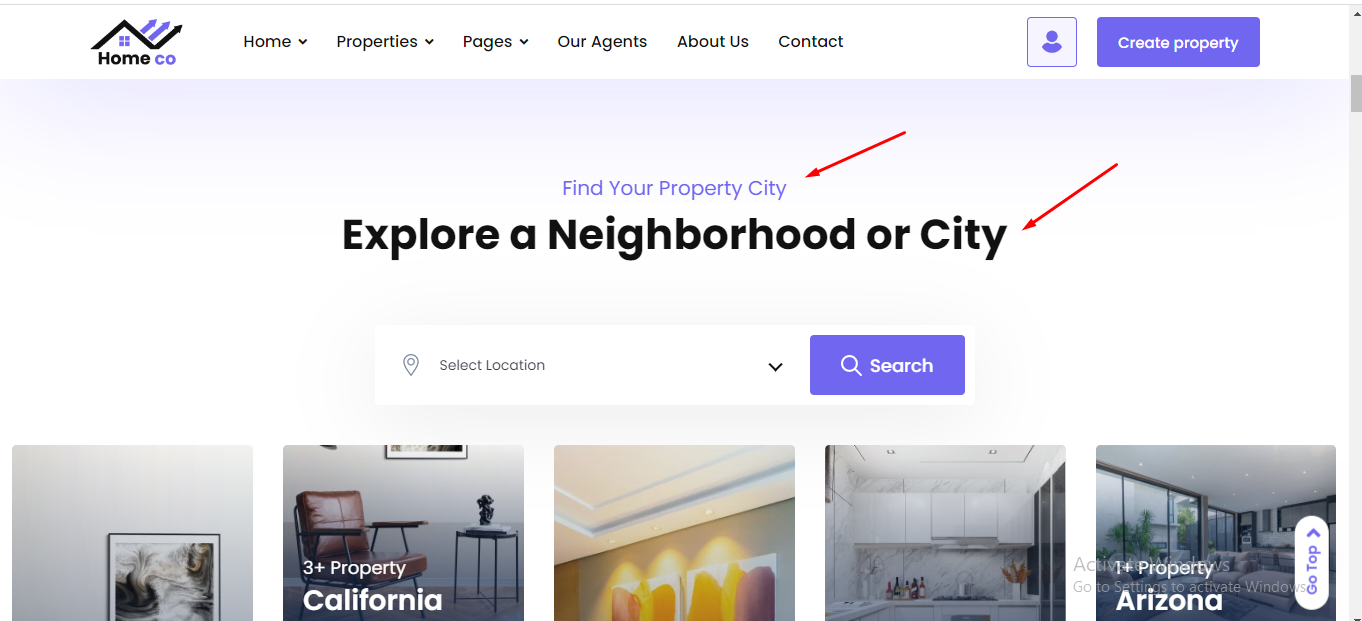
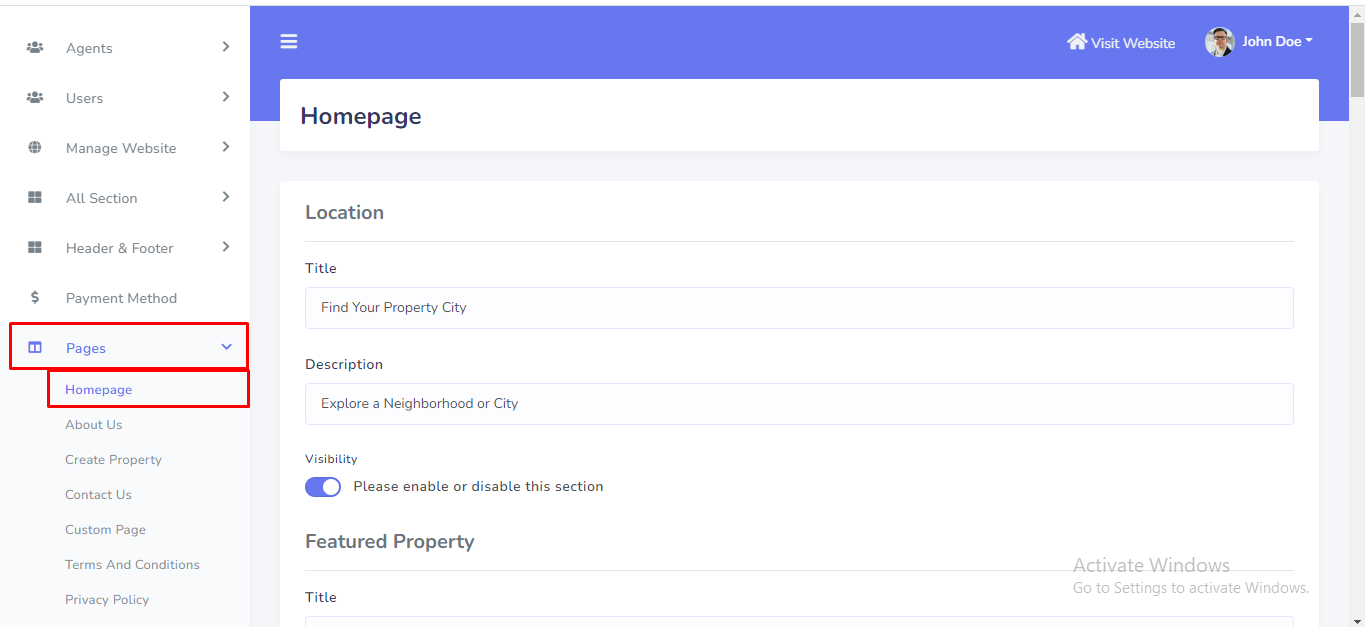
How can admin change ? Go to Pages >> Homepage. See:
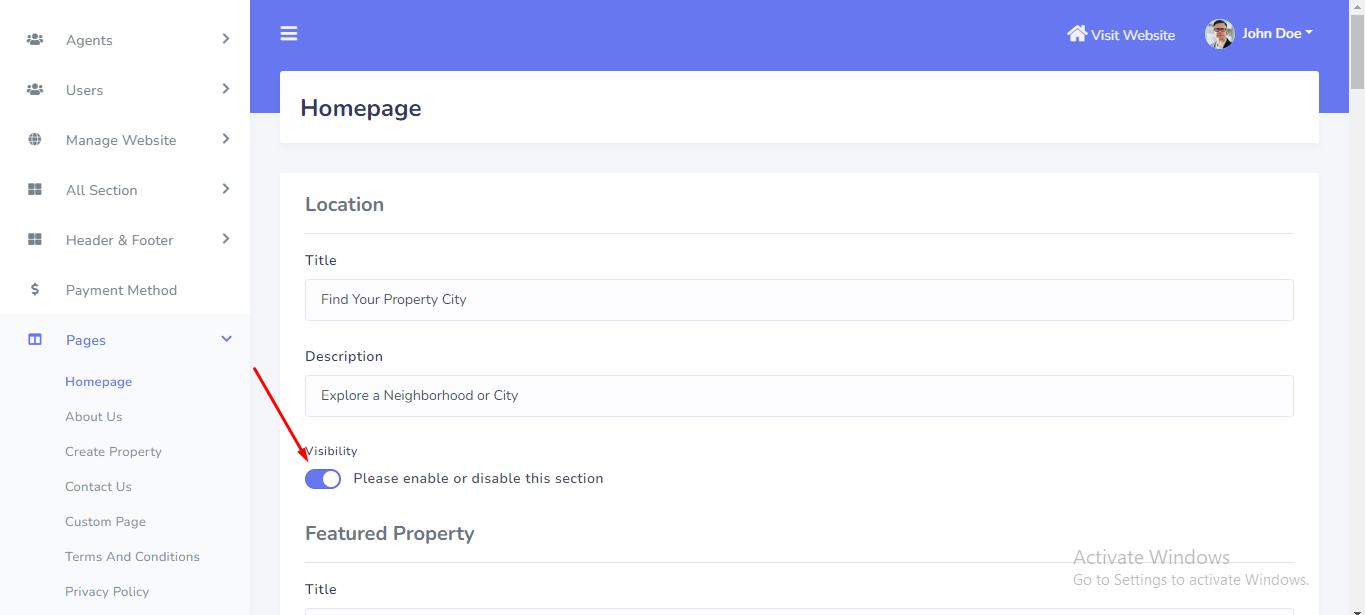
Also admin can Enable/Disable each section visibility status from here. See:
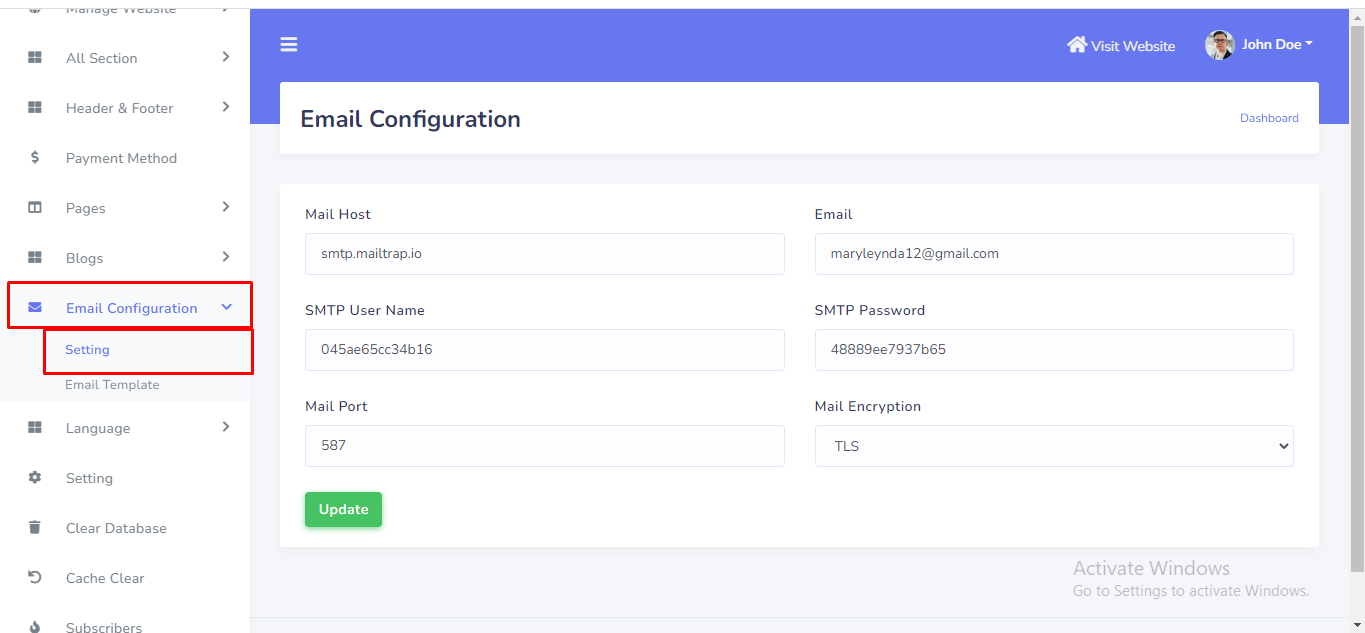
SMTP Email can be set up from the admin panel. Go to "Emai configuration > Setting". See:
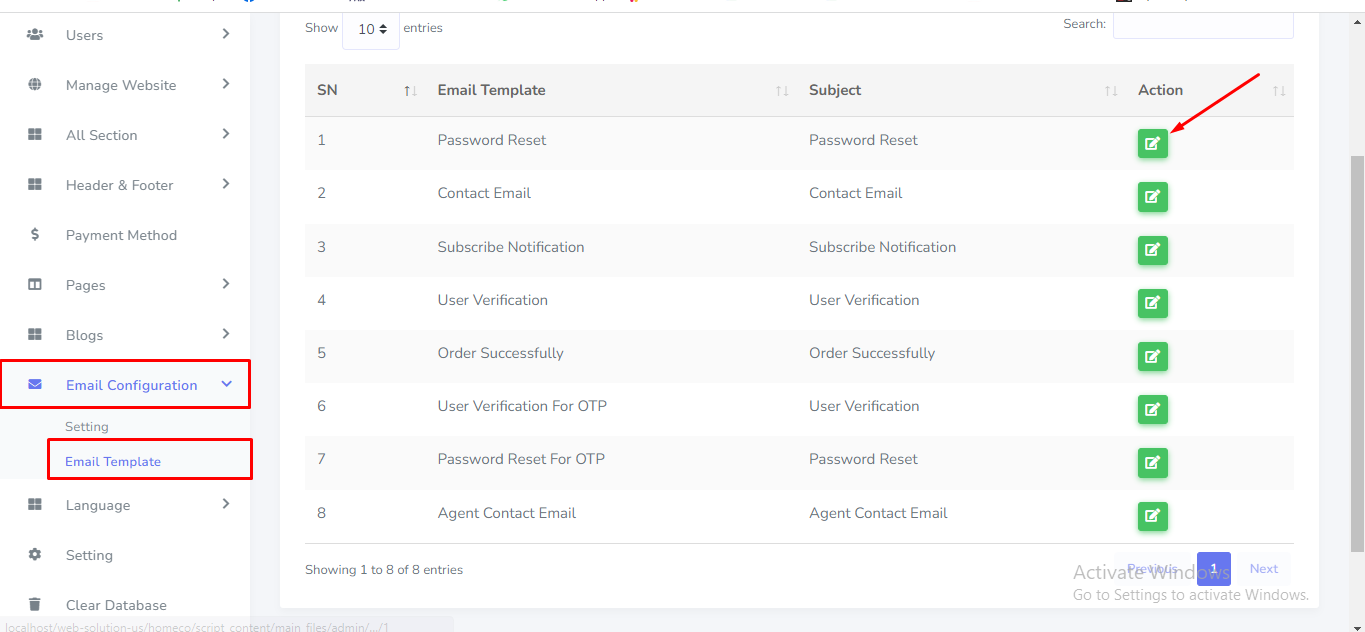
Email template can be set up from the admin panel. Go to "Emai configuration > email template". See:
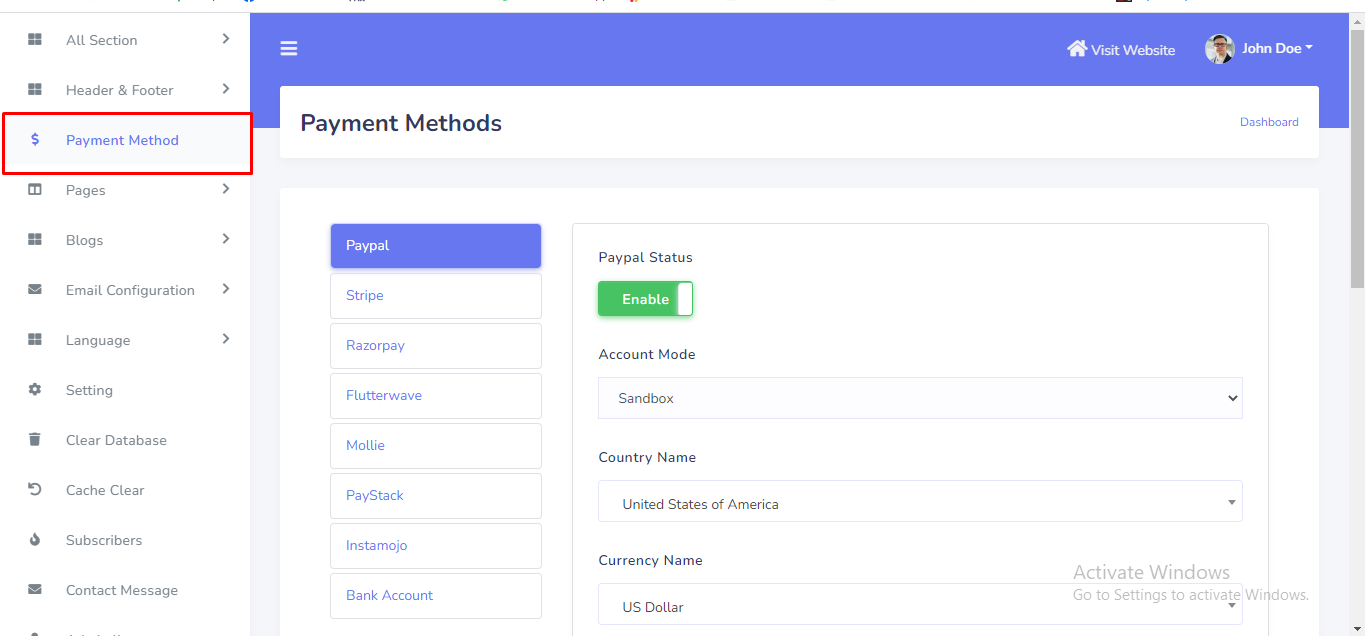
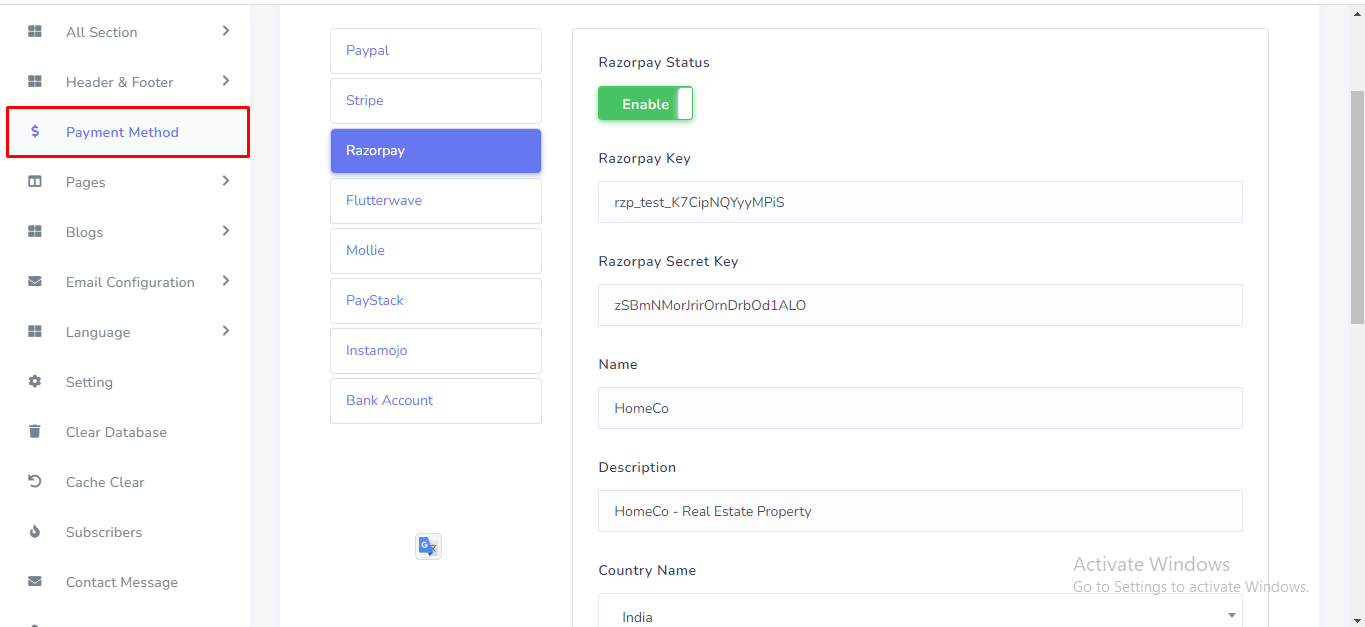
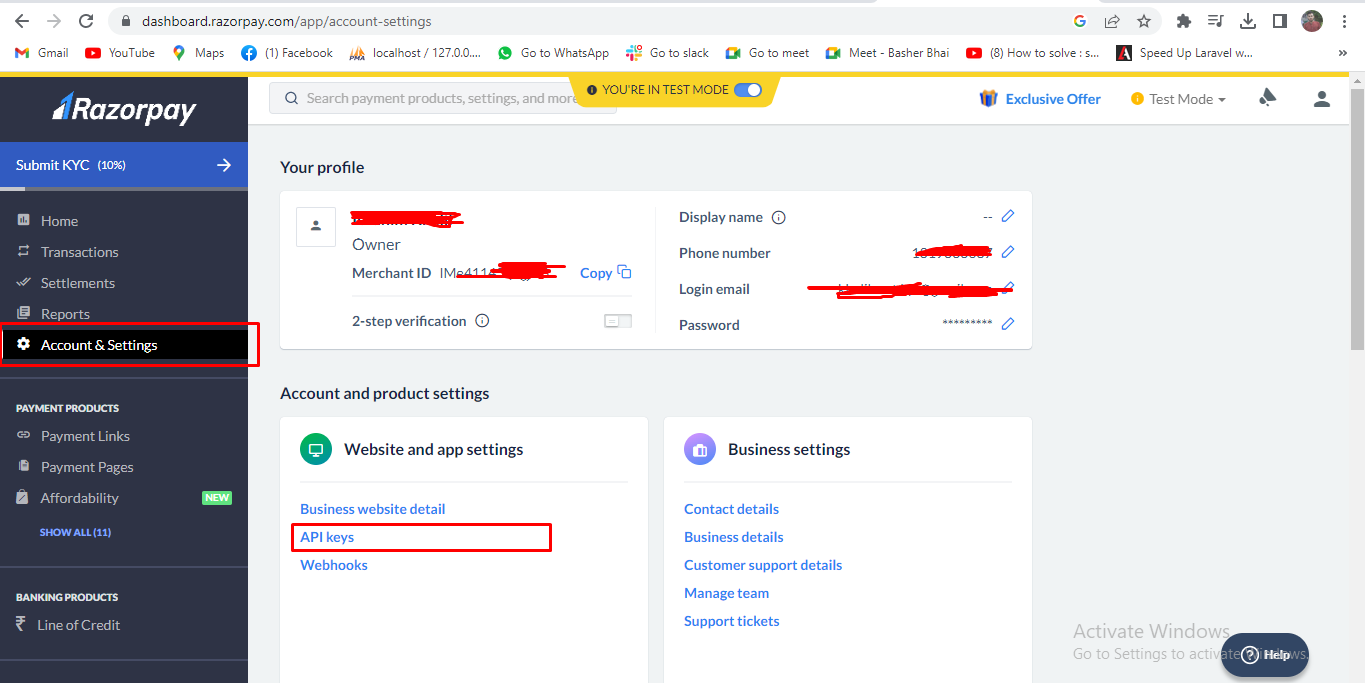
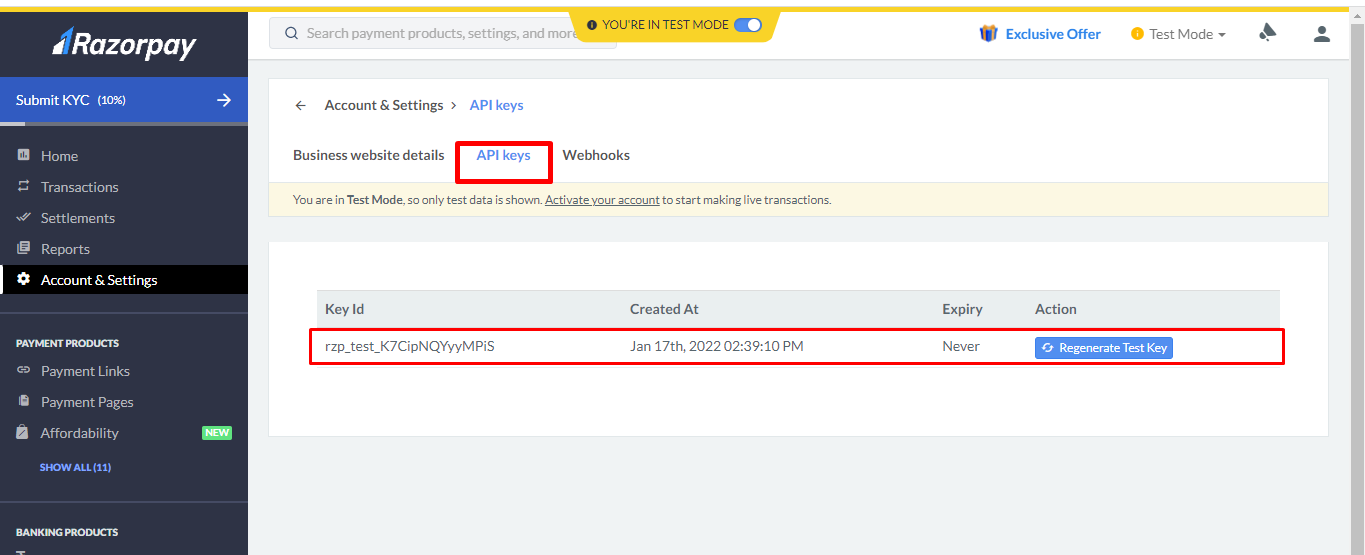
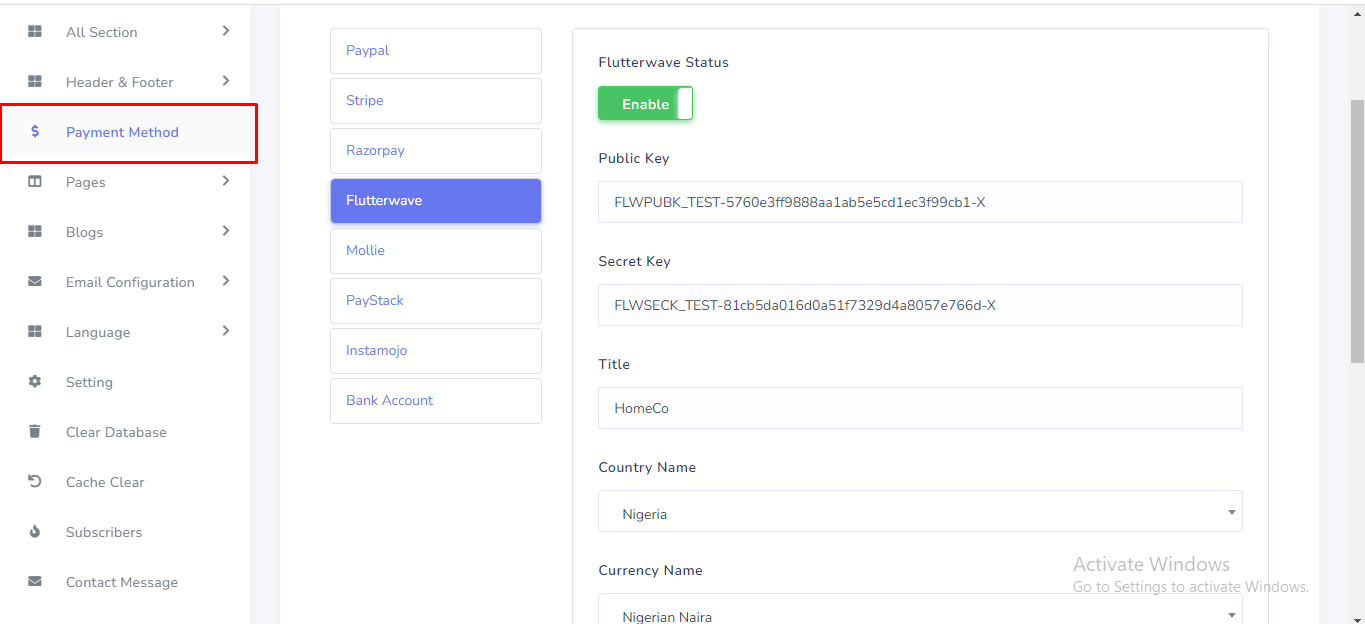
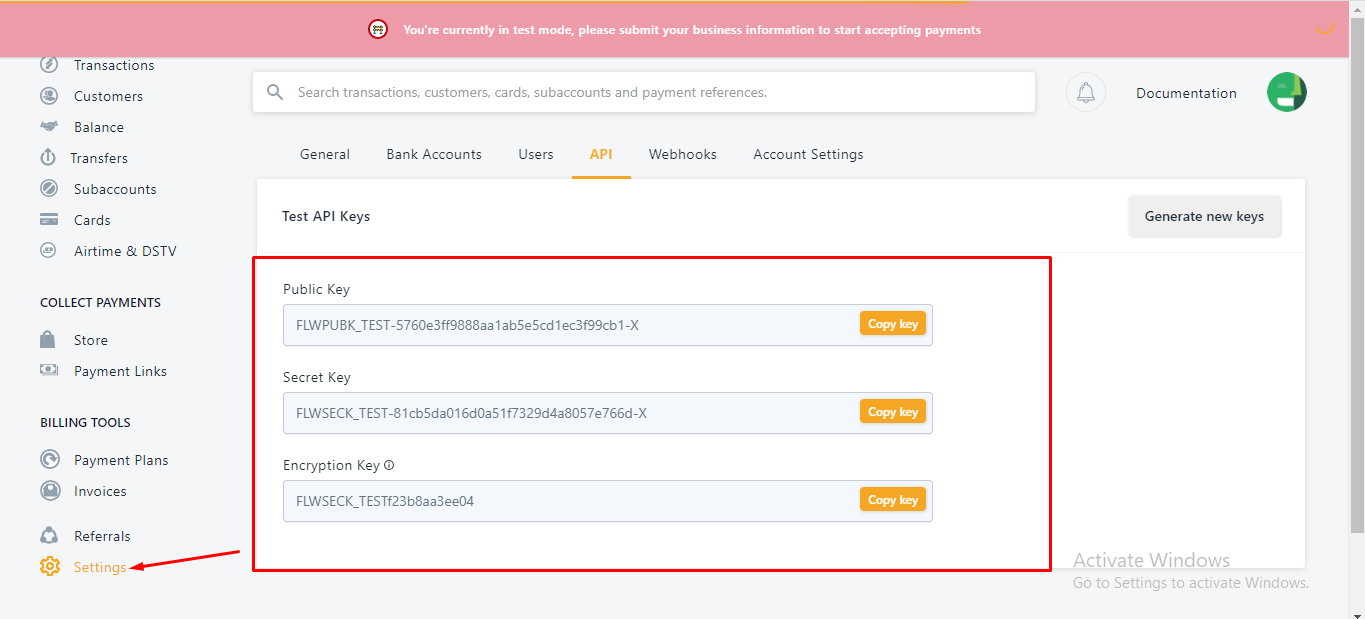
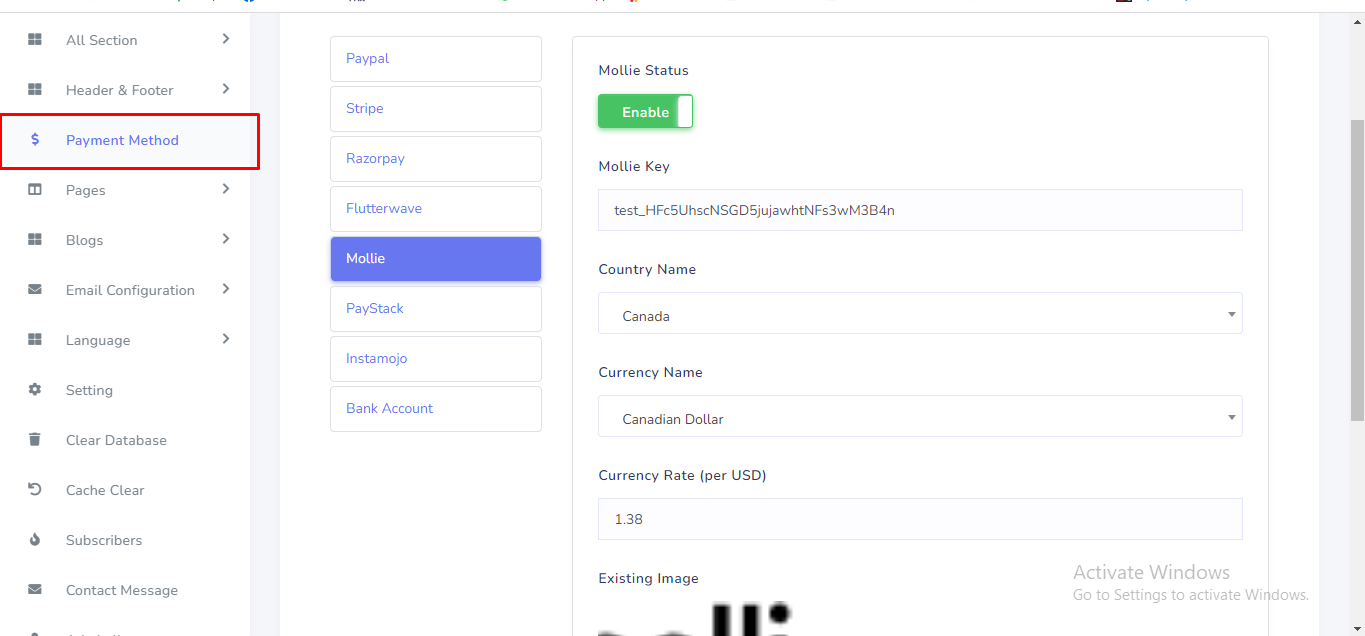
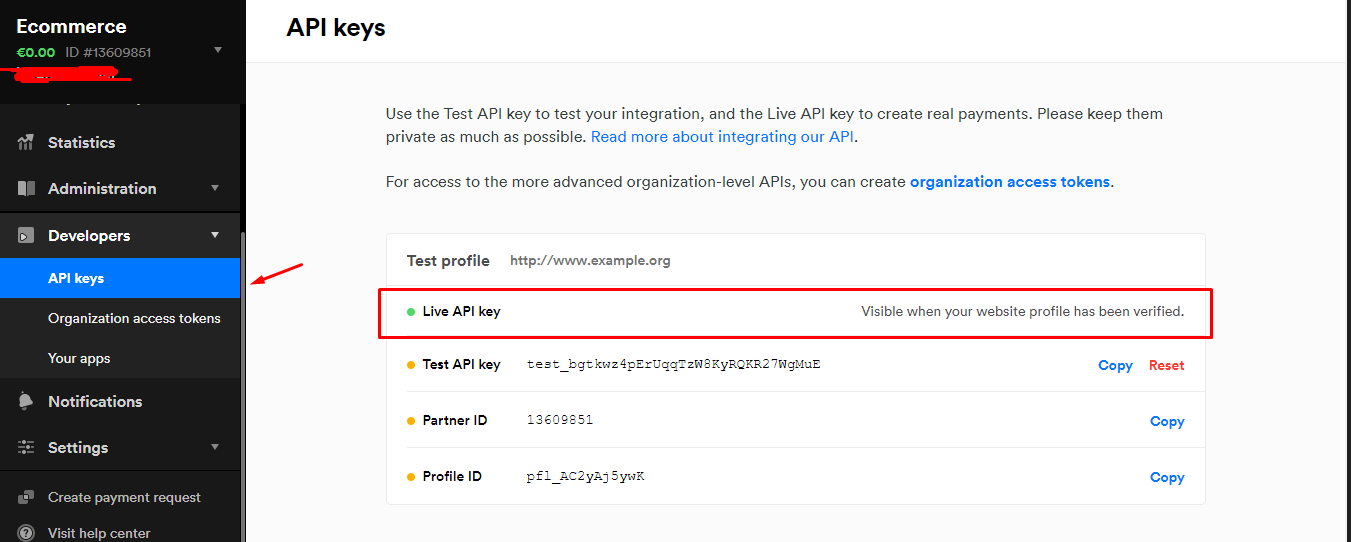
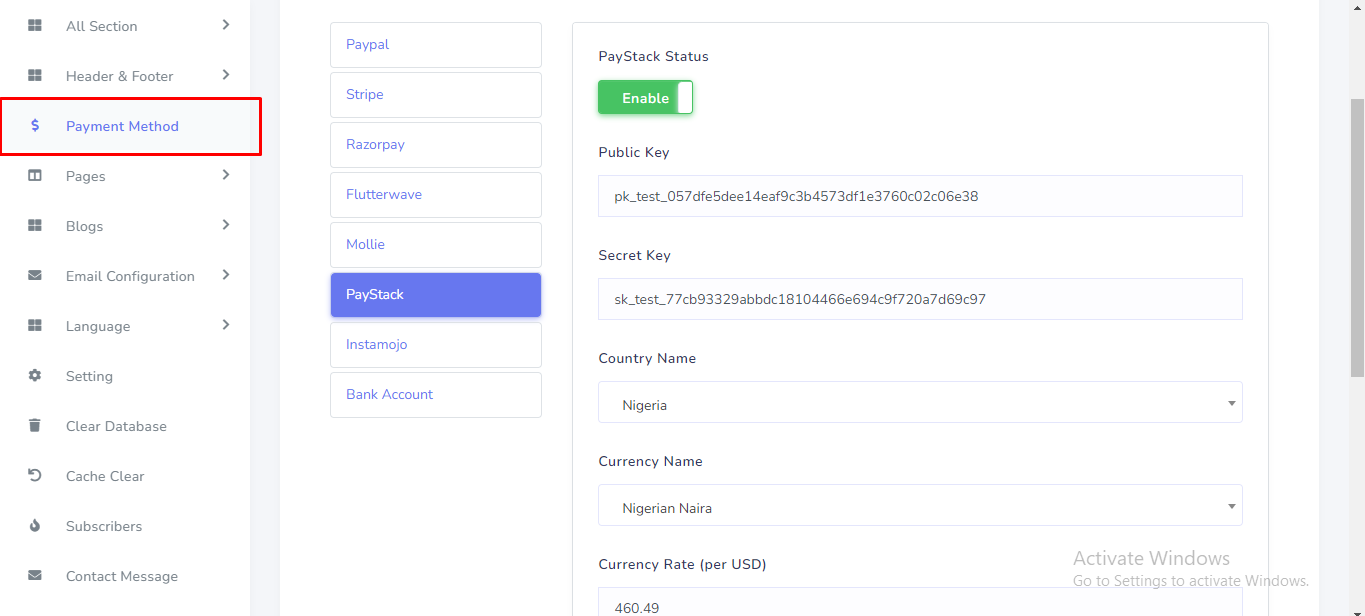
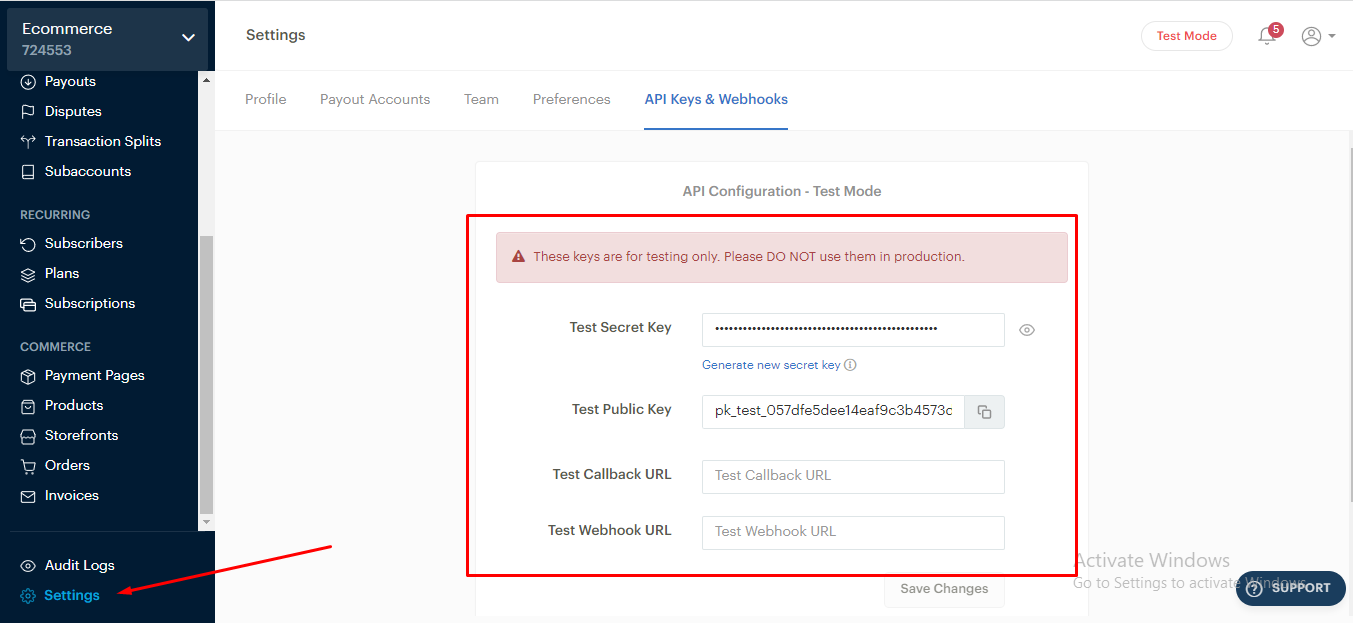
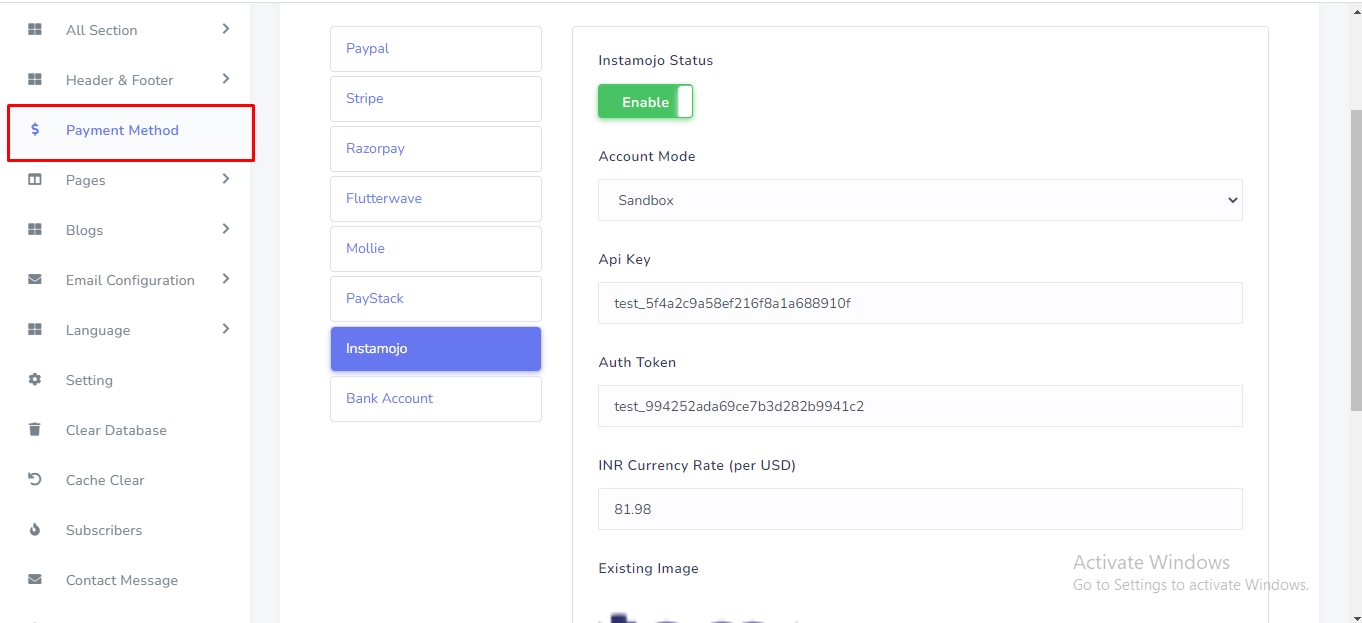
Payment Method can be set up from the admin panel. Go to "Payment Method" from sidebar. See:
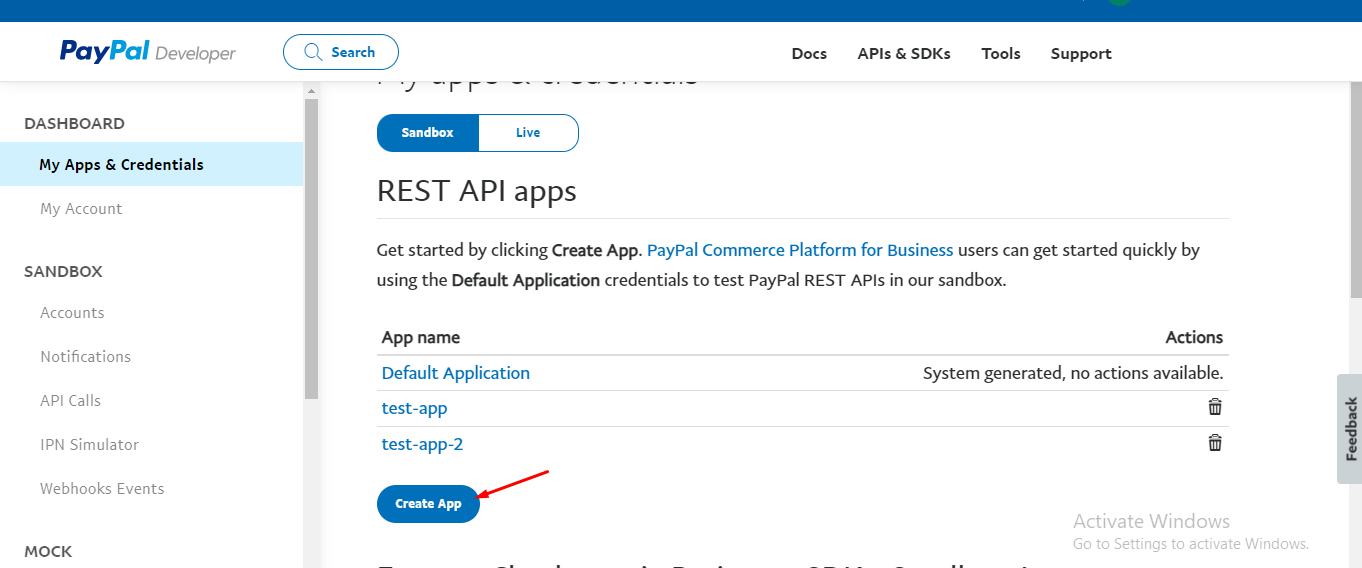
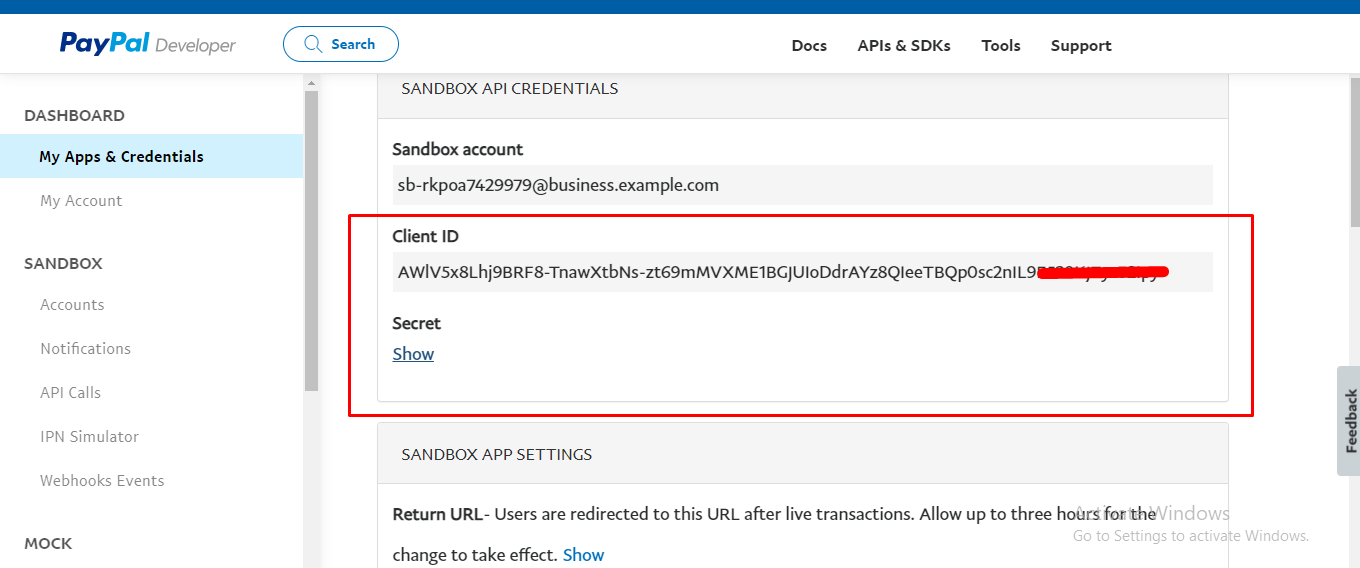
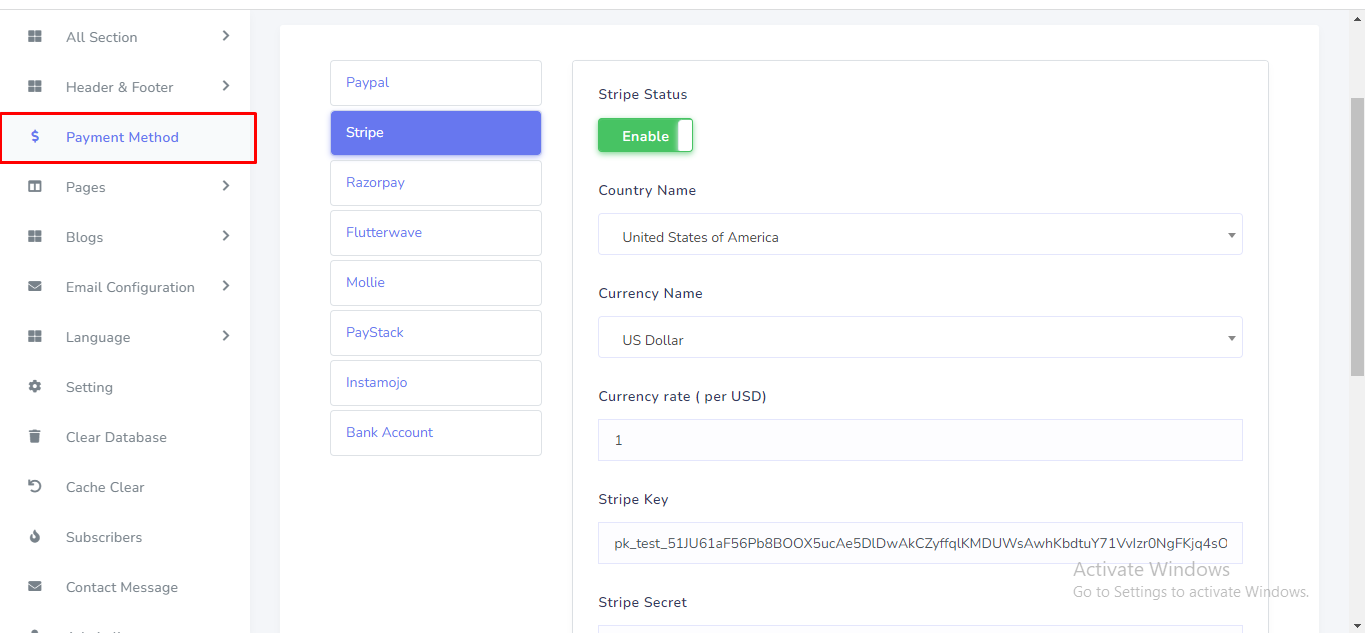
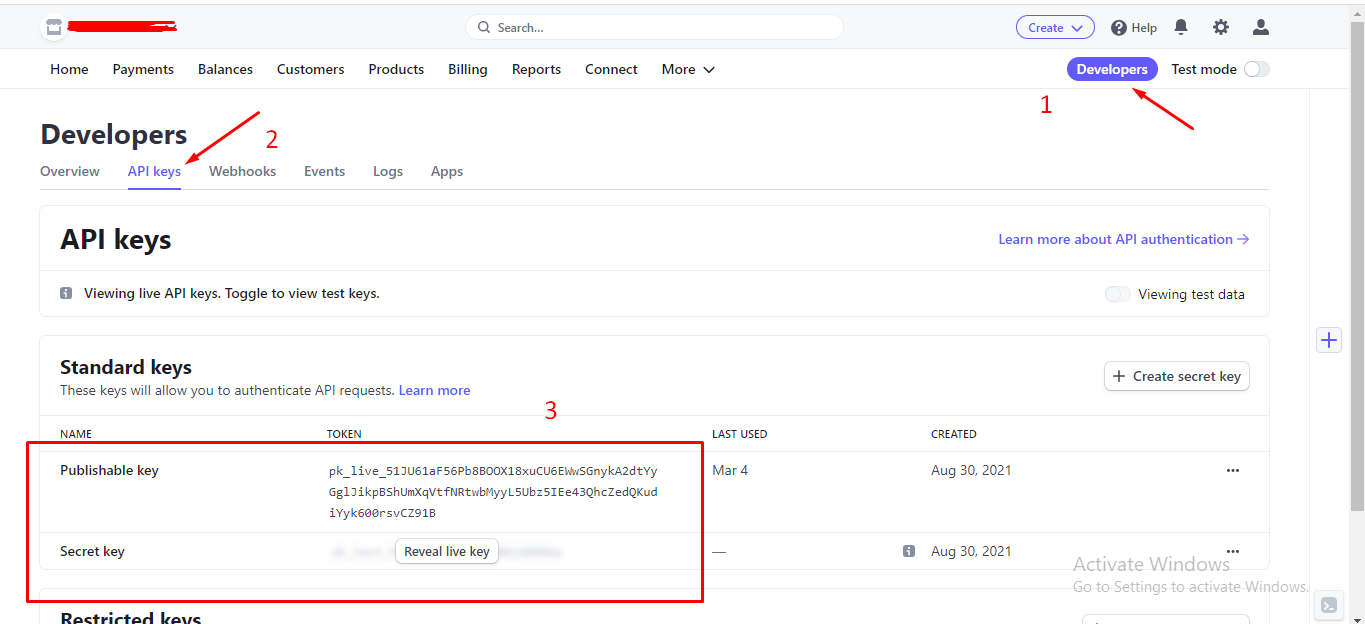
Stripe Payment can be set up from the admin panel. Go to "Payment Method" from sidebar. See:
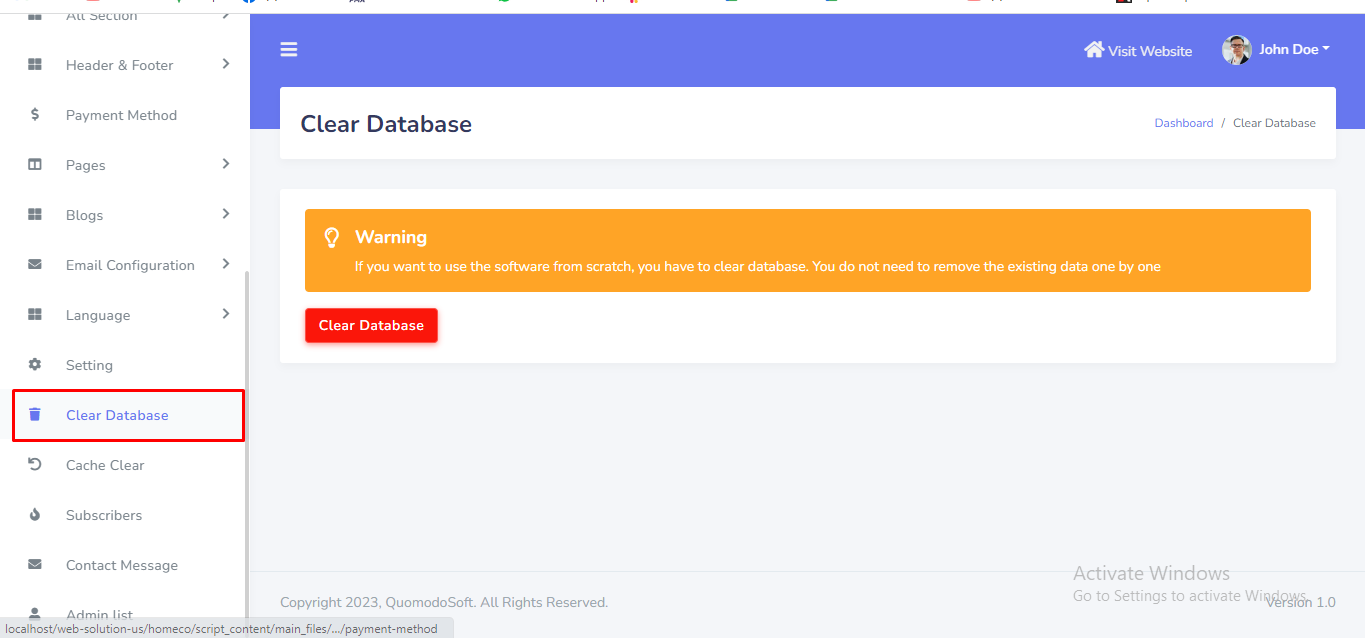
Clear Database setting can be manage from the admin panel. Go to "Clear database" from sidebar. If you want to use the software from scratch, you have to select this option. You do not need to remove the existing data one by one. See:
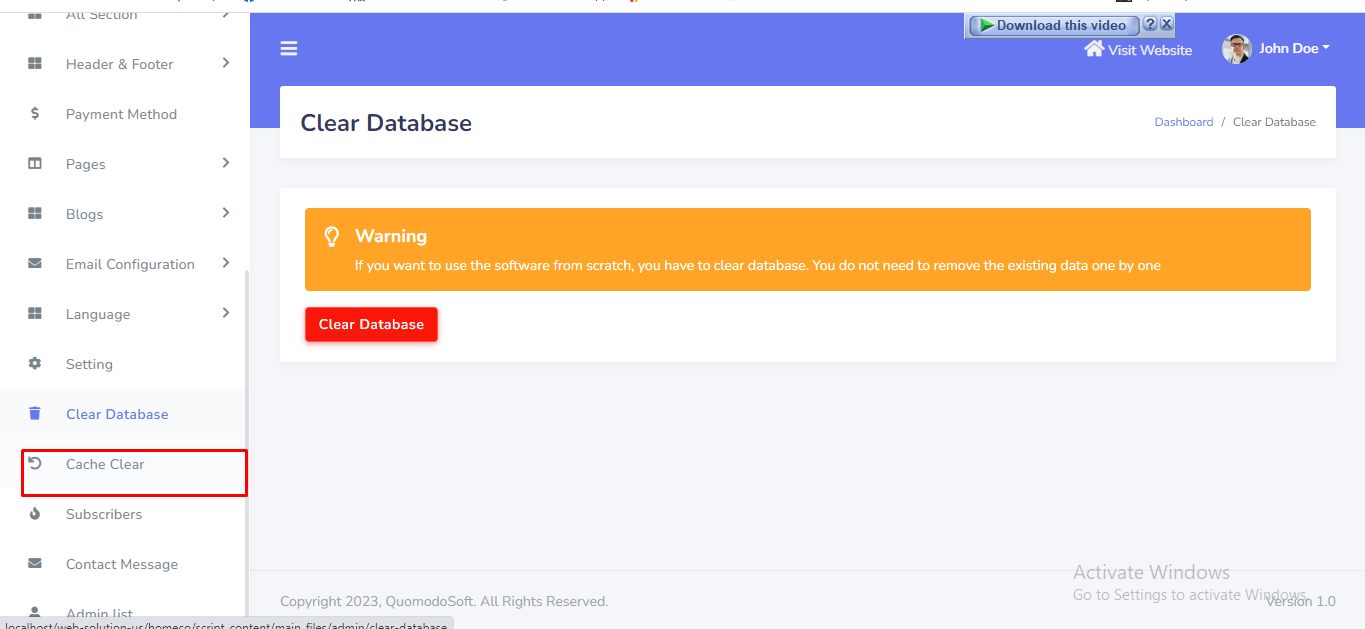
Remove website cache issue admin can be manage from here. See:
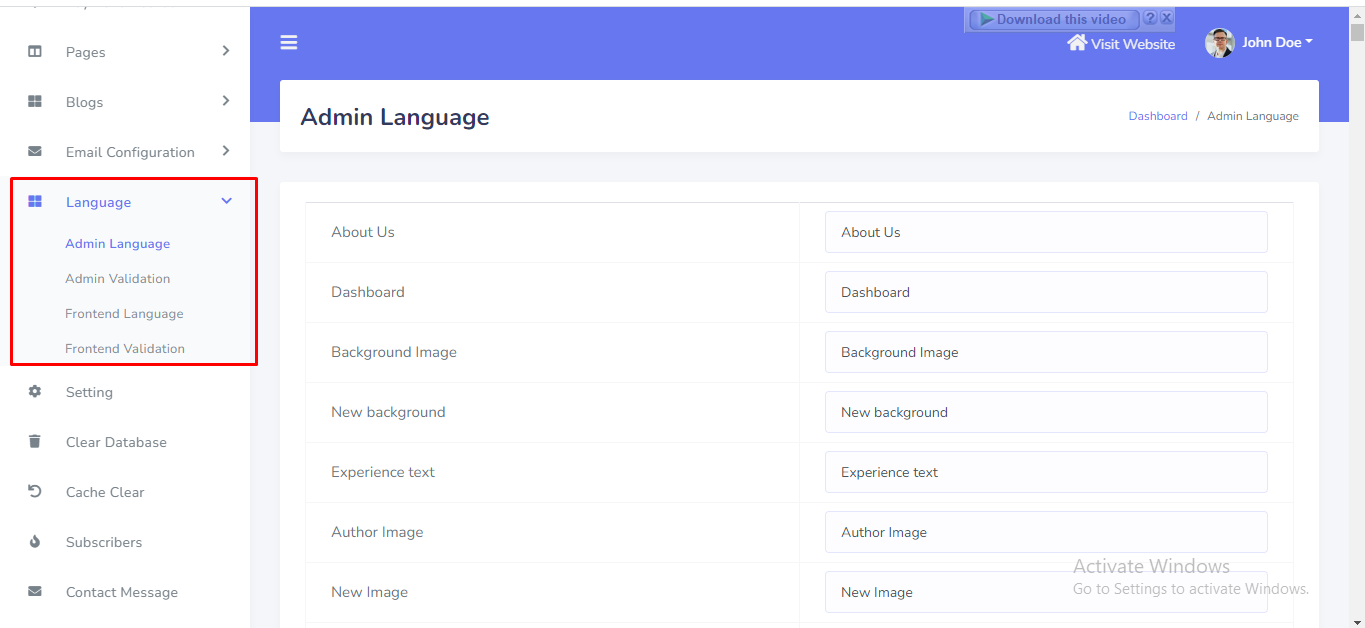
Website language can be set up from the admin panel. Admin can change frontend language and admin panel language from here. Go to "Language >>...." from sidebar. See:
Website Footer can be set up from the admin panel. Go to "Header & Footer >> Footer >>...." from sidebar. See:


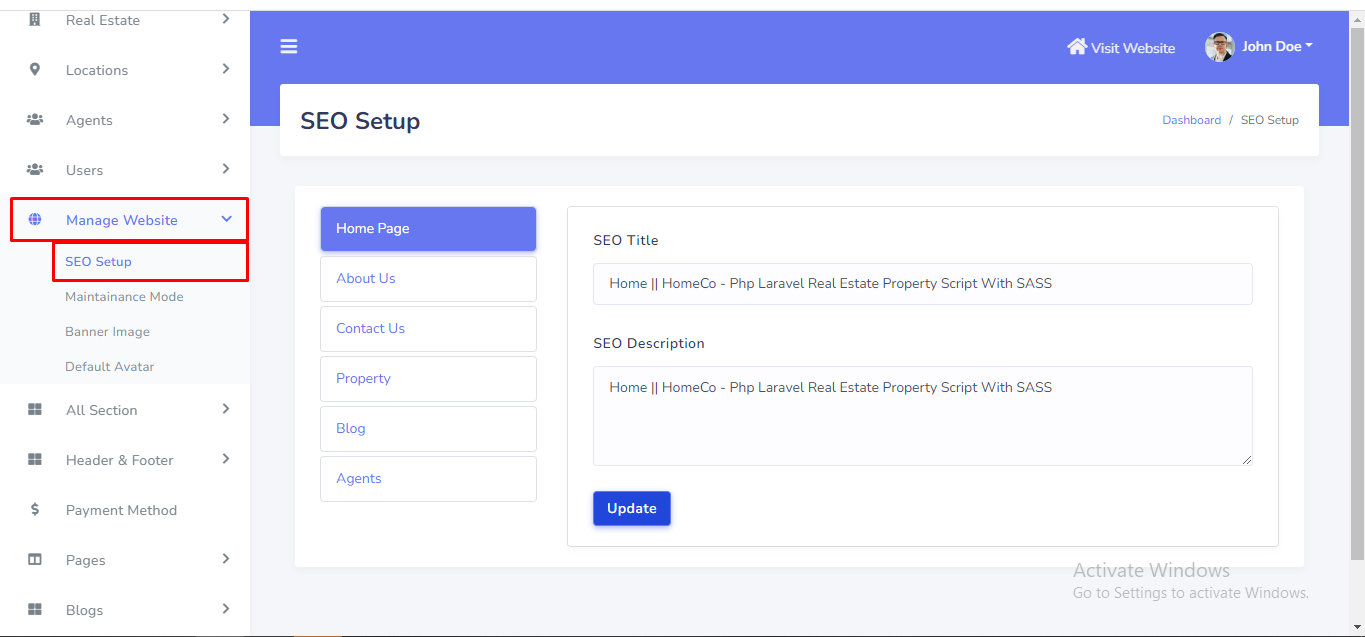
SEO setting can be setup from the admin panel. Go to "Manage website >> SEO setup" from sidebar. See:
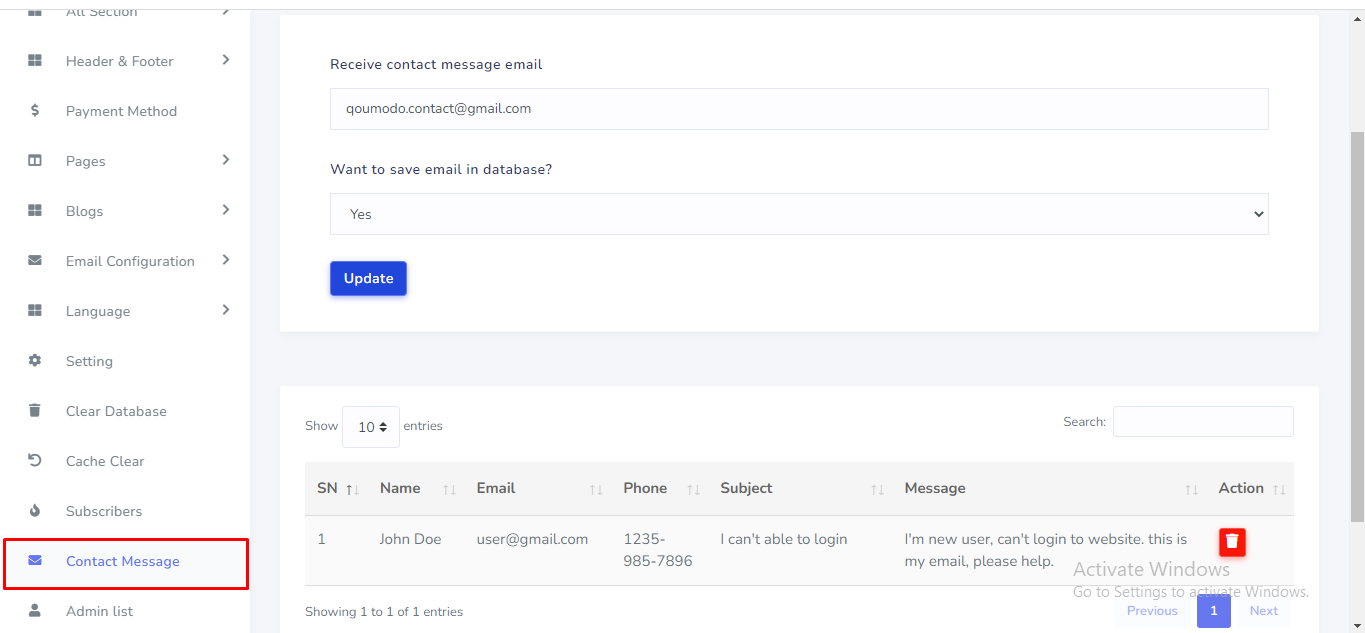
Contact Message can be manage from the admin panel. Contact message save in database enable or disable system available here. Go to "Contact Message" from sidebar. See:
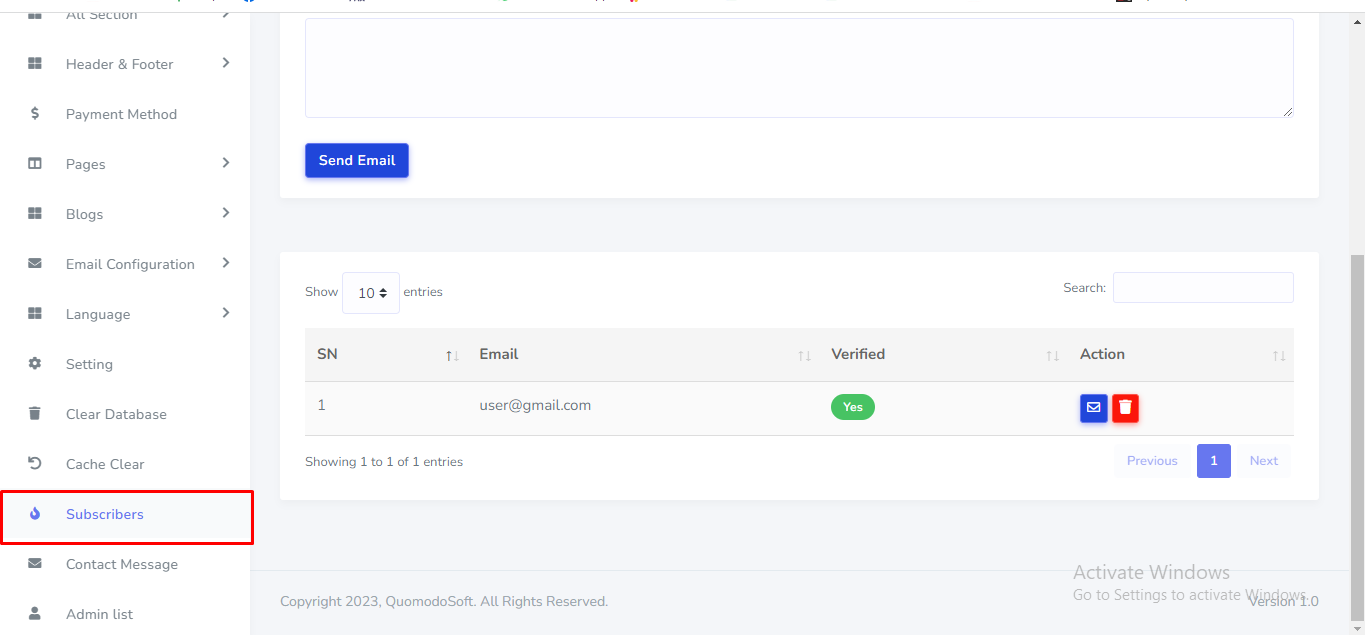
Subscription email can be manage and send mail from the admin panel. Go to "Subscribers".See:
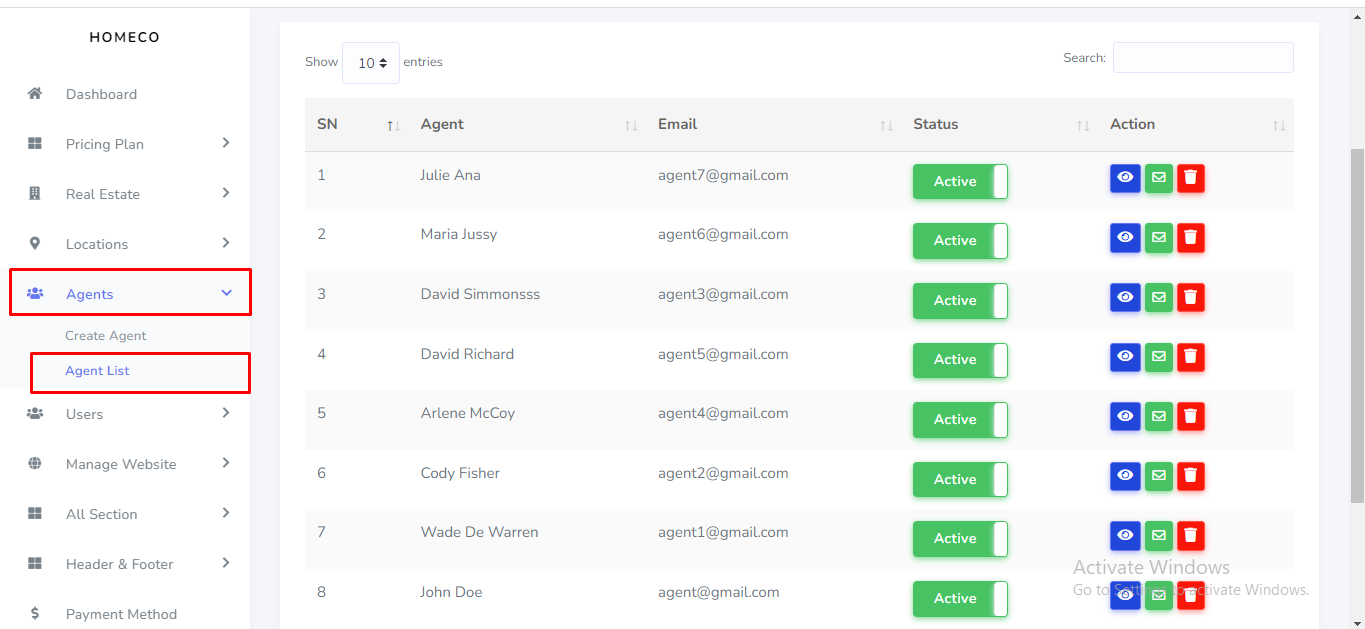
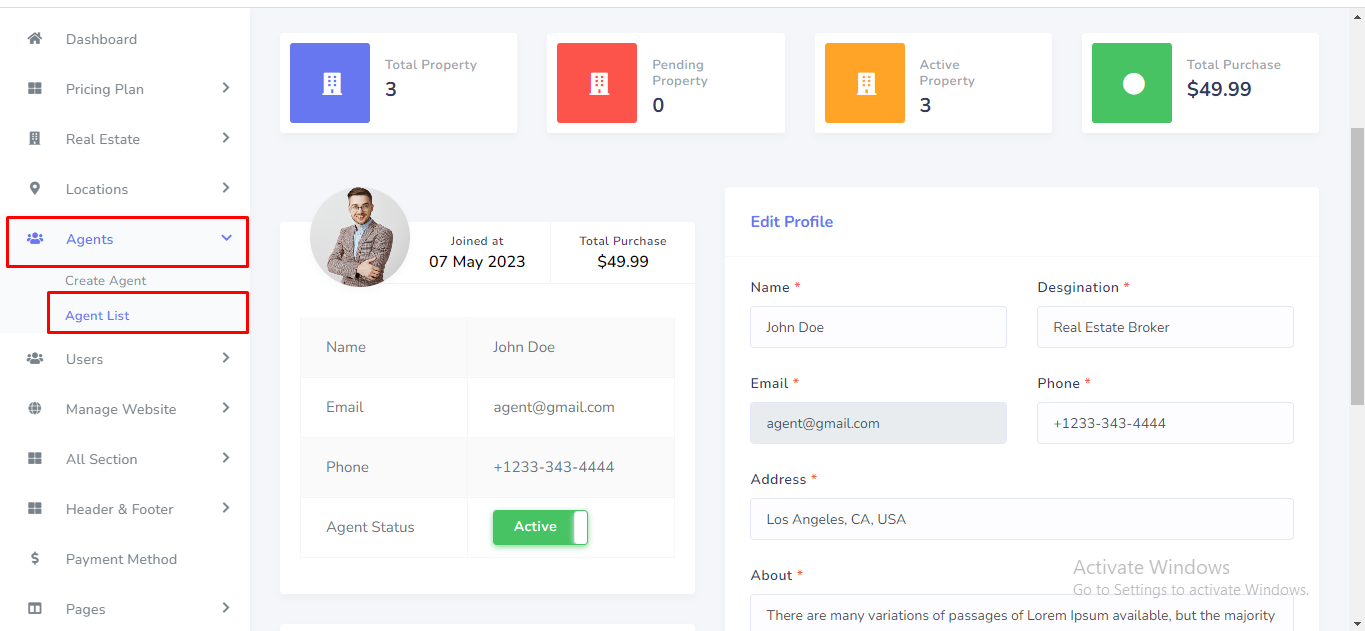
Agent can be manage from the admin panel. In this section admin can be able to see agent list, agent details and statistics. Go to "Agents >> Agent List".See:
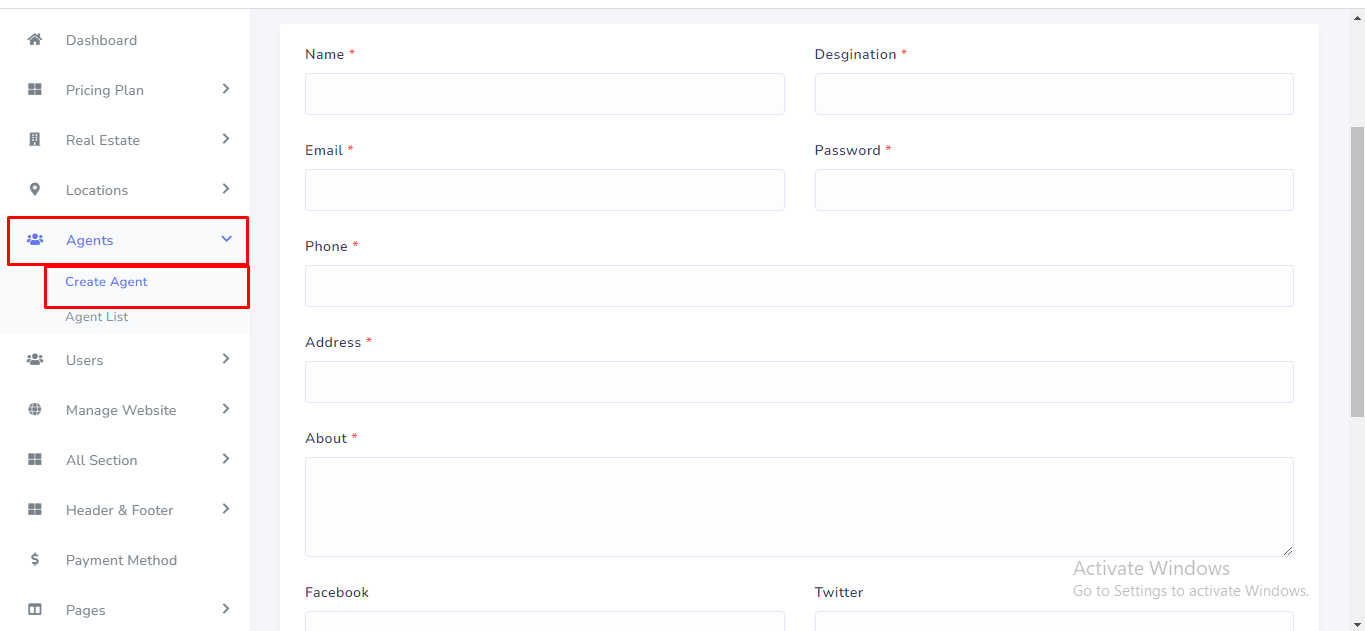
Admin also can be able to create new agent from here. Go to "Agents >> Create Agent".See:
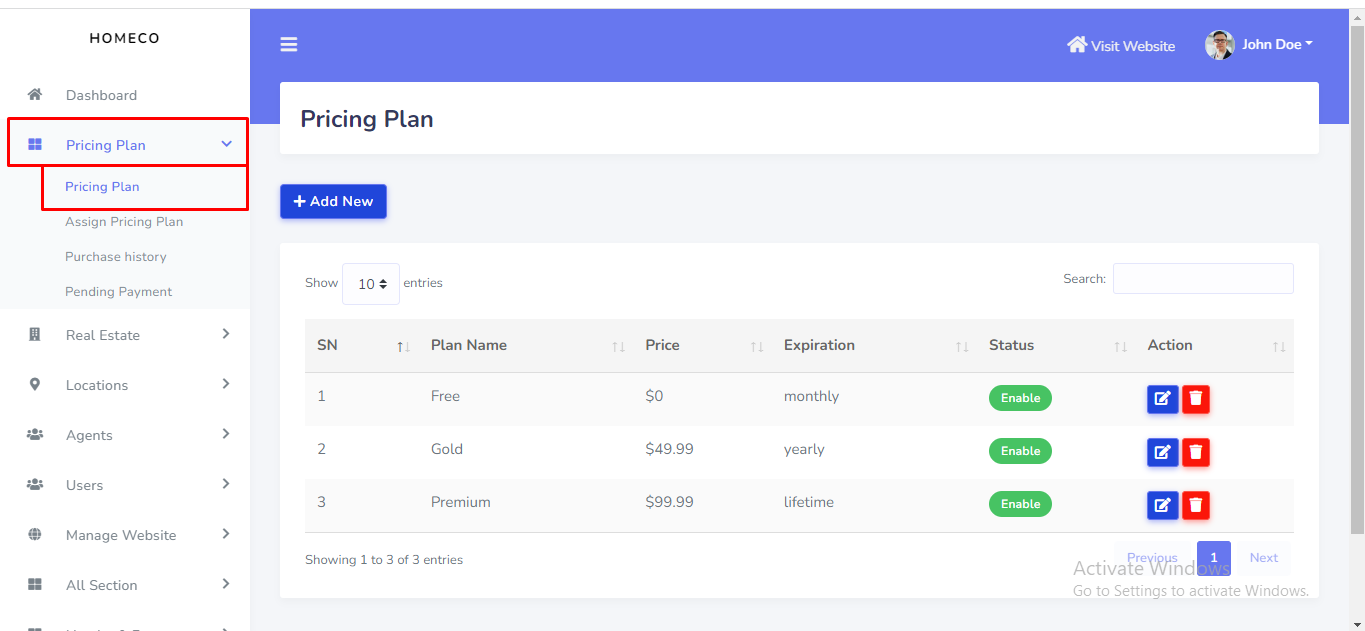
This is the main feature for admin revenue. Admin can add new pricing plan for agent. after purchase/enroll a plan agent can be able to add property listing. Go to "Pricing plan >> Pricing Plan".See:
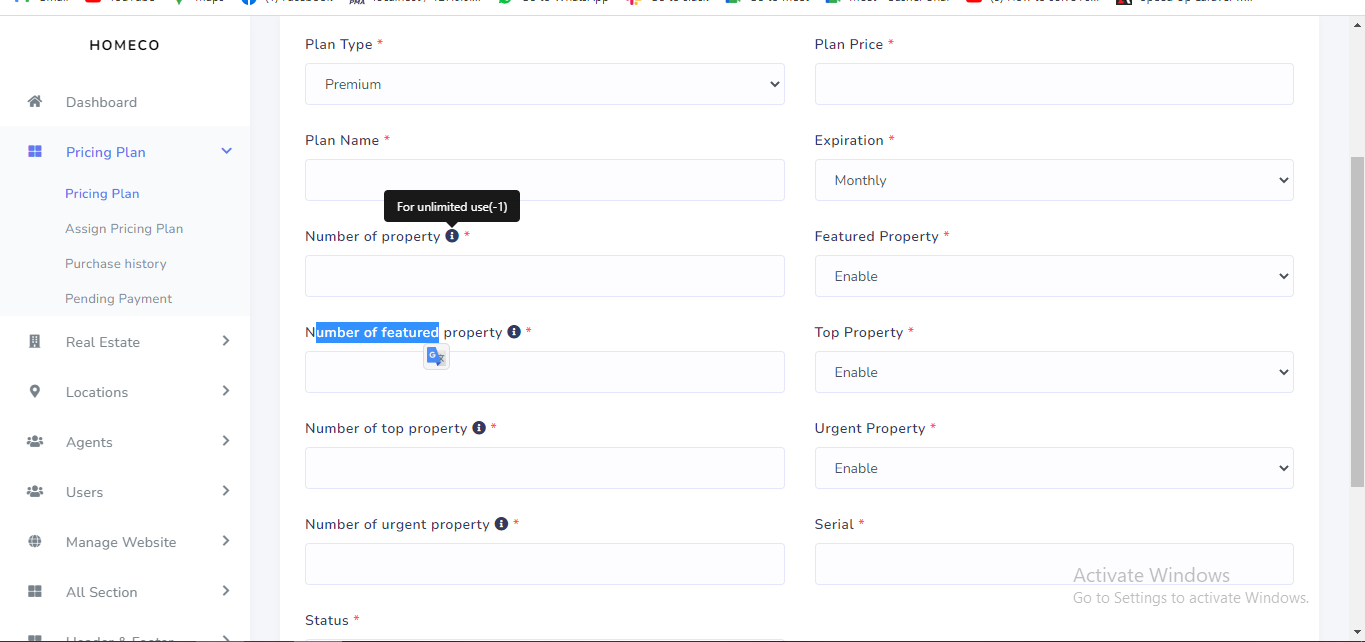
In is page admin can apply variant kind of conditions as his business requirements. He can able to create freemium or premioum pricing plan. He can manage plan expireation monthly, yearly or lifetime. He can also manage number of maximum property, featured property, top property, urgent property. If he can any unlimited number of item he neeed to put (-1) value. See:
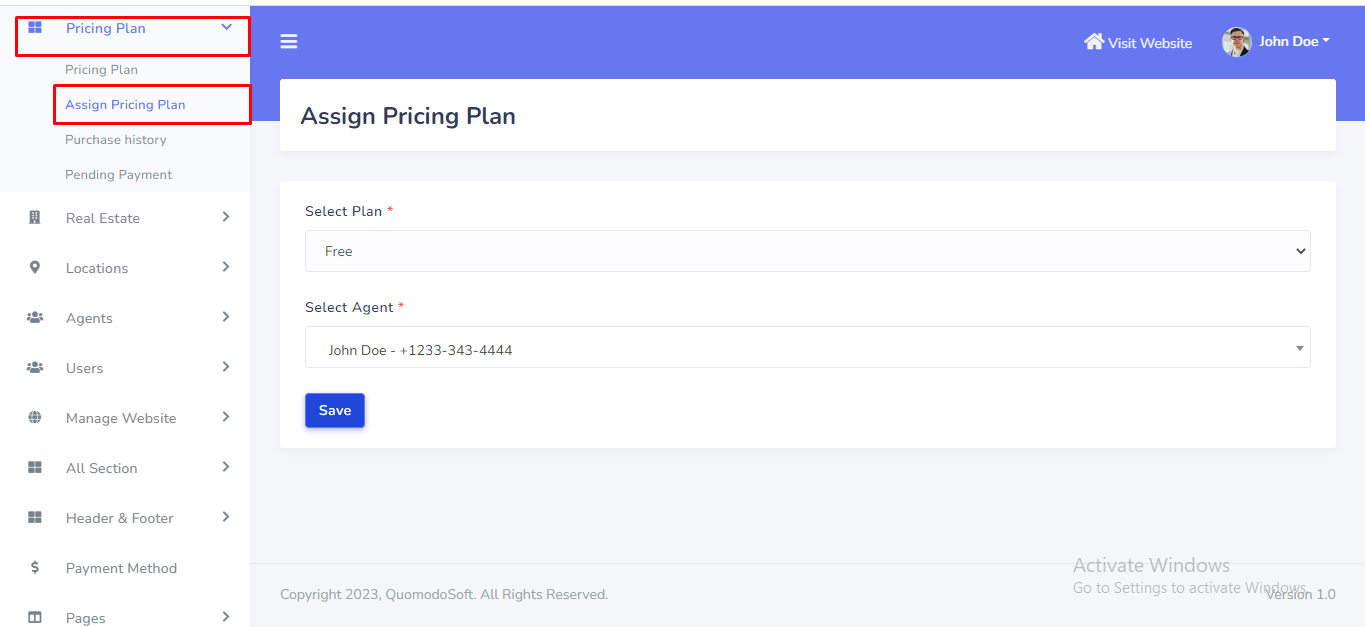
In this section admin can be able to assign pricing plan to agent. He can recieve the money via handcash and assign pricing plan. Go to "Pricing plan >> Assign Pricing Plan".See:
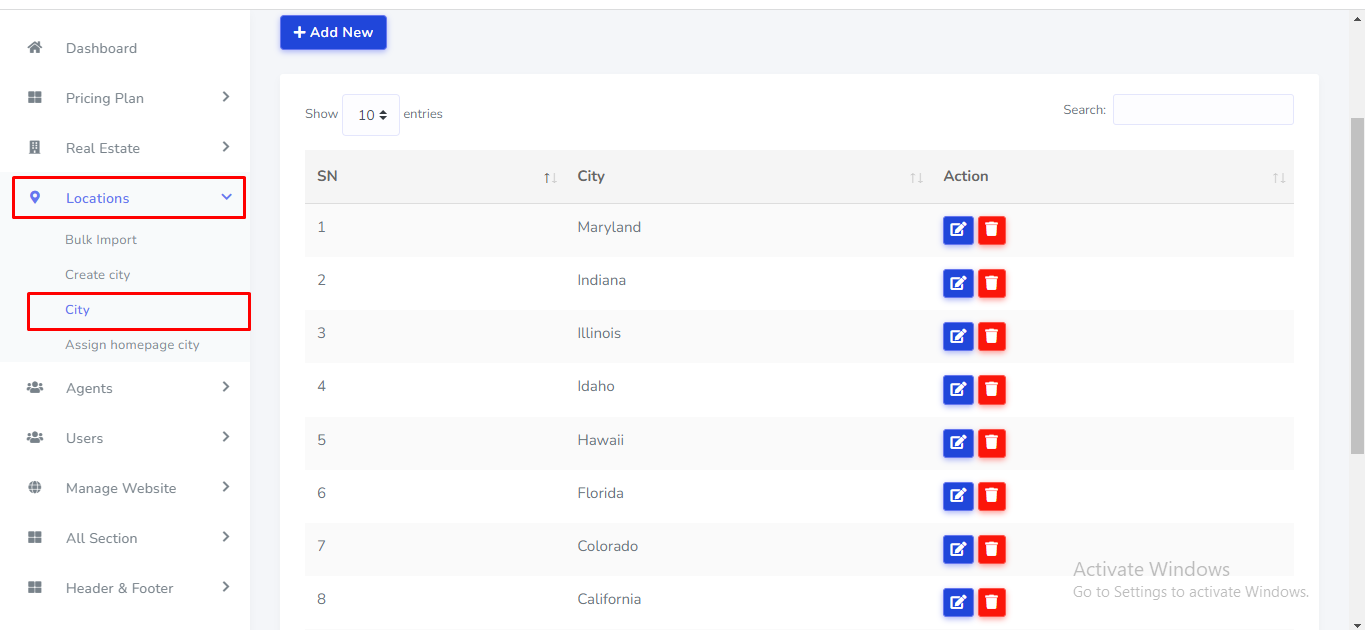
Before add a property admin need to setup location or city. Go to "Locations >> City" from sidebar. See:
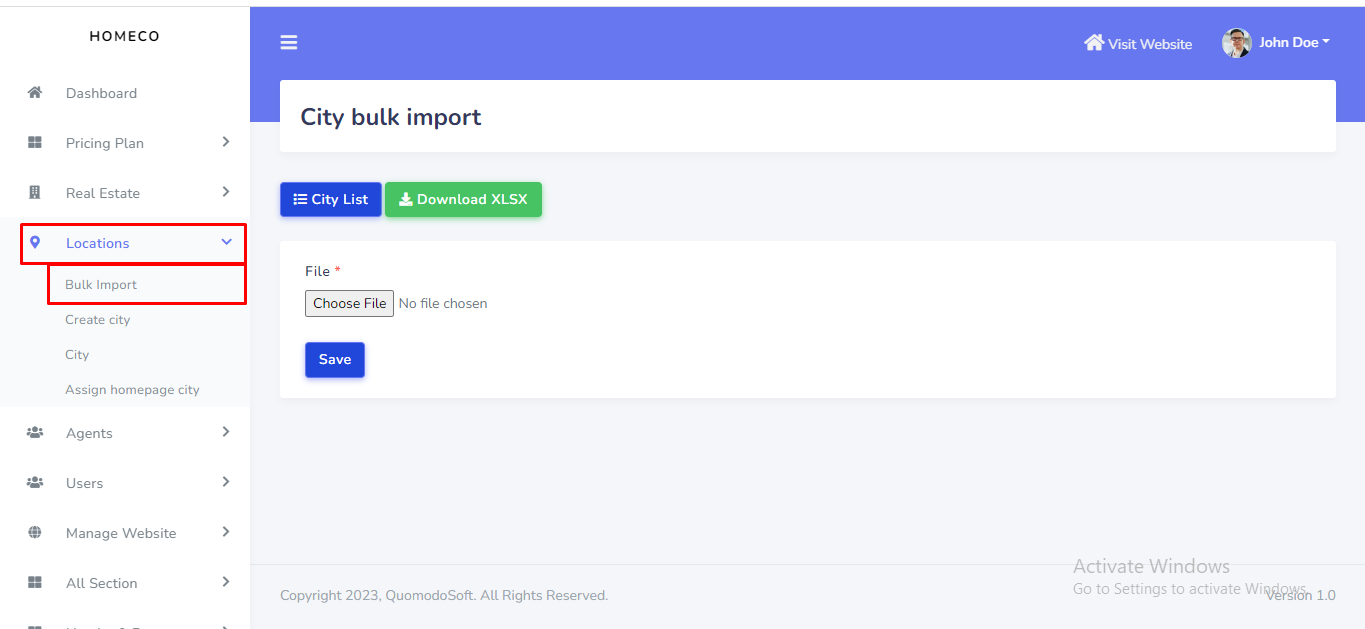
In this section admin no need to create city manually. He can put huge amount of city just on click. Go to "Locations >> Bulk Import" from sidebar. See:
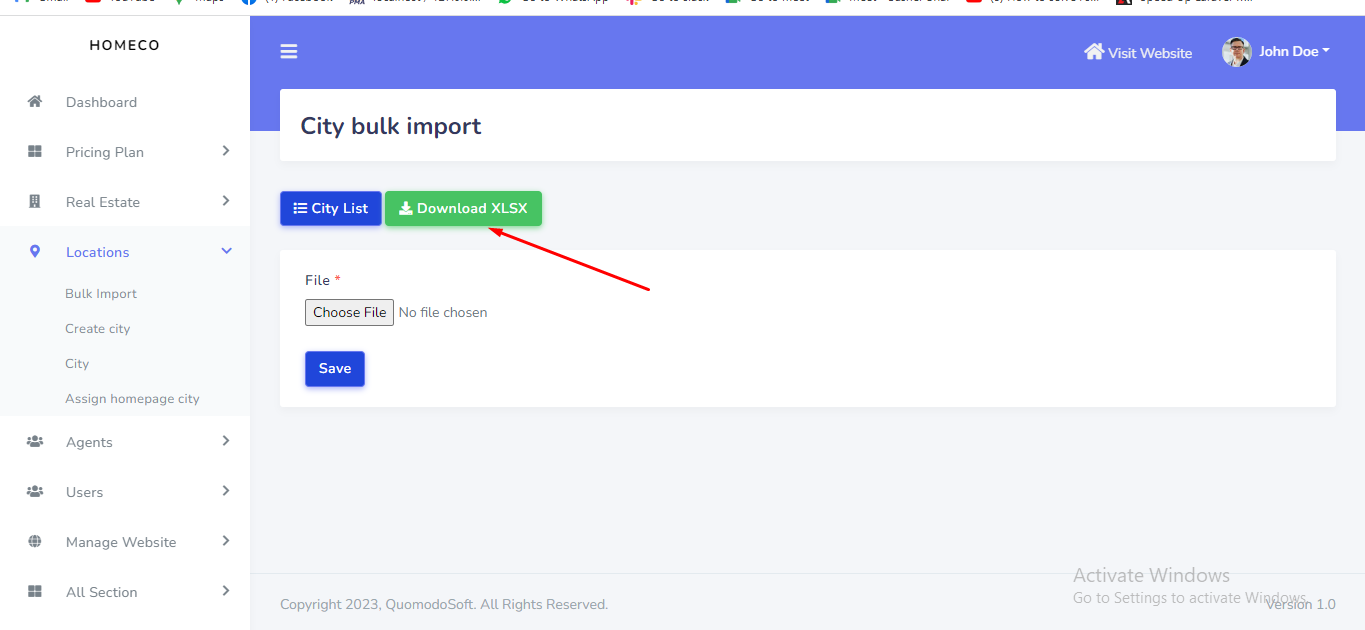
At first he need to download demo import file. For demo file download click the 'Download XLSX' button. See:
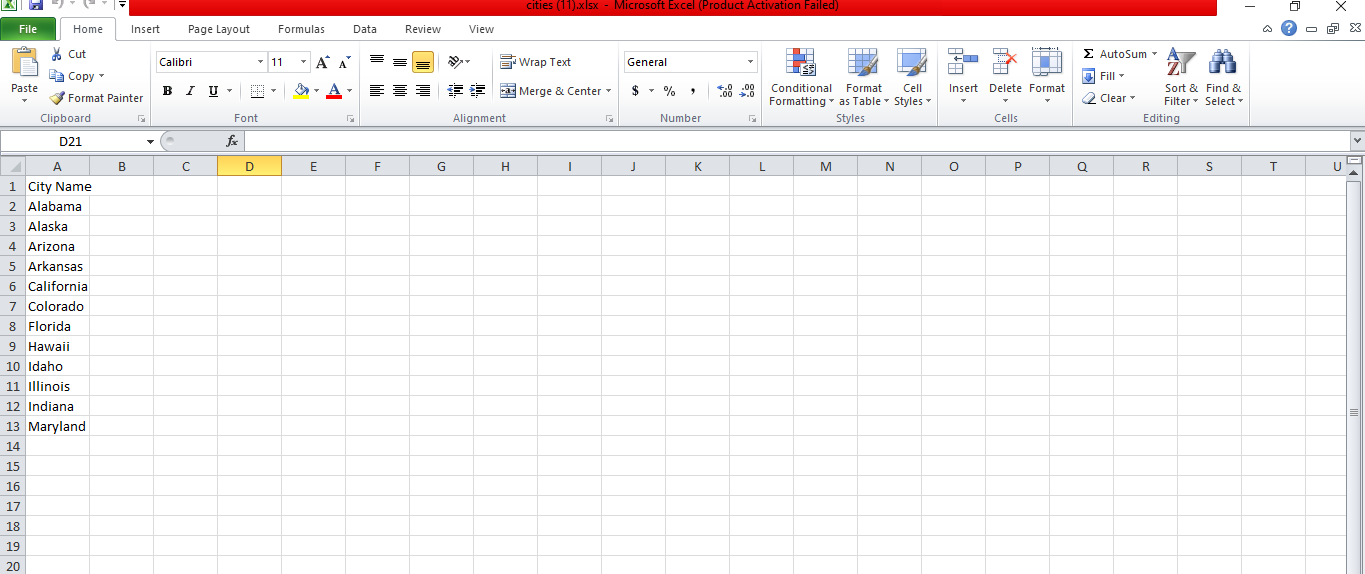
The downloaded file will look like this. See:
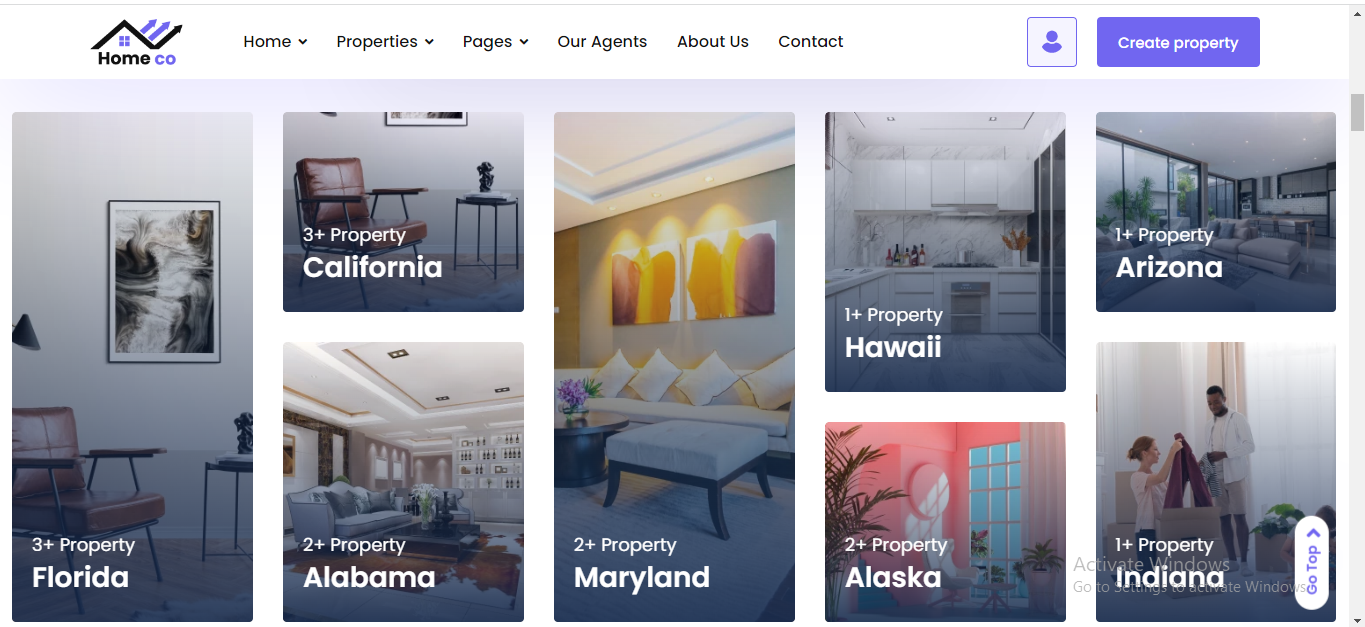
What is homepage city ? See:
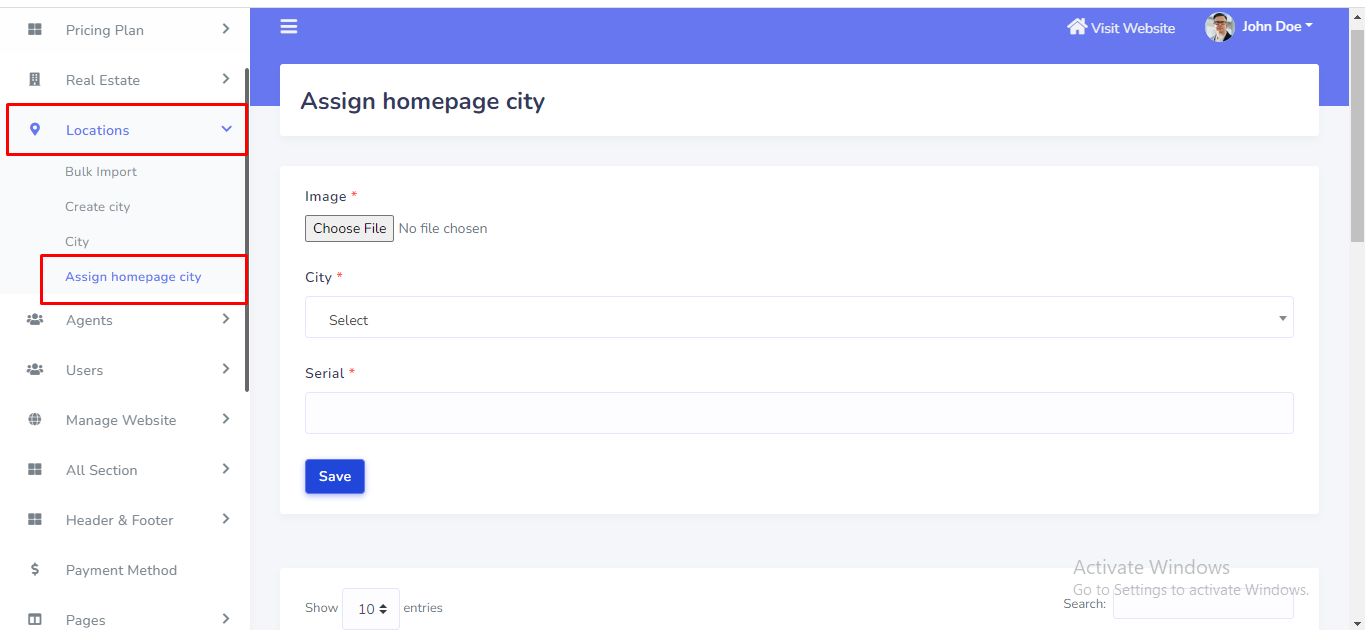
How to assign ? Go to "Location >> Assign Homepage City". See:
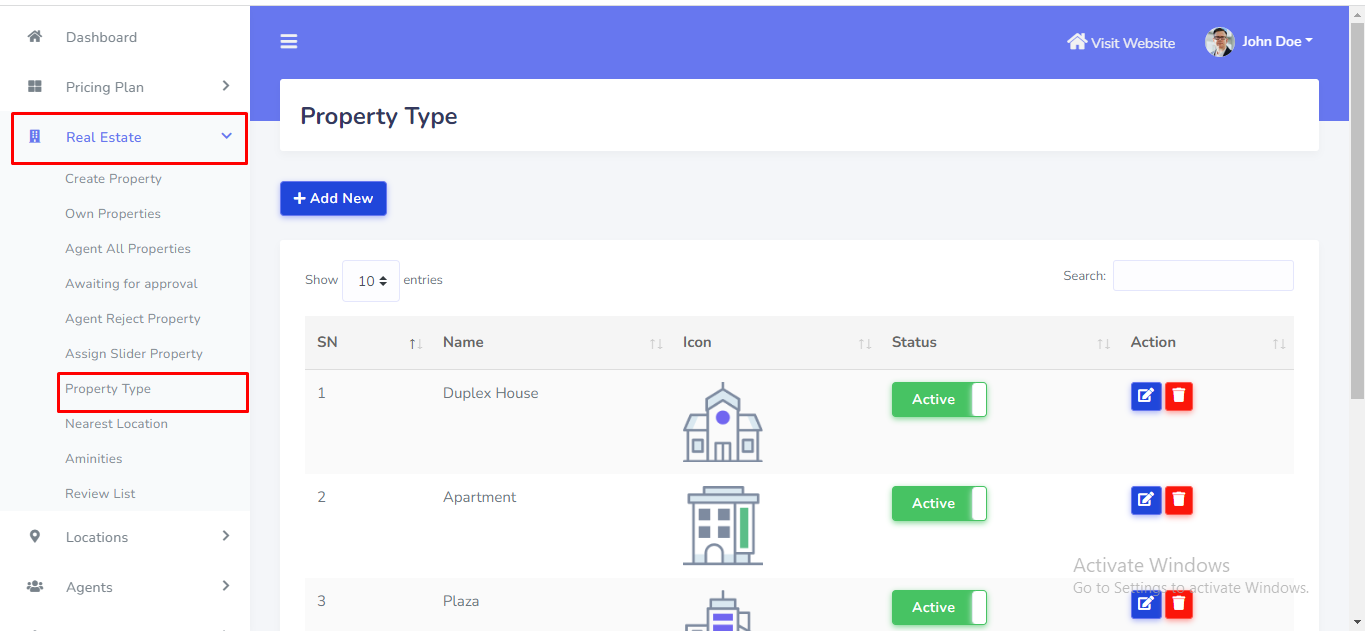
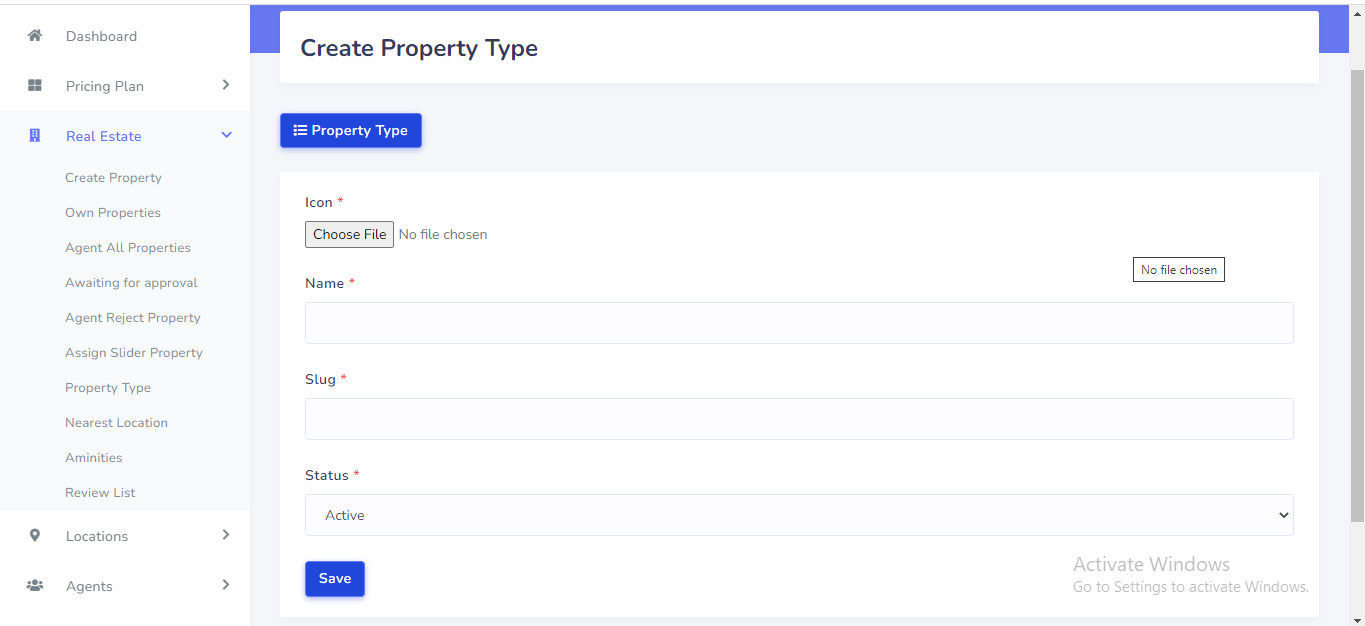
Before add a property admin need to setup property type. Go to "Real Estate >> Property Type" from sidebar. See:
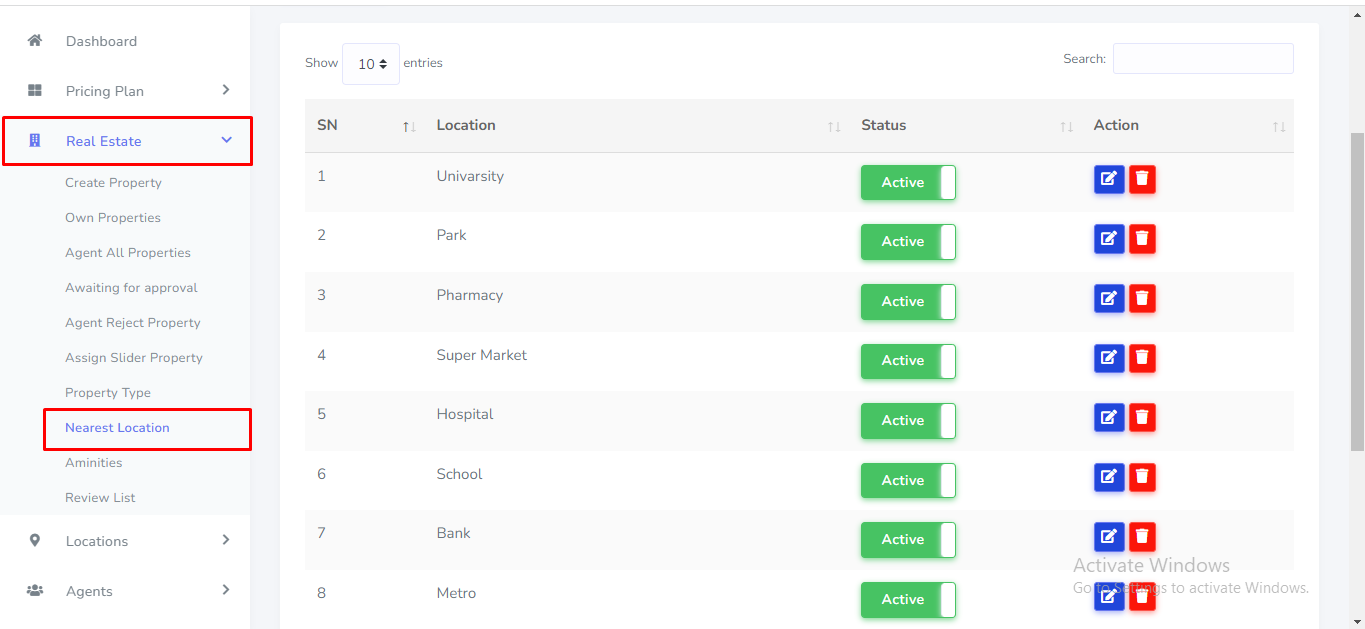
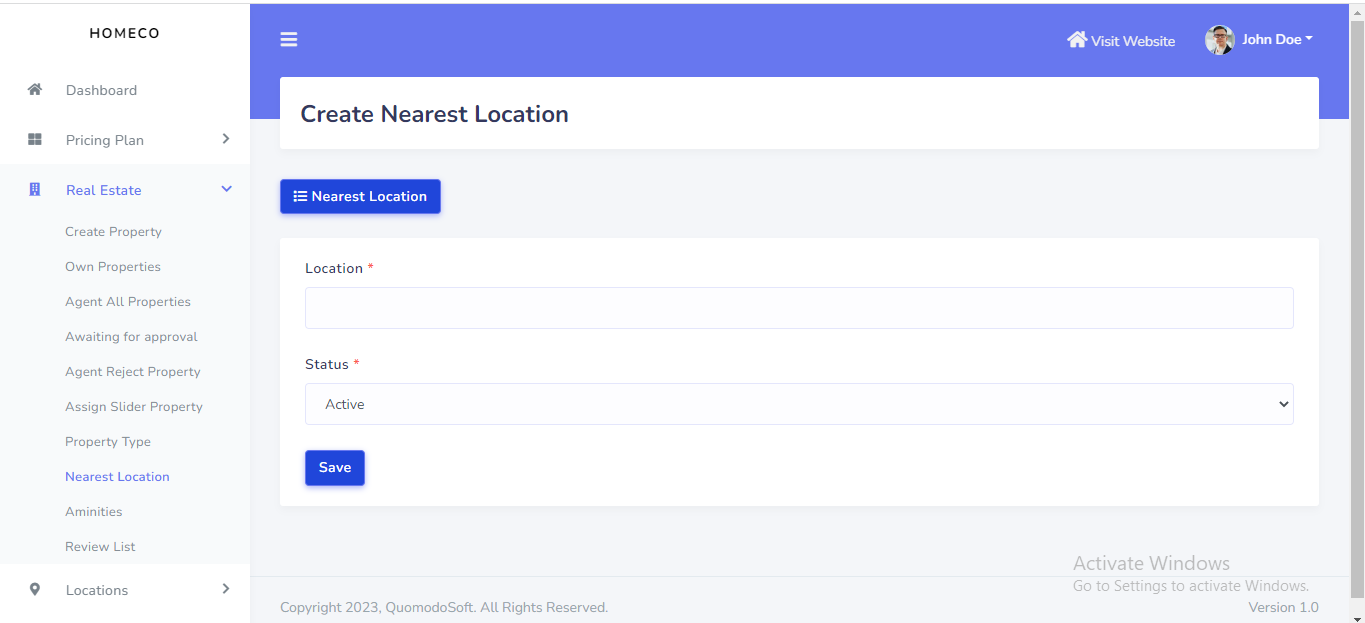
Before add a property admin need to setup nearest location. Go to "Real Estate >> Nearest Location" from sidebar. See:
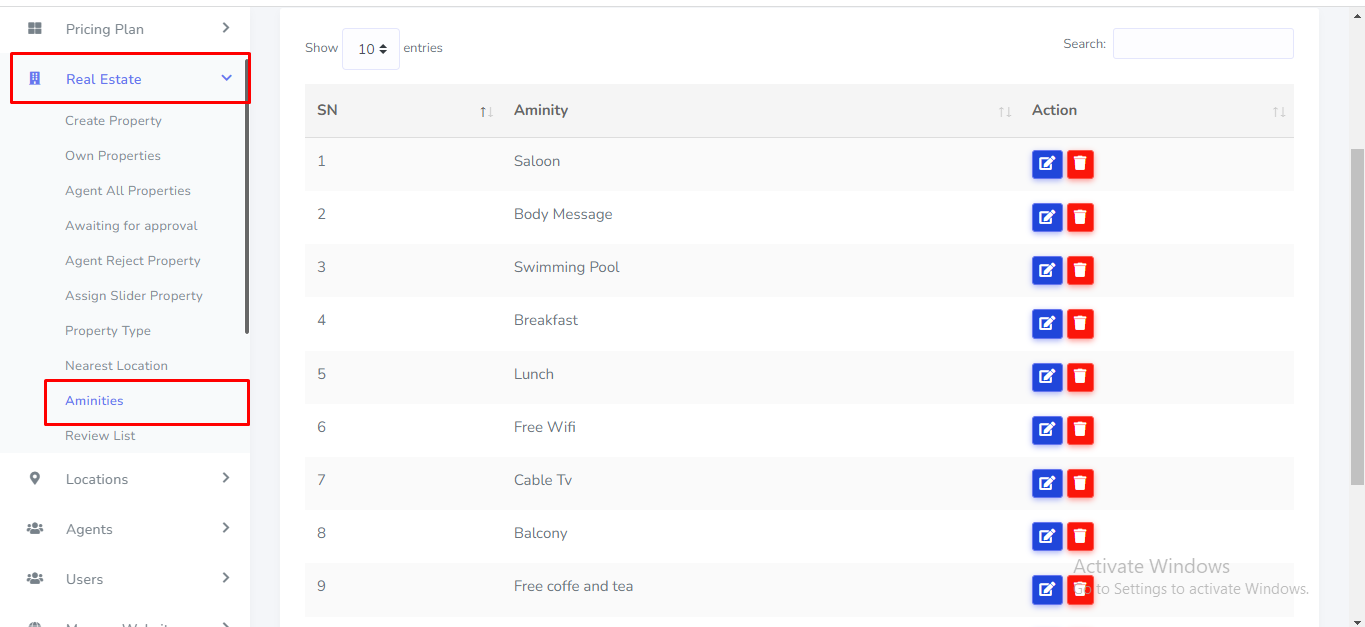
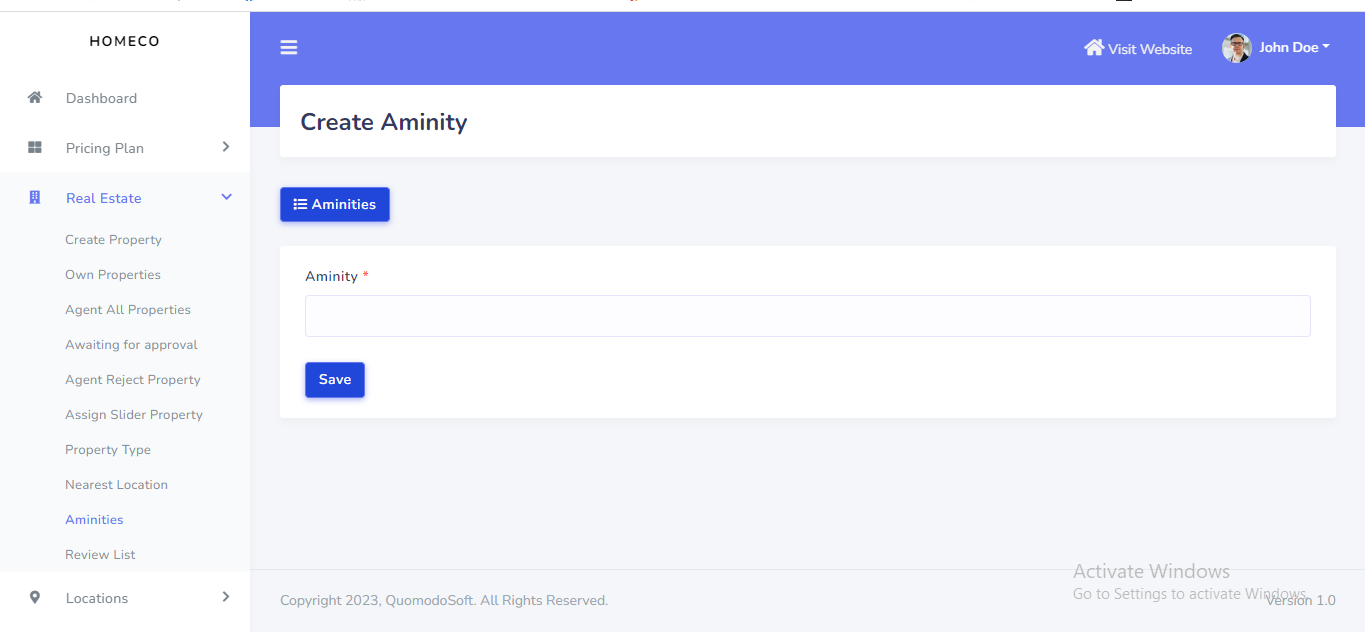
Before add a property admin need to setup aminities. Go to "Real Estate >> Aminities" from sidebar. See:
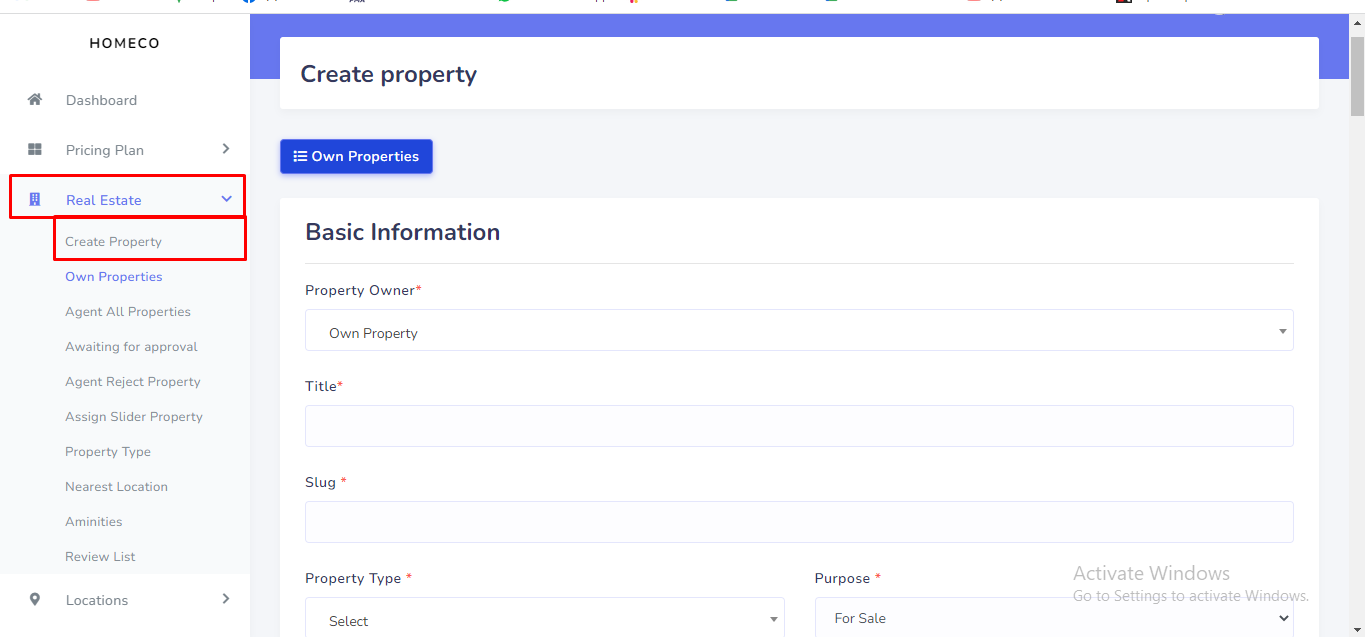
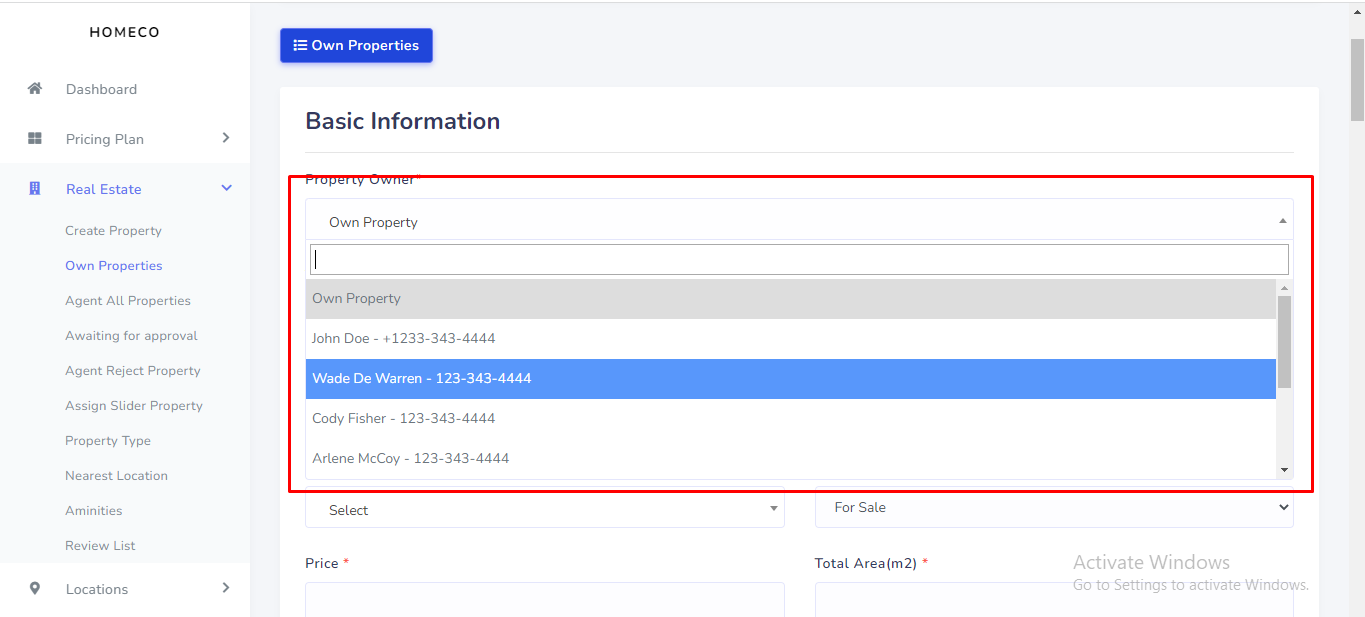
Admin can be able to handle any kind of property feature on this section. Admin can assign agent property, assign slider property, create new property, agent property approved/reject etc. To create new property goto "Real Estate >> Create Property" :
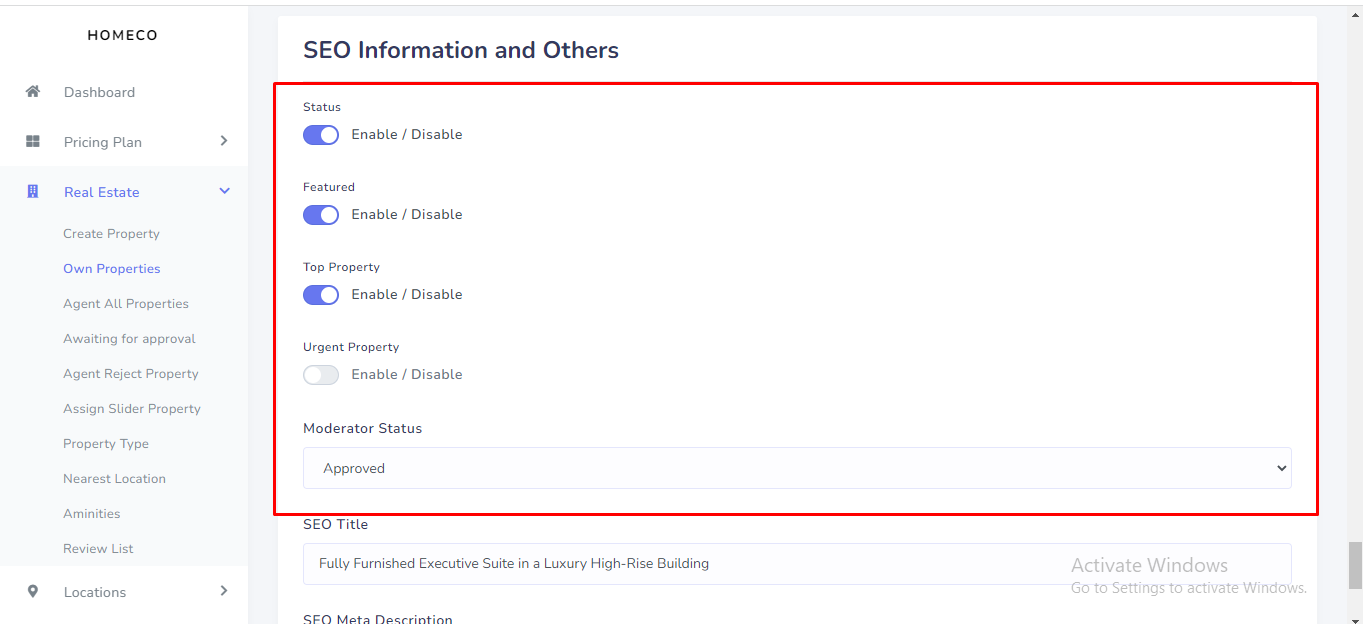
Admin can be able to assign featured, urgent, top propert. To assign this feature go to create/edit page bottom section. See :
What is slider property ? See:
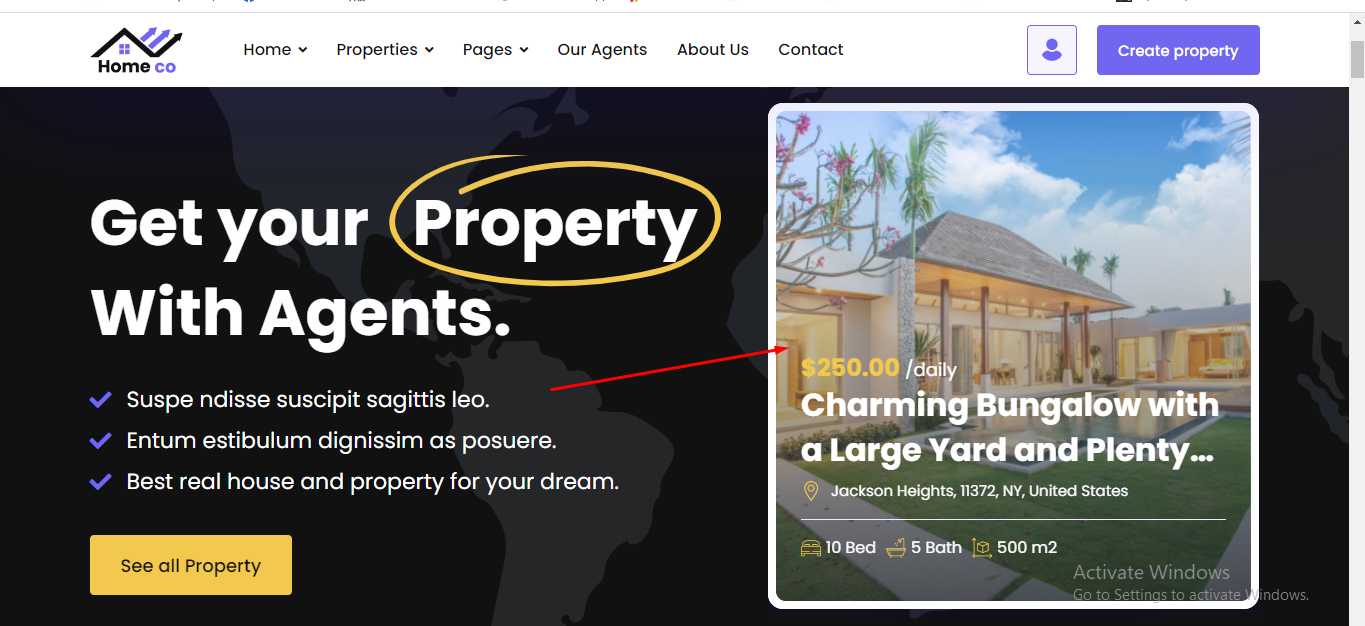
How can Assign ? Goto "Real Estate >> Assign Slider Property" :
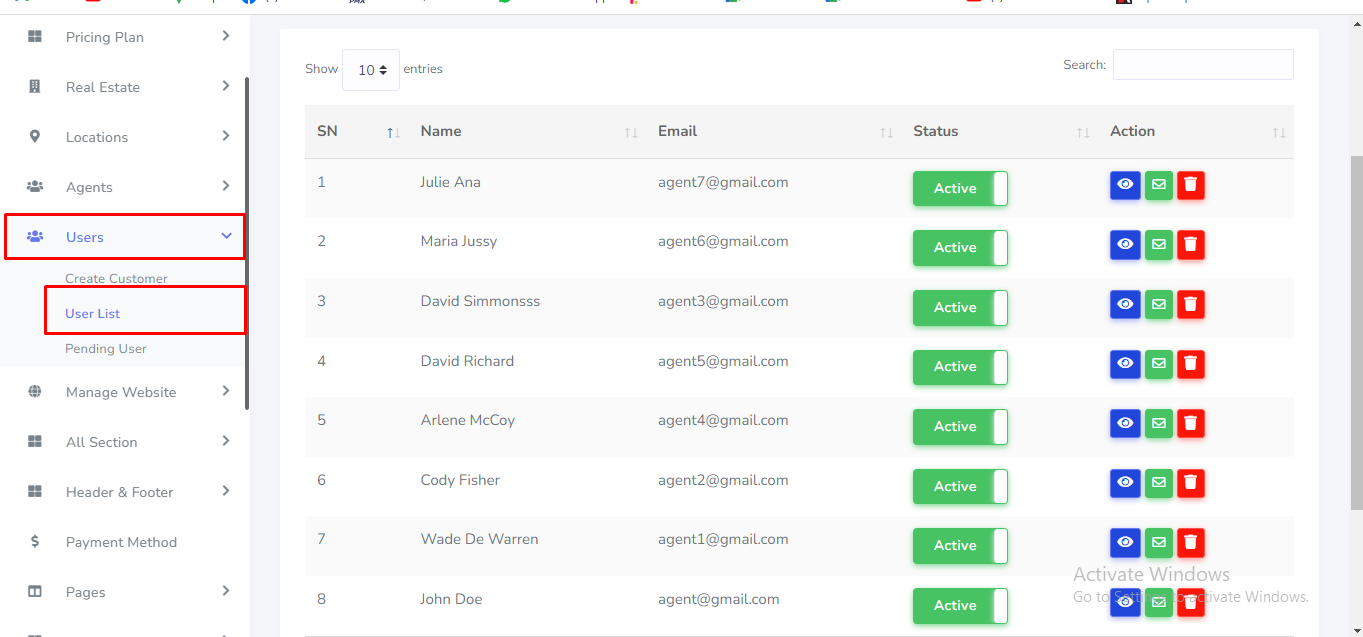
User can be manage from the admin panel. Go to "Users >> User List" from sidebar. See:
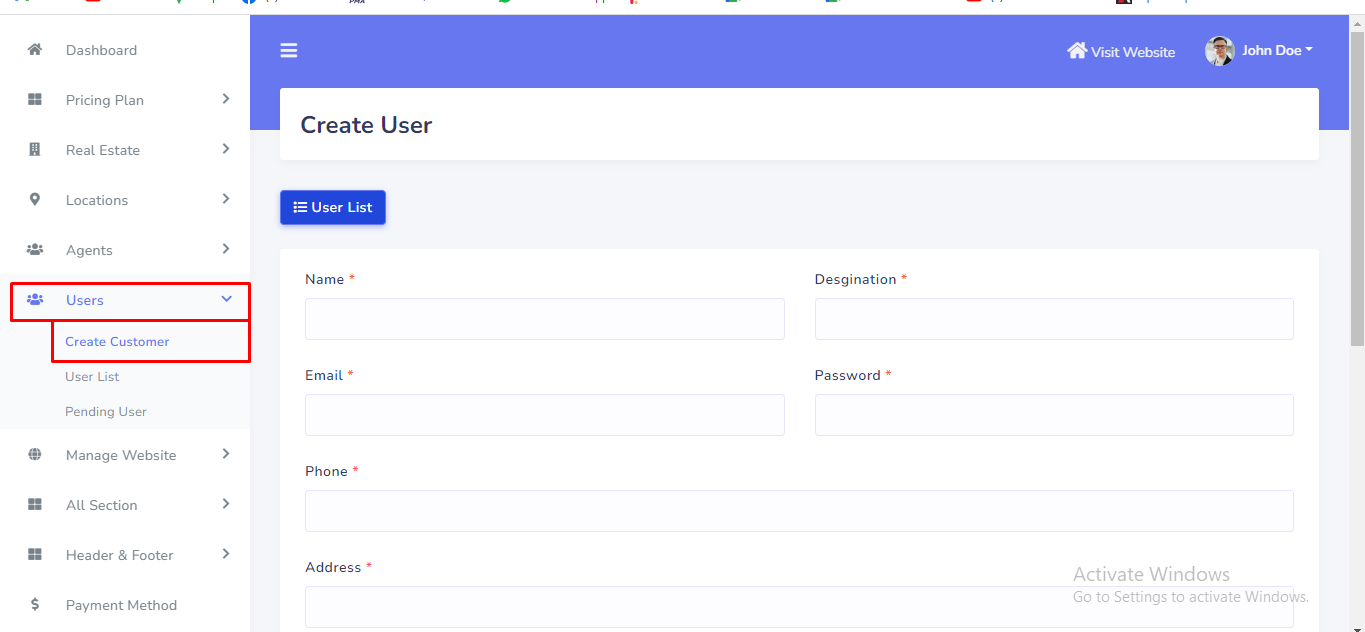
Admin can be able to create new user from here. Go to "Users >> Create user" from sidebar. See:
Website maintenance mode can be manage from the admin panel. Go to "Manage website >> Maintenace mode" from sidebar. See:
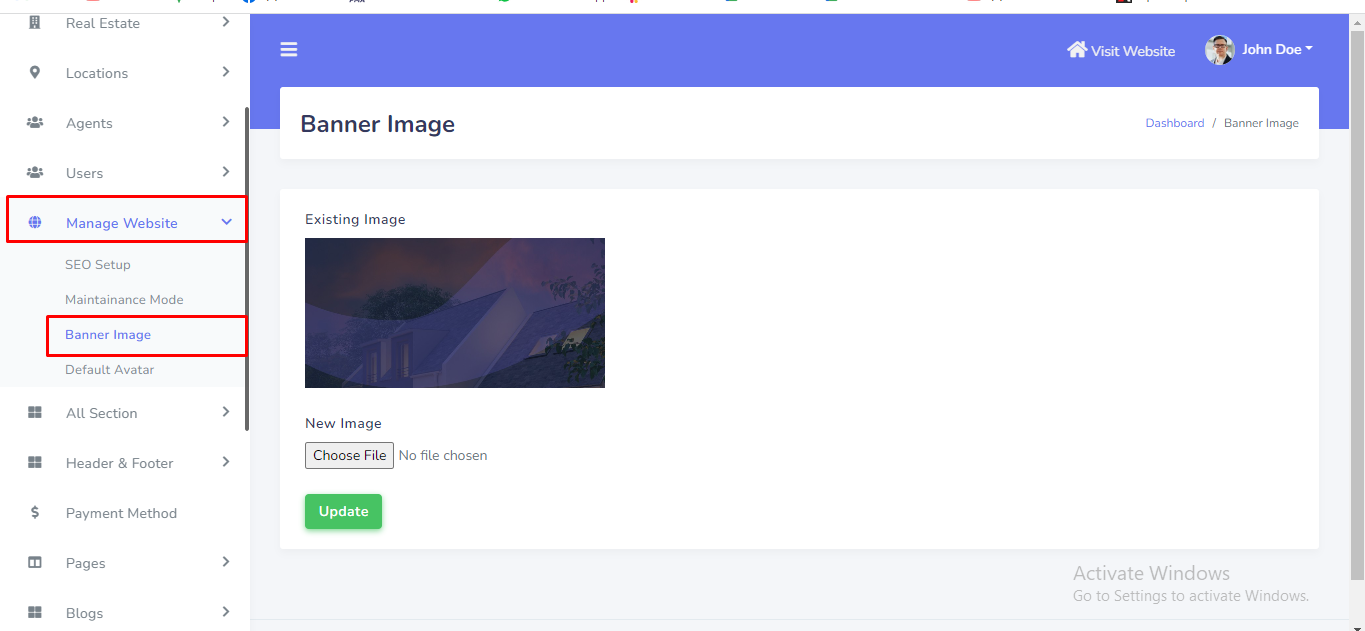
Breadcrumb banner image can be manage from the admin panel. Go to "Manage website >> Banner Image" from sidebar. See:
Default avatar can be manage from the admin panel. Go to "Manage website >> Default avatar" from sidebar. See:

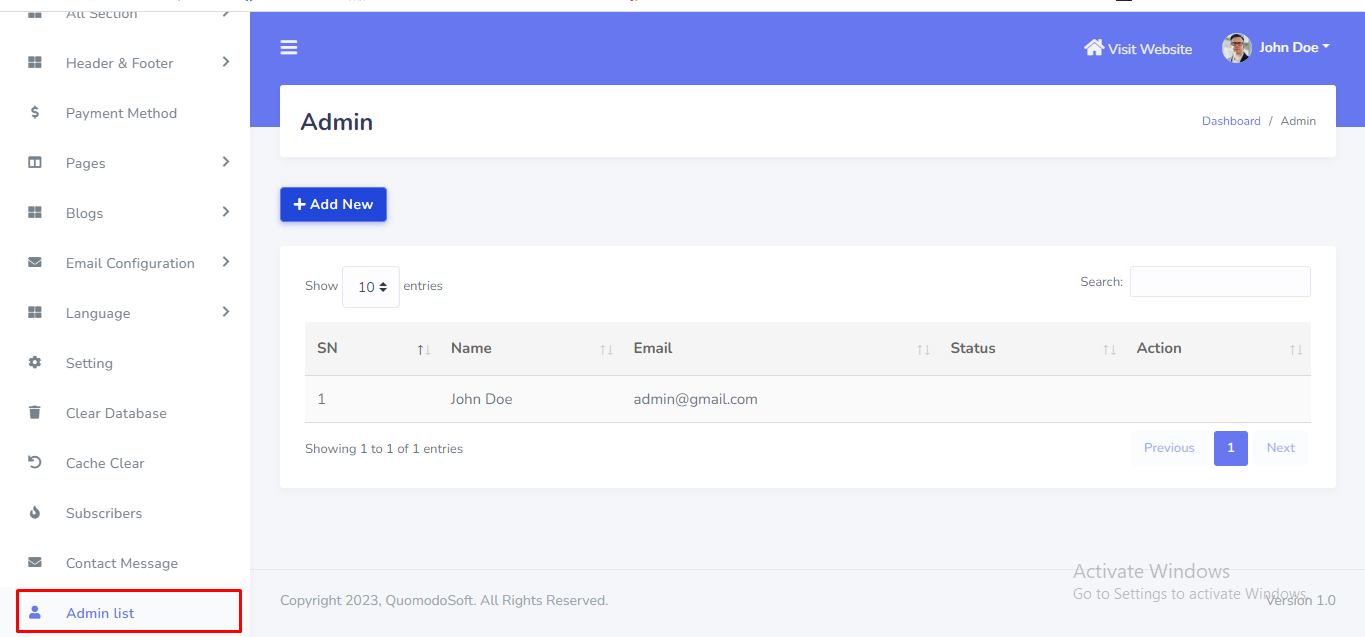
The main Admin can add more admins into the system. Other admins can not delete the main admin. But the main admin can delete other created admins in this system. Go to "Admin List" from sidebar. See:
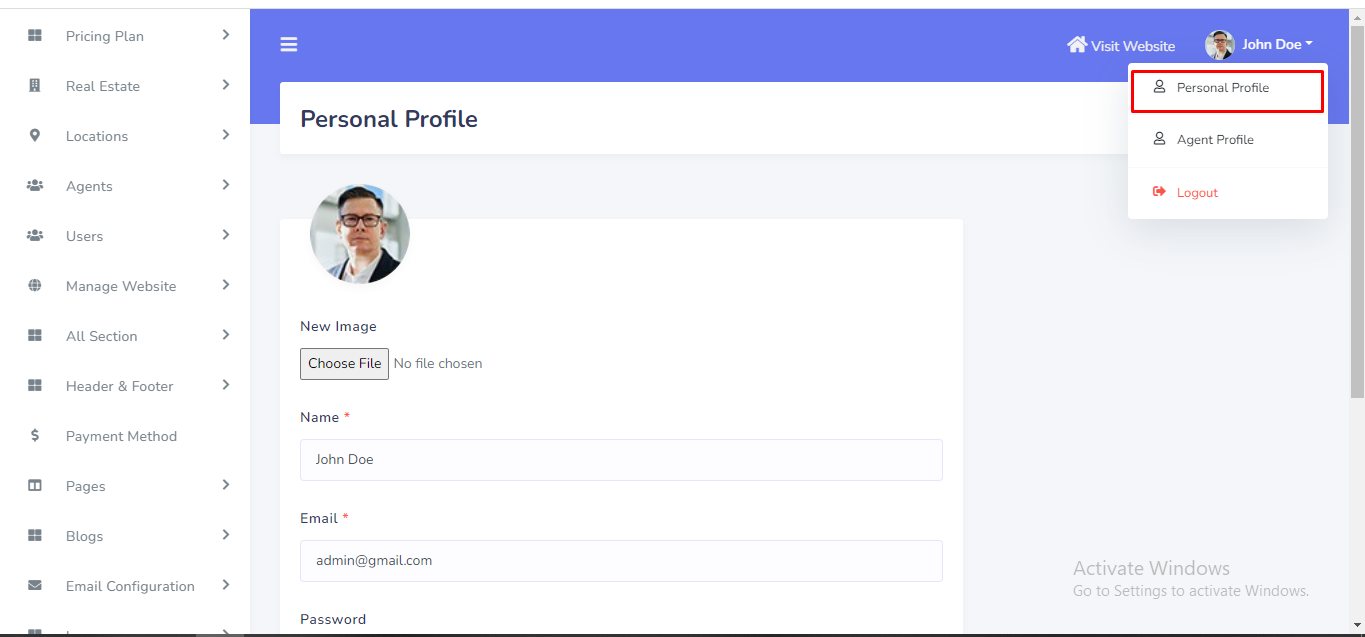
Admin can change personal information and password from topbar. See:
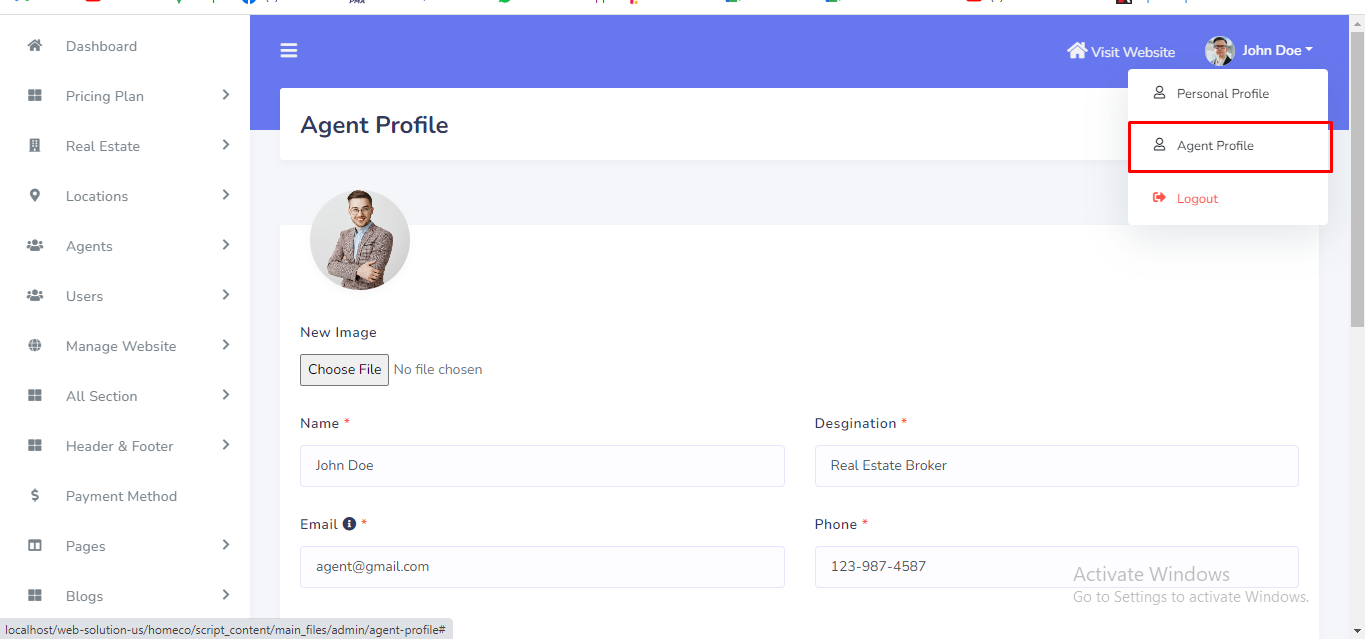
Admin can also manage his personal agent profile from topbar. See:
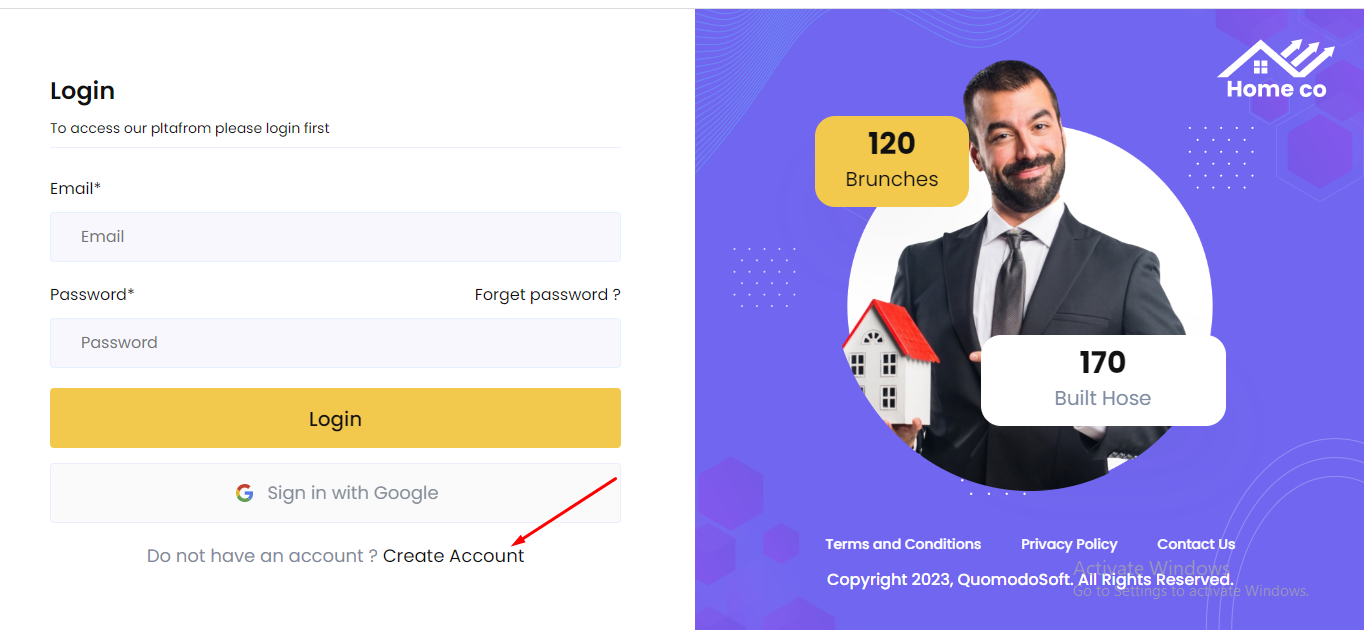
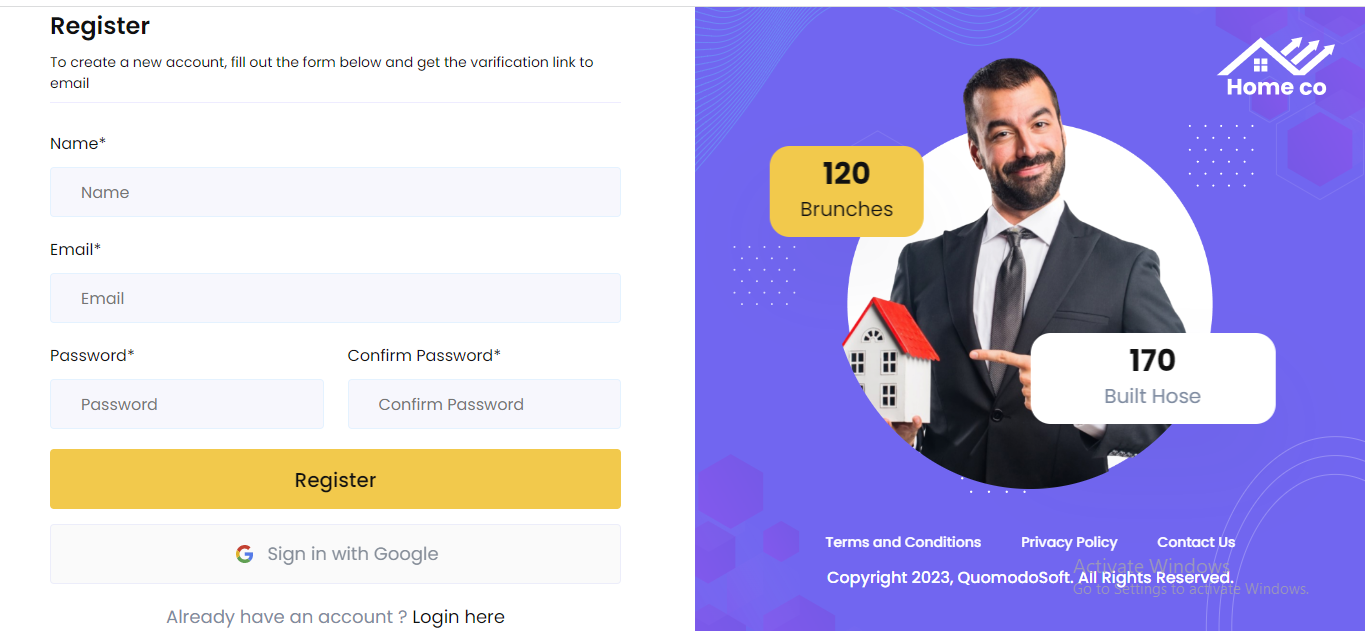
To click the button user can able to see the login page. In the login page registration link available. See:
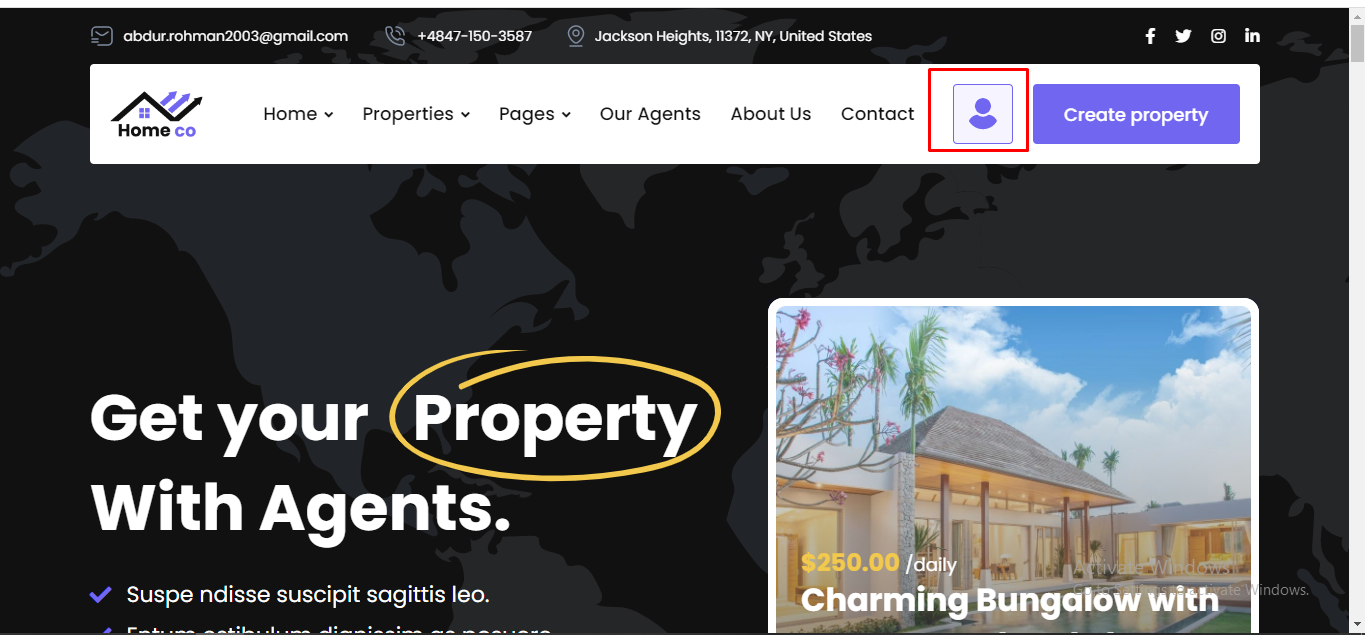
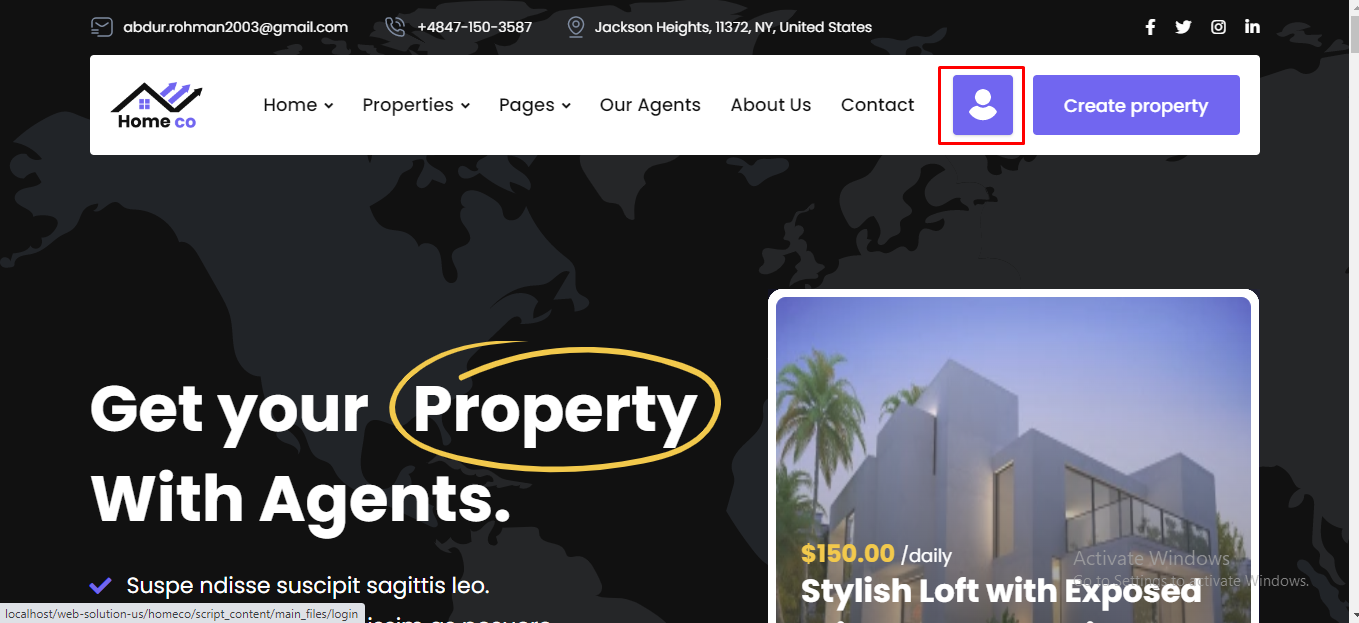
To click the button user can able to see the login page. See:
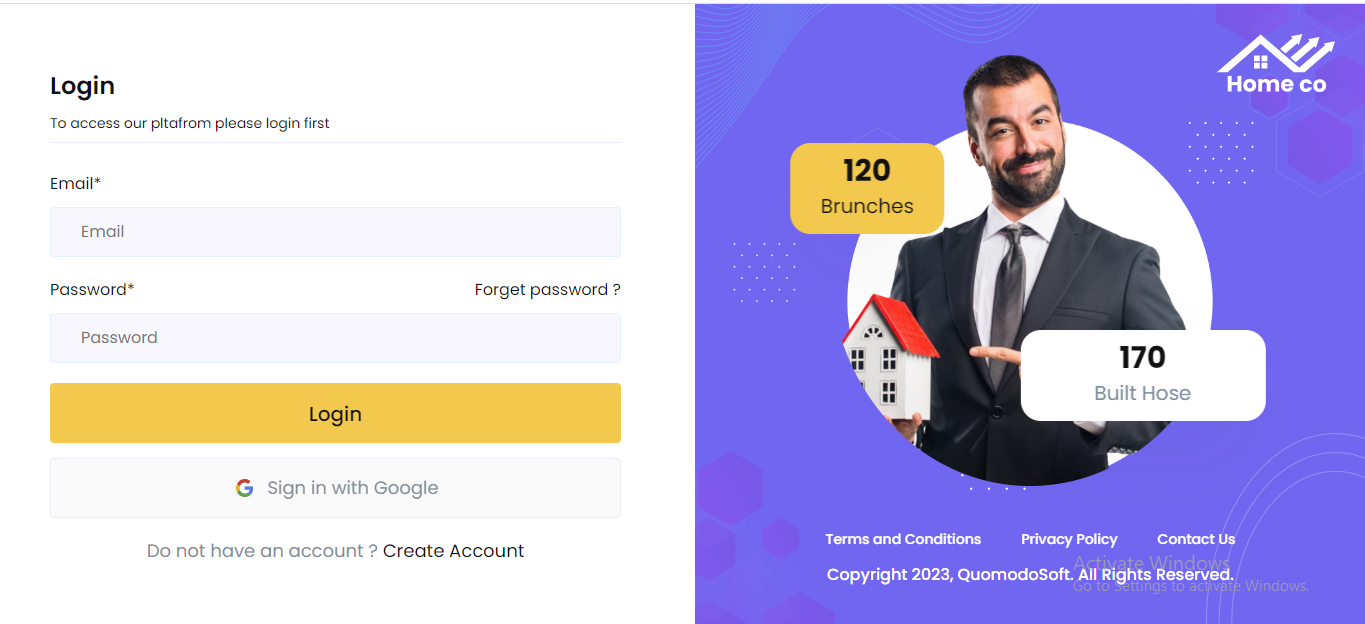
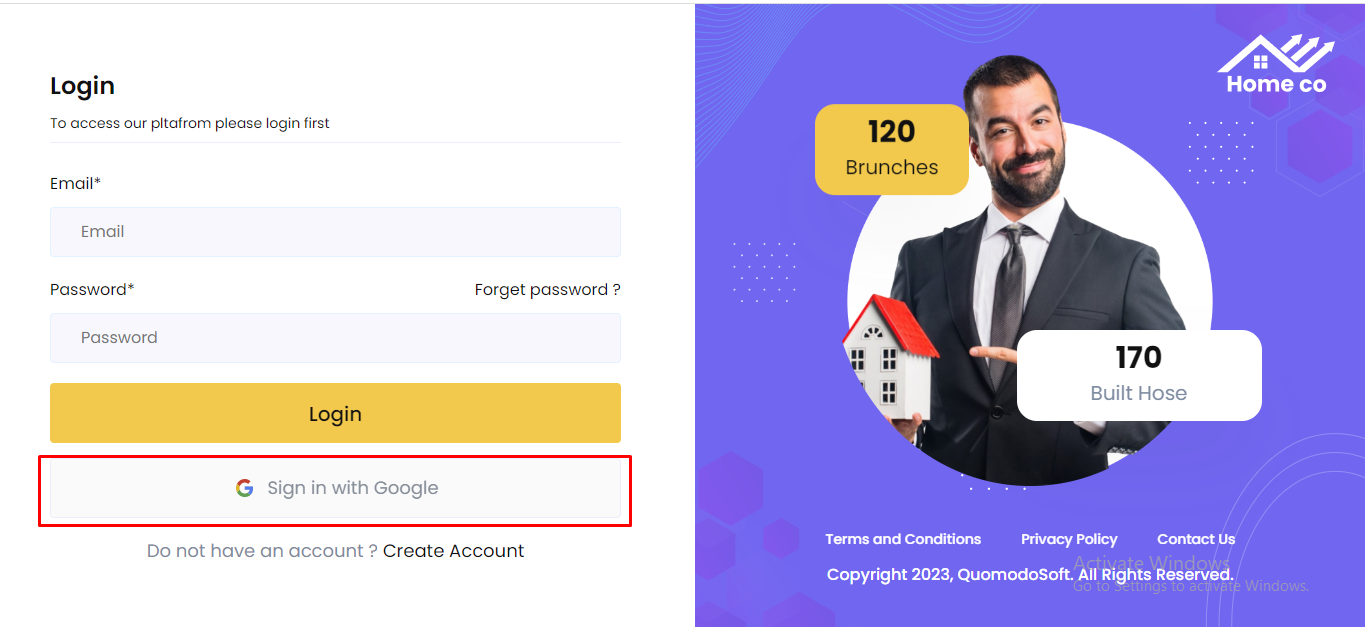
Also login with google available here.
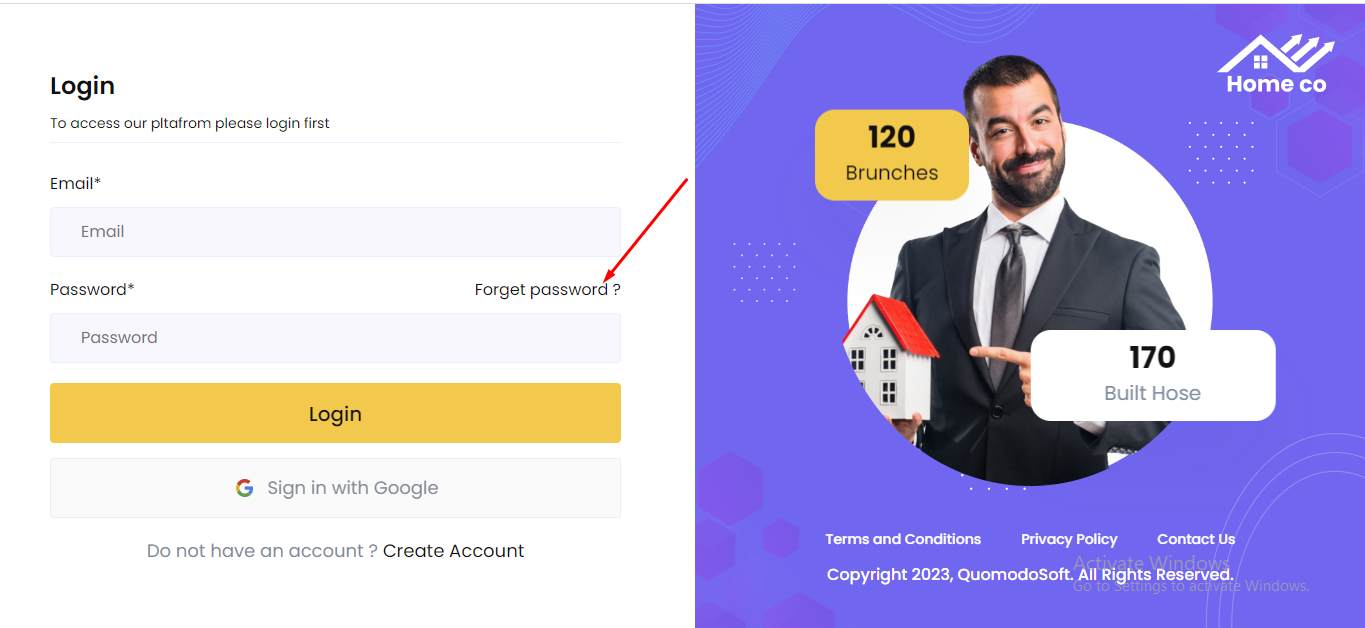
In the login page, there is a link to reset the password if user forgets the existing password.
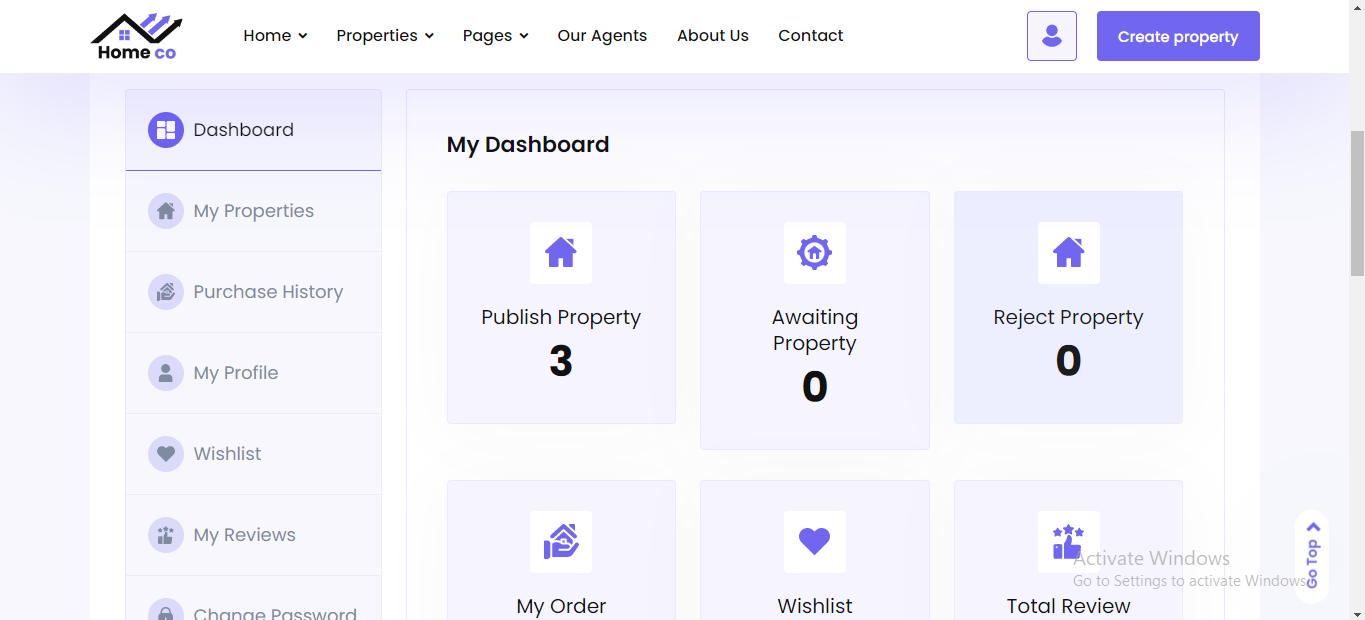
After login, Agent will see his dashboard. See:
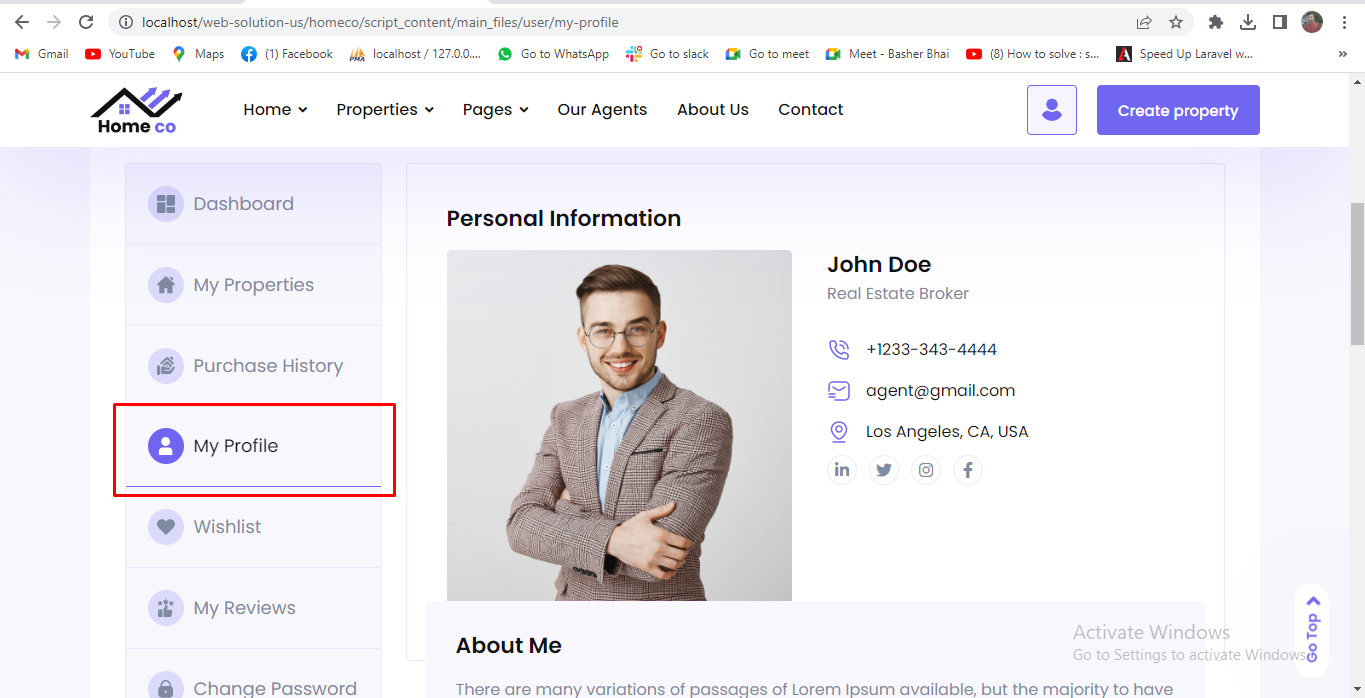
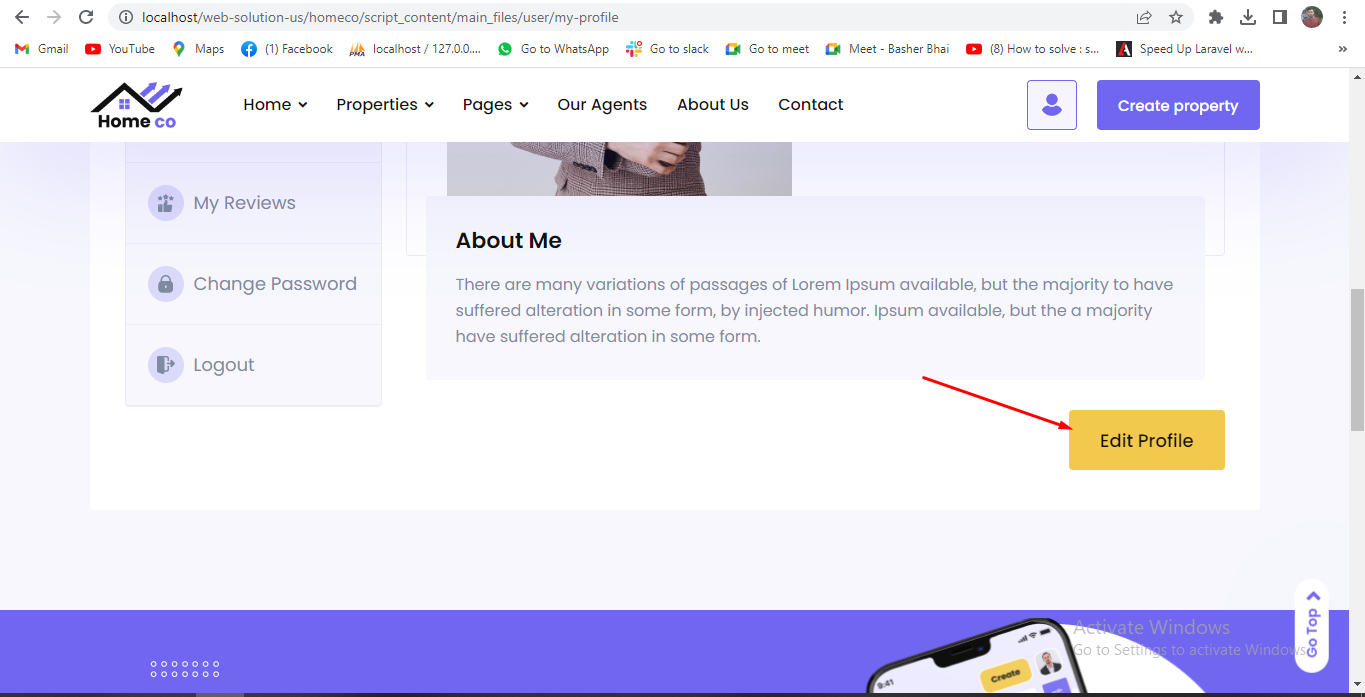
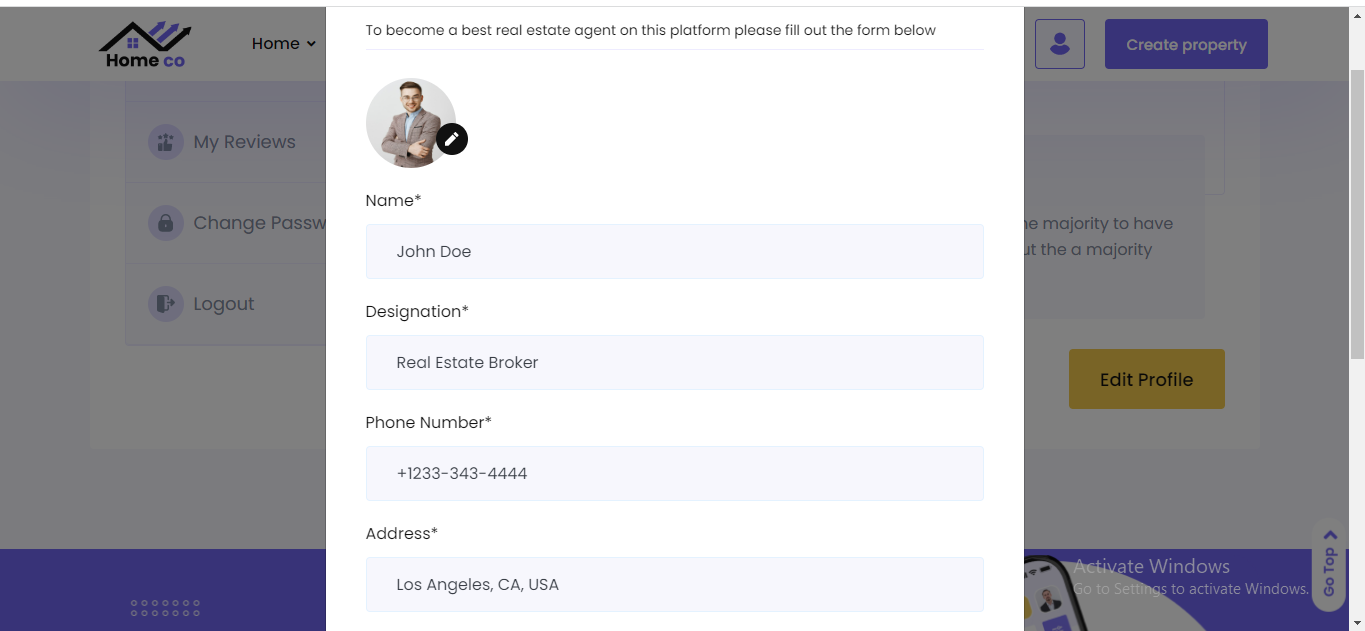
Agent can edit his profile from this section. Goto "My Profile" from the sidebar. See..
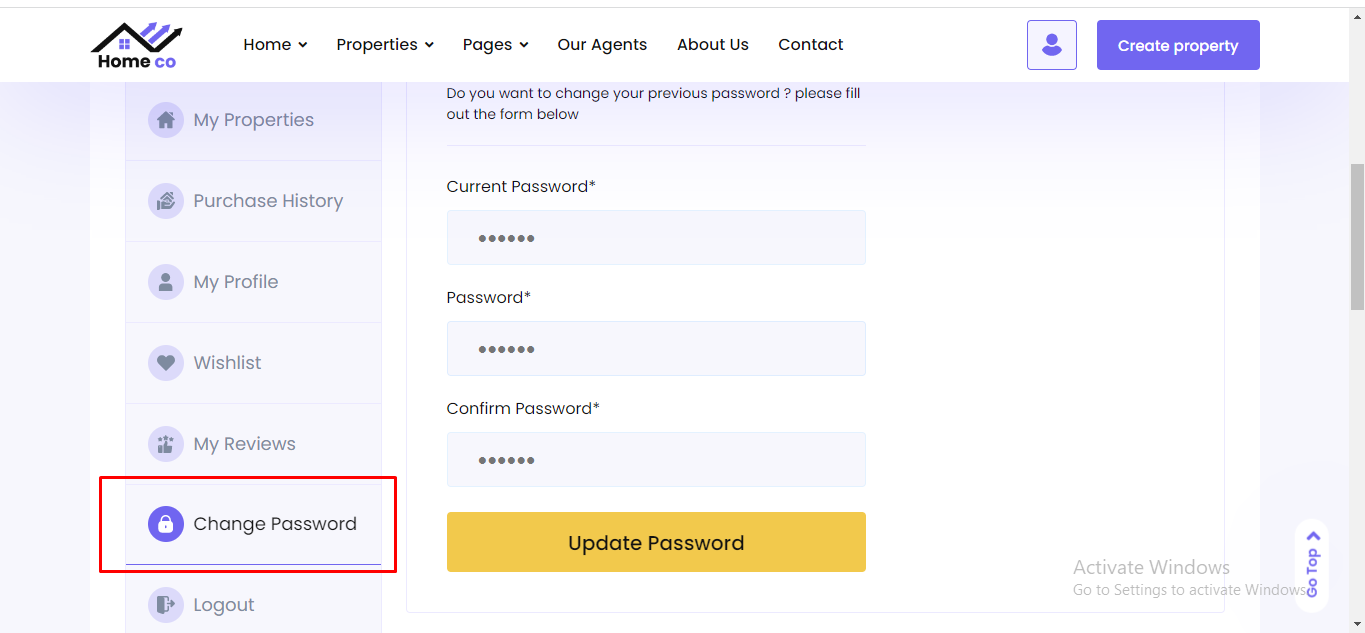
Agent can chagne his password from "Change Password" sidebar menu. See...
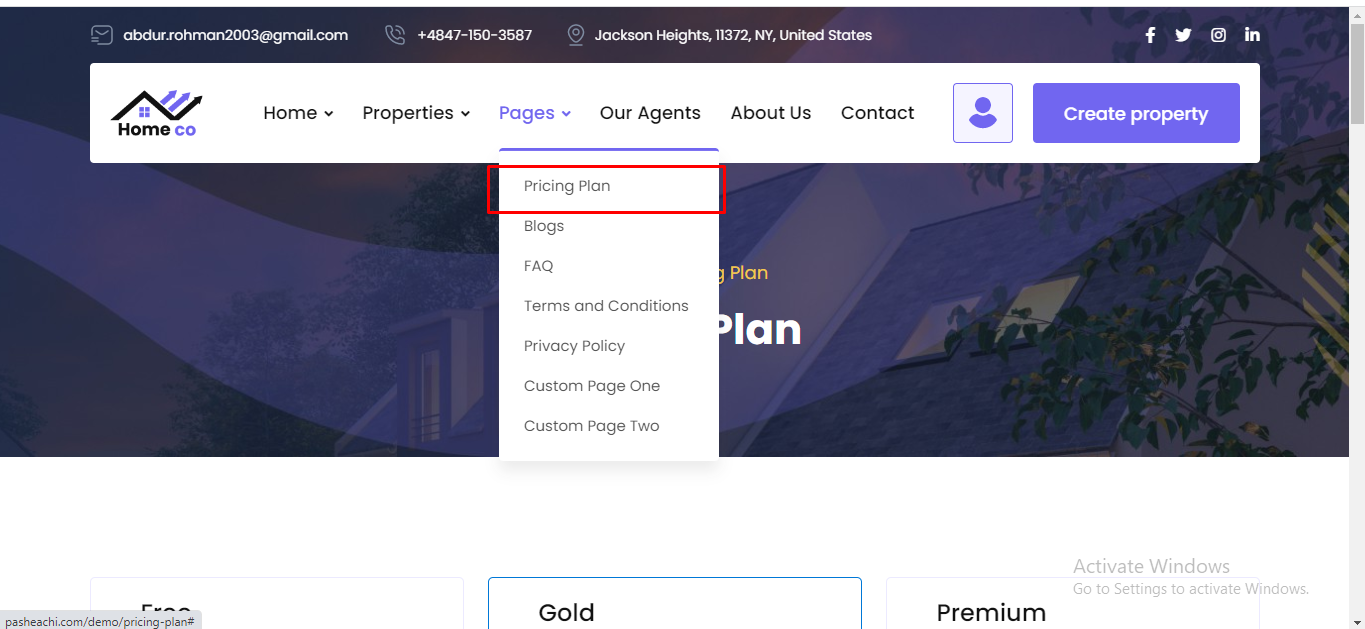
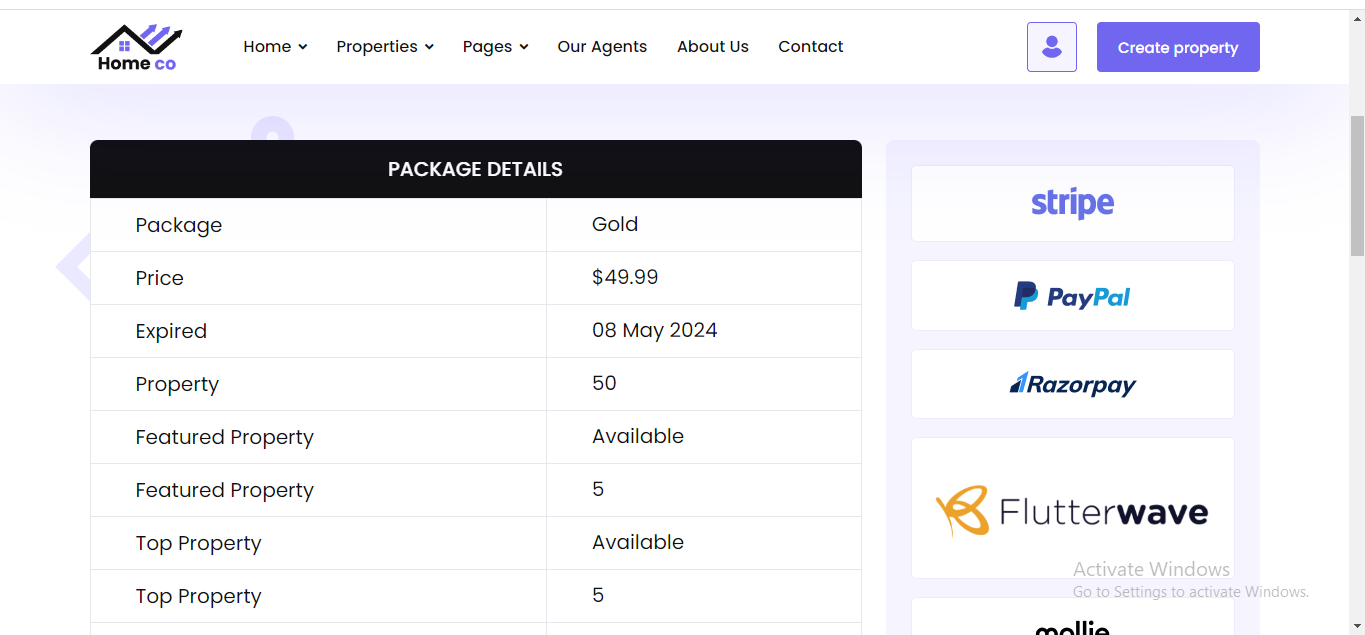
Before create a property agent has to purchase/enroll a pricing plan. After purchase he can be able to create property. To purchase pricing plan goto "Pricing Plan" from menu bar. See:
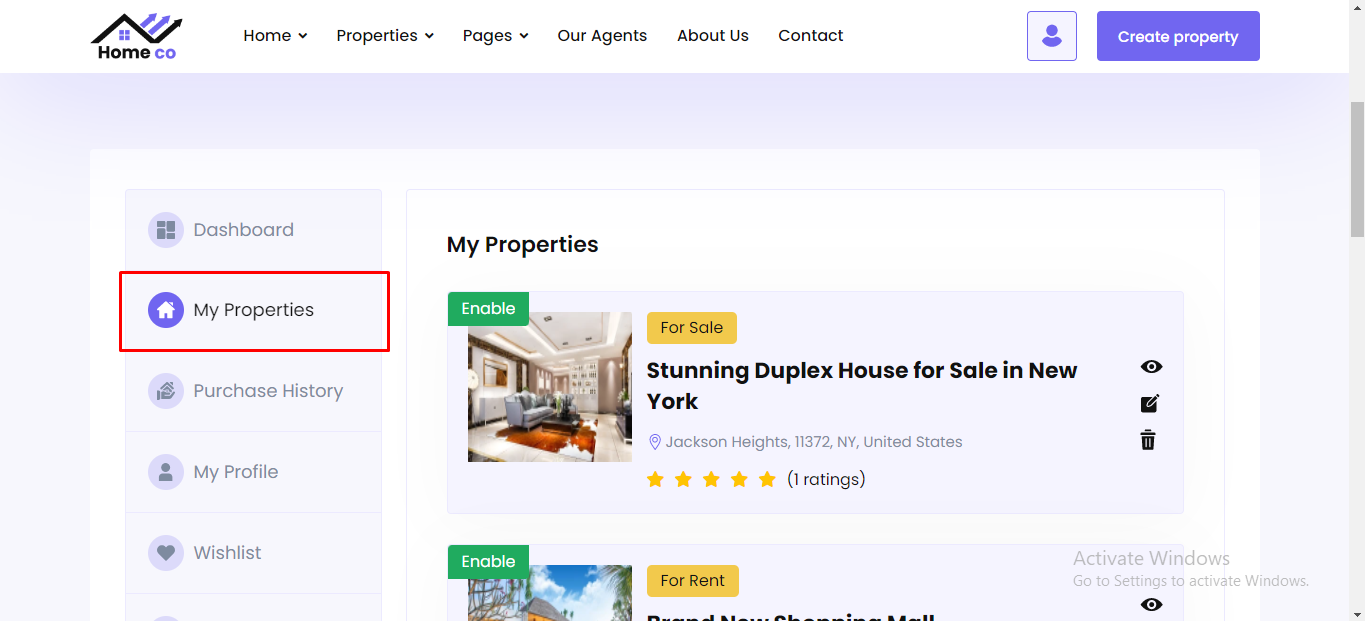
Agent can manage his property from his dashboard. He can create new property, assign top, featured, urgent propety. Go to "My Properties" from sidebar menu. See:
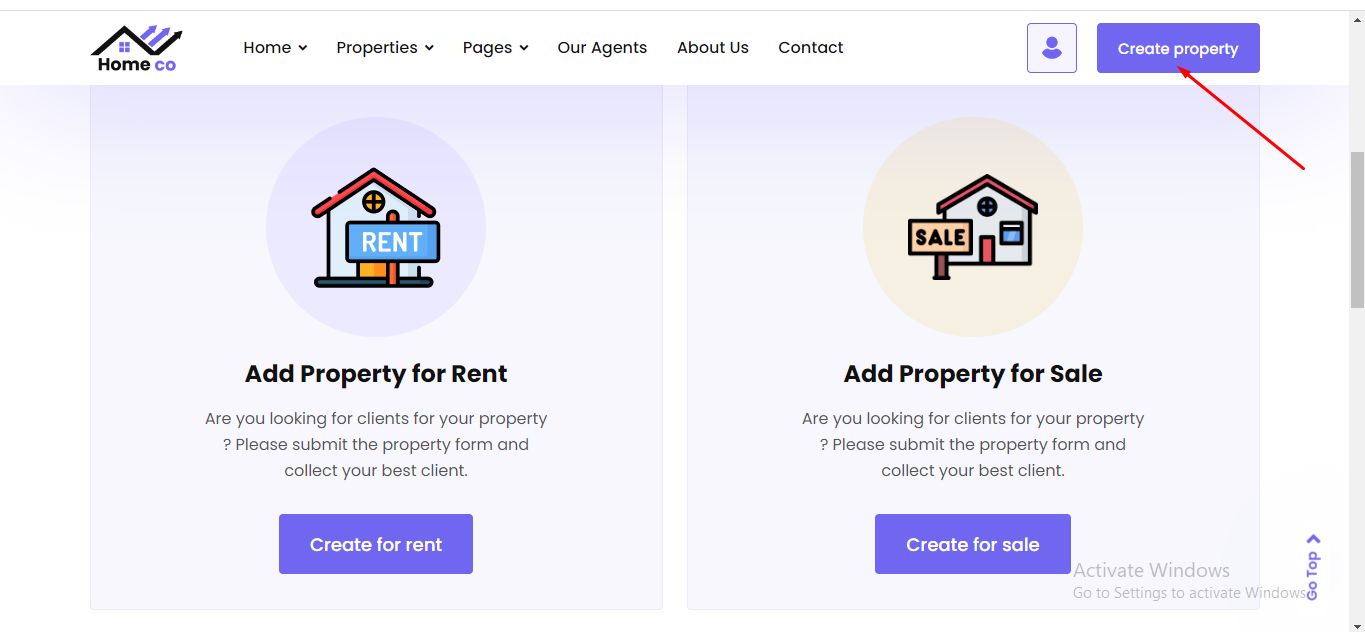
To create new property agent need to click "create property" button on the topbar. After click a property type select page will be appear. See:
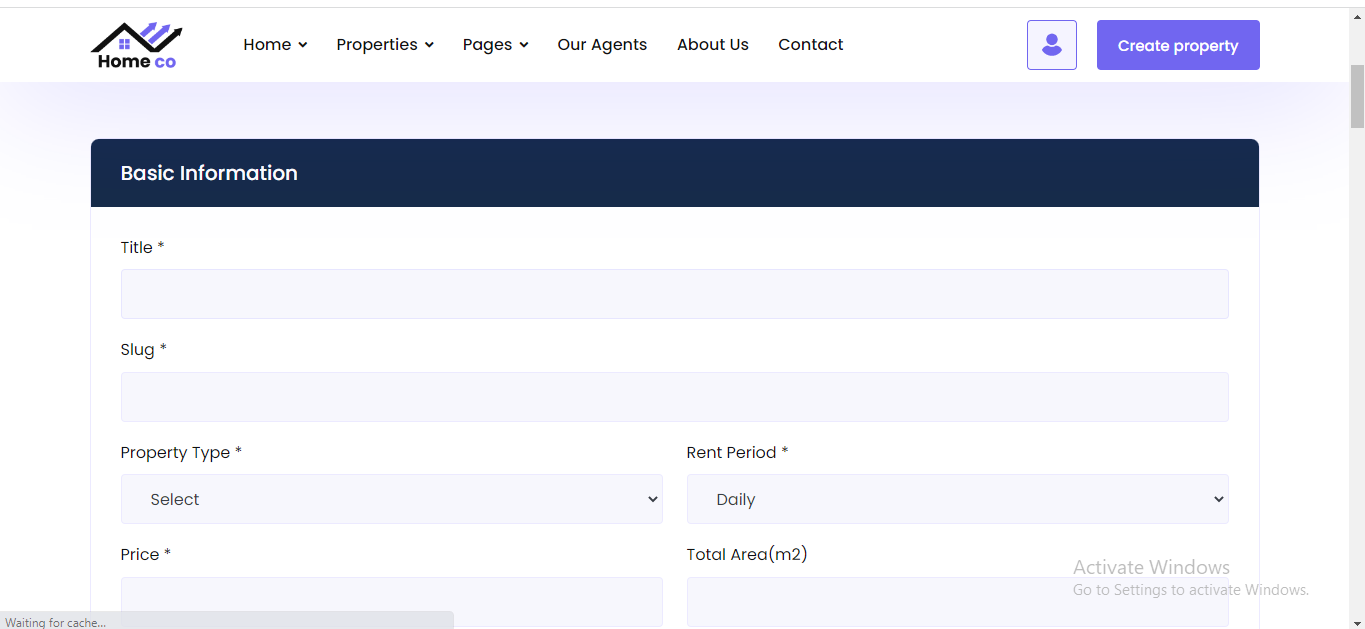
After choose property type agent can be able to see create property page. See:
After download the script from codecanyon you can get a zip file. After unzip the file you can total 4 folders. Now go to "admin_panel". Inside this folder you can 2 folders. In the 'all versions' folder you can see version wise file. See:
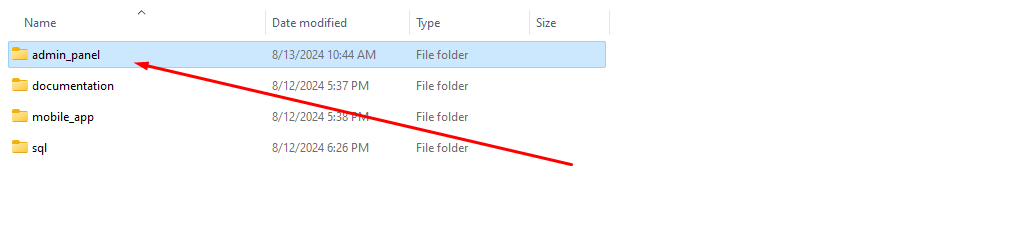

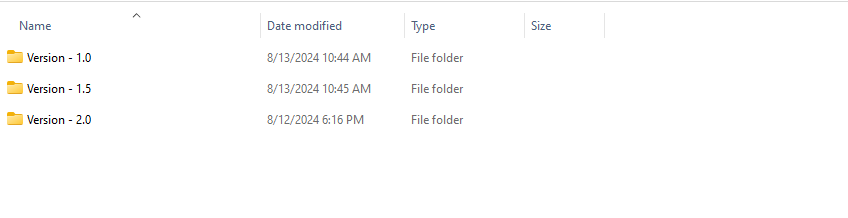
For update any version go to the version folder and you can see a "update.zip" file. See:

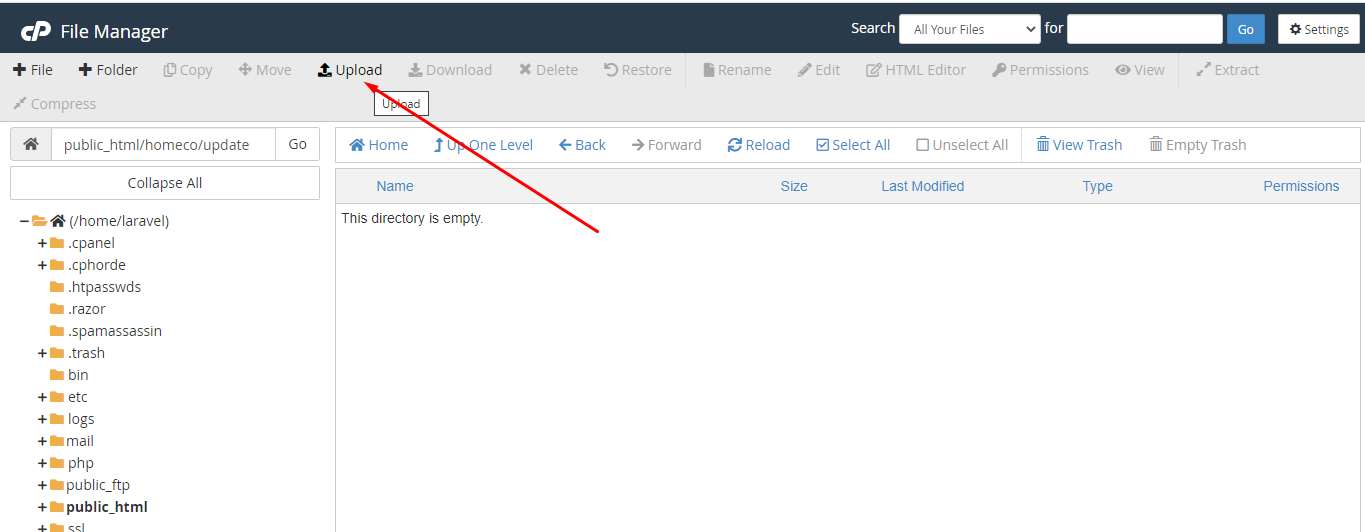
Now goto your server and root project directory. Create e new folder, the name of folder is "update". See:
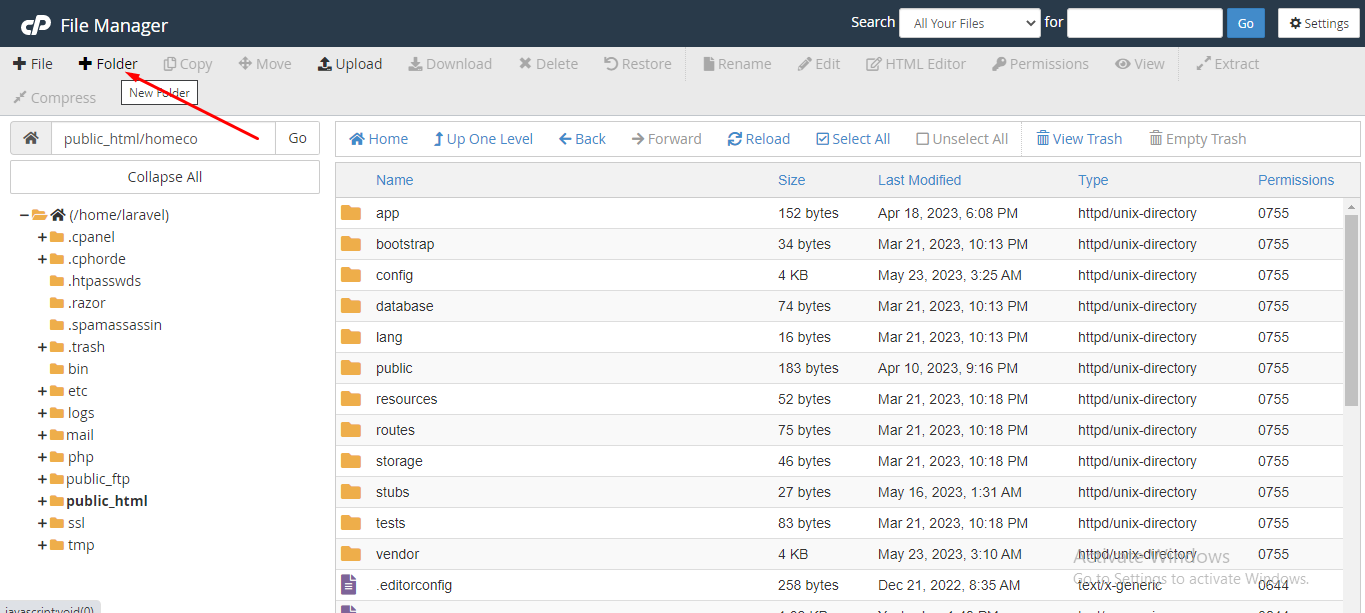
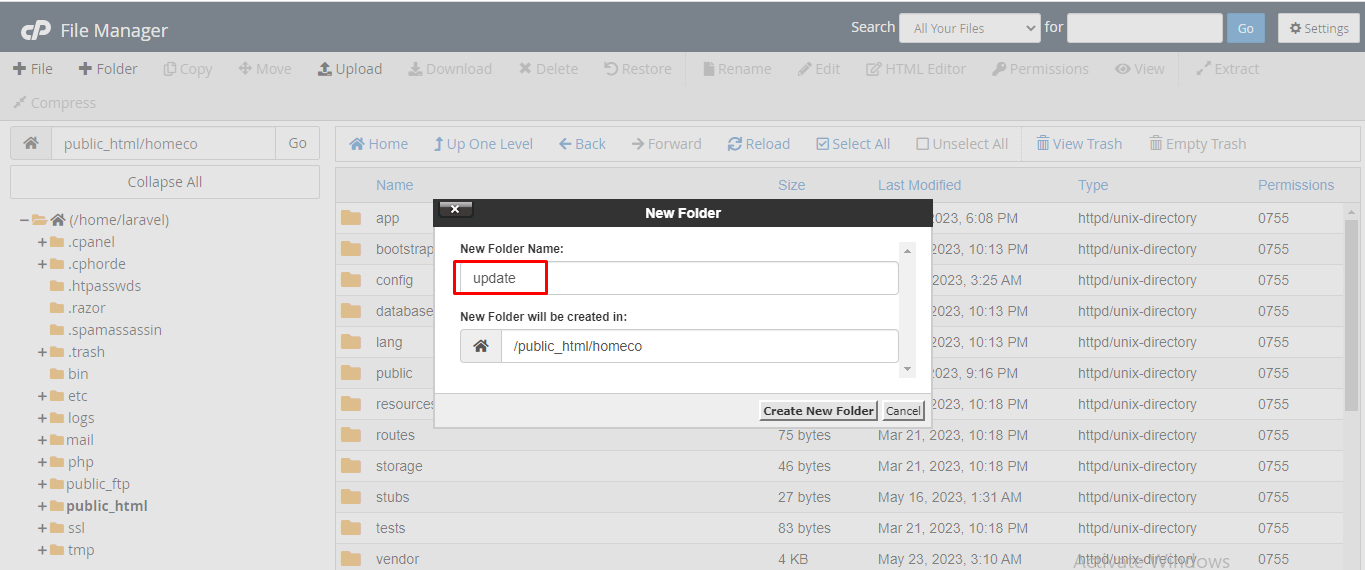
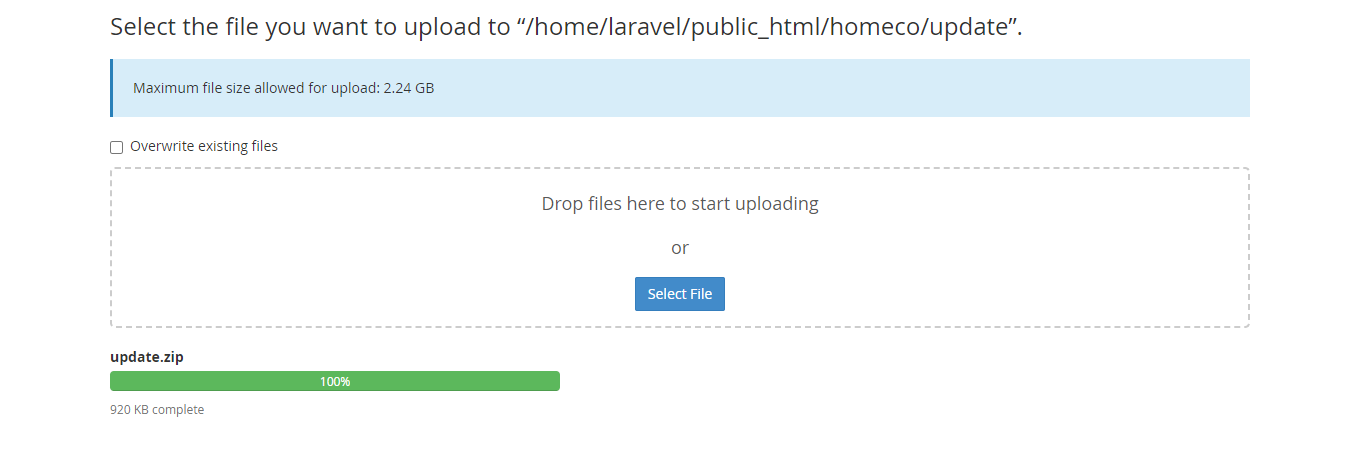
Inside the 'update' folder you need to upload the "update.zip" file. See:
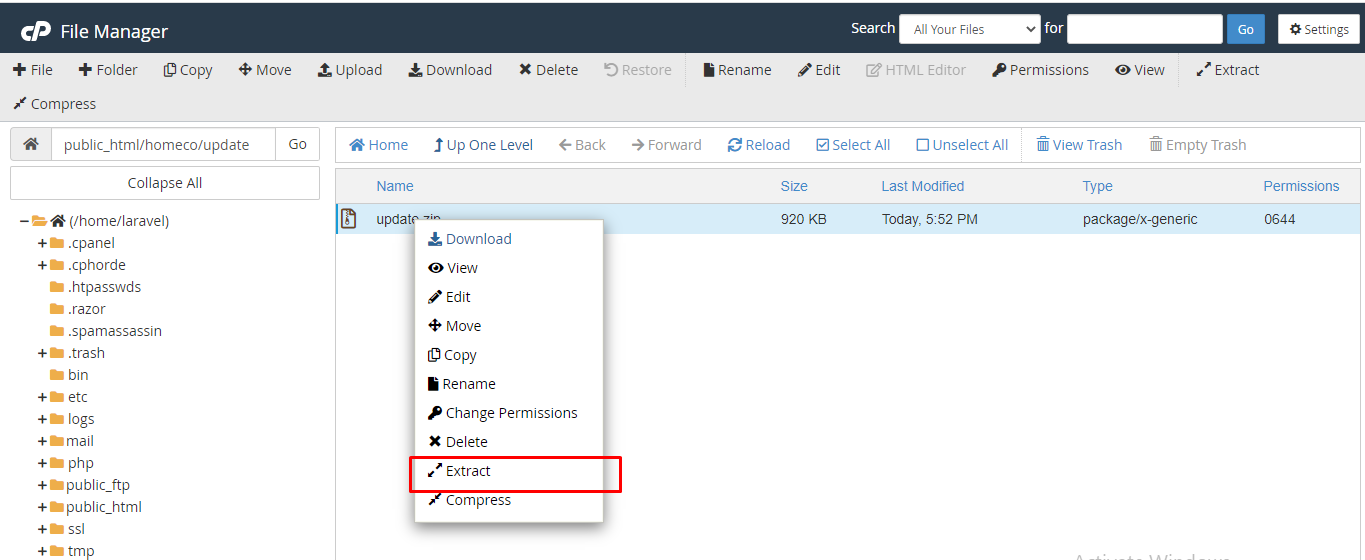
Now extract the zip file. See:
Now go to your "http://your_domain.com/update". See:

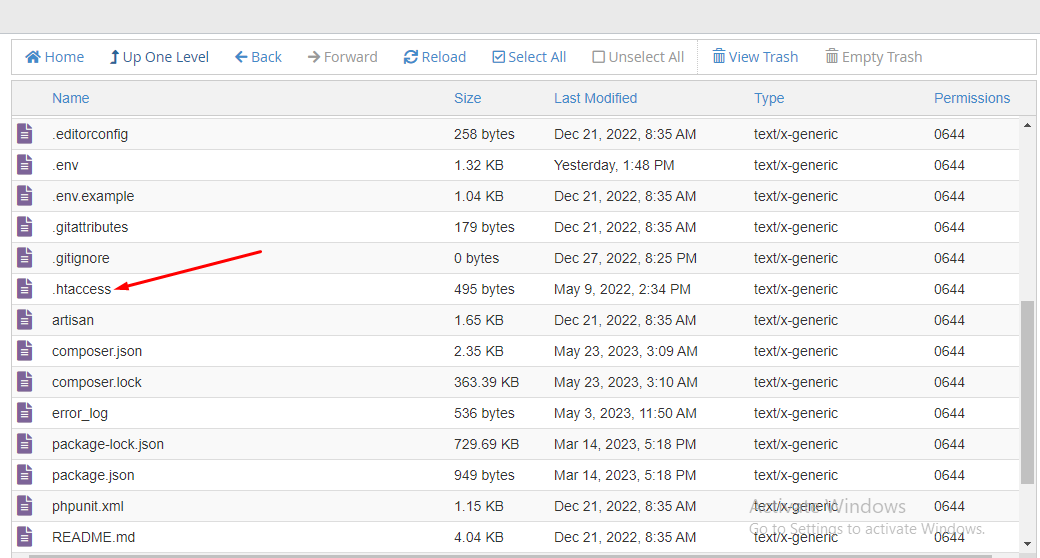
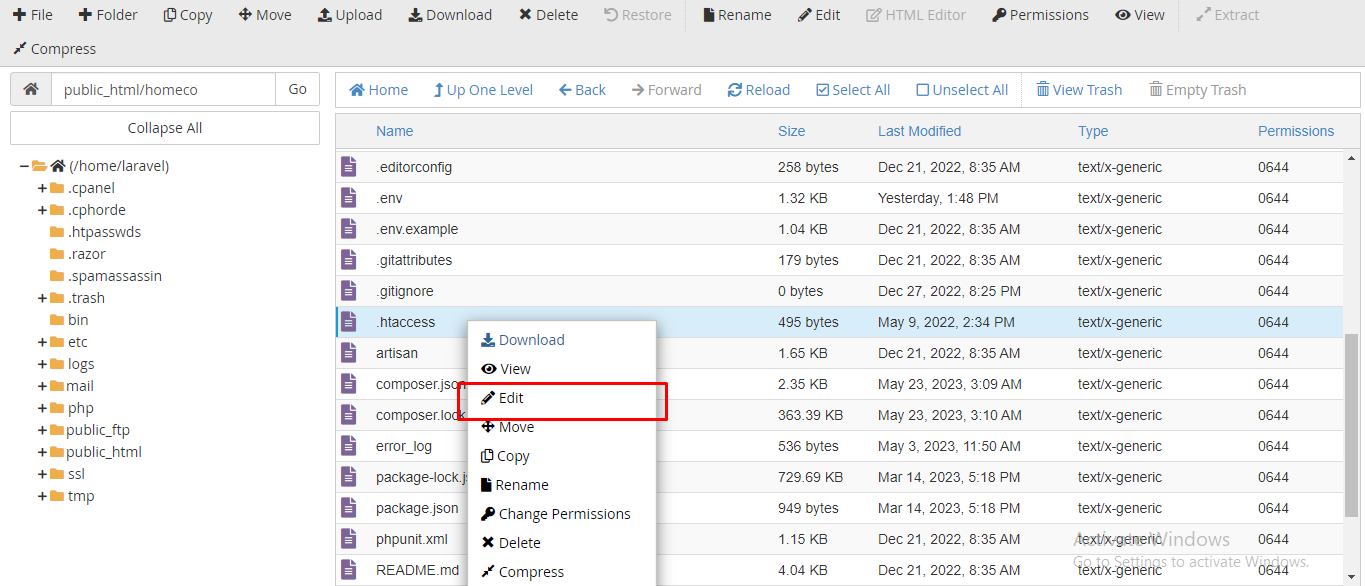
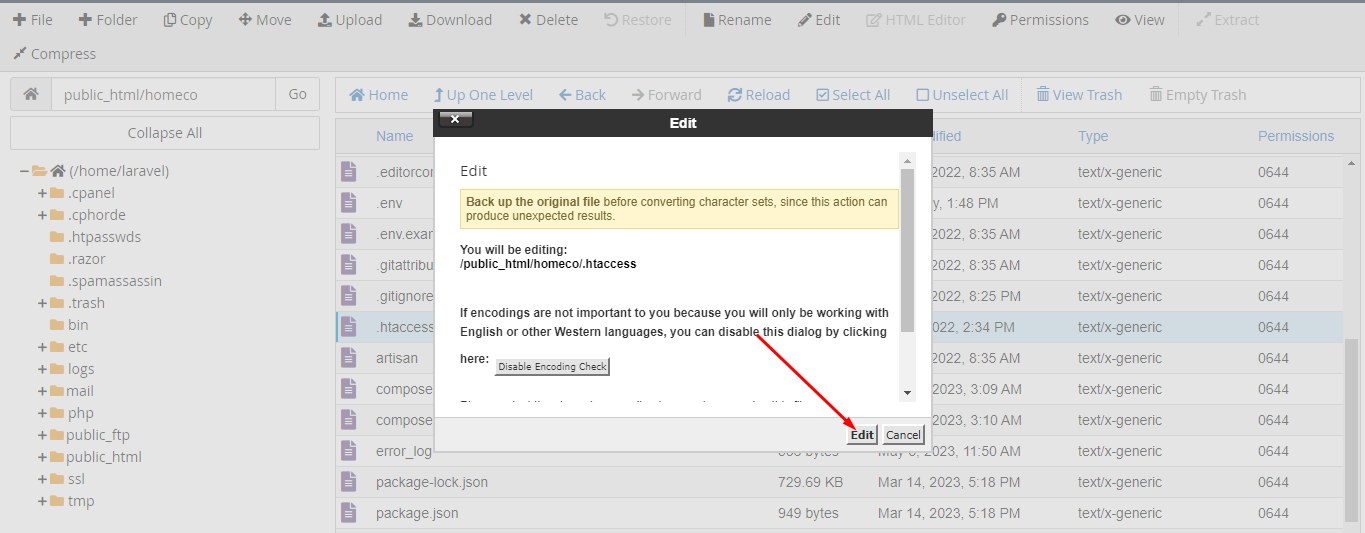
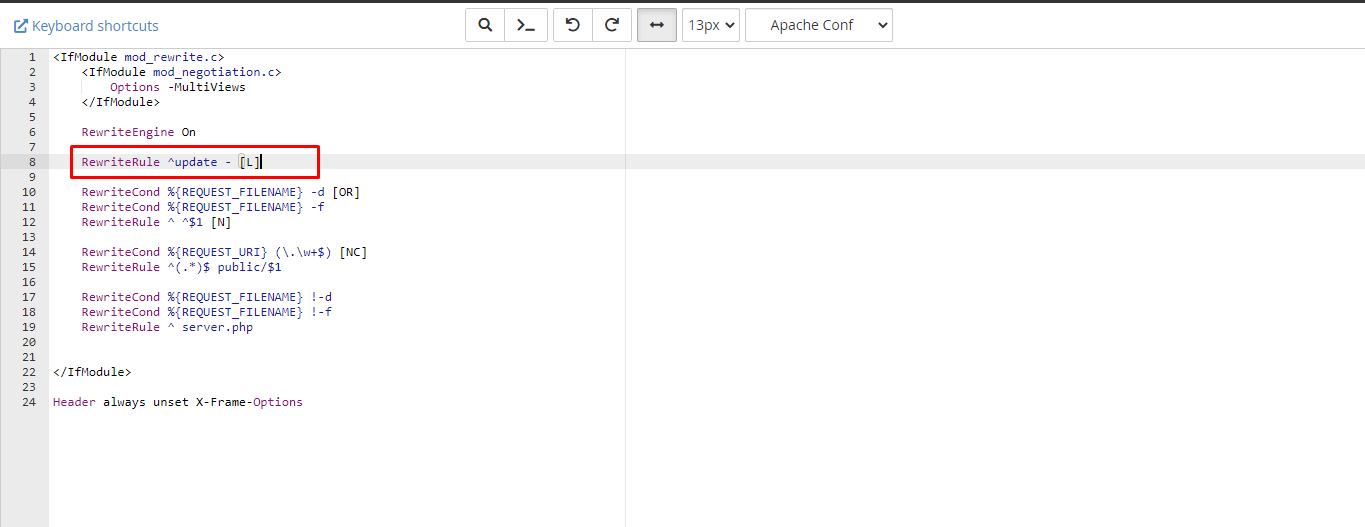
If your script version is less then version 1.1 you have to add new code ".htaccess" file. The code is "RewriteRule ^update - [L]". For add this code go to project root directory, open ".htaccess" file and past this code. See:


Now you can see our version wizard. See:
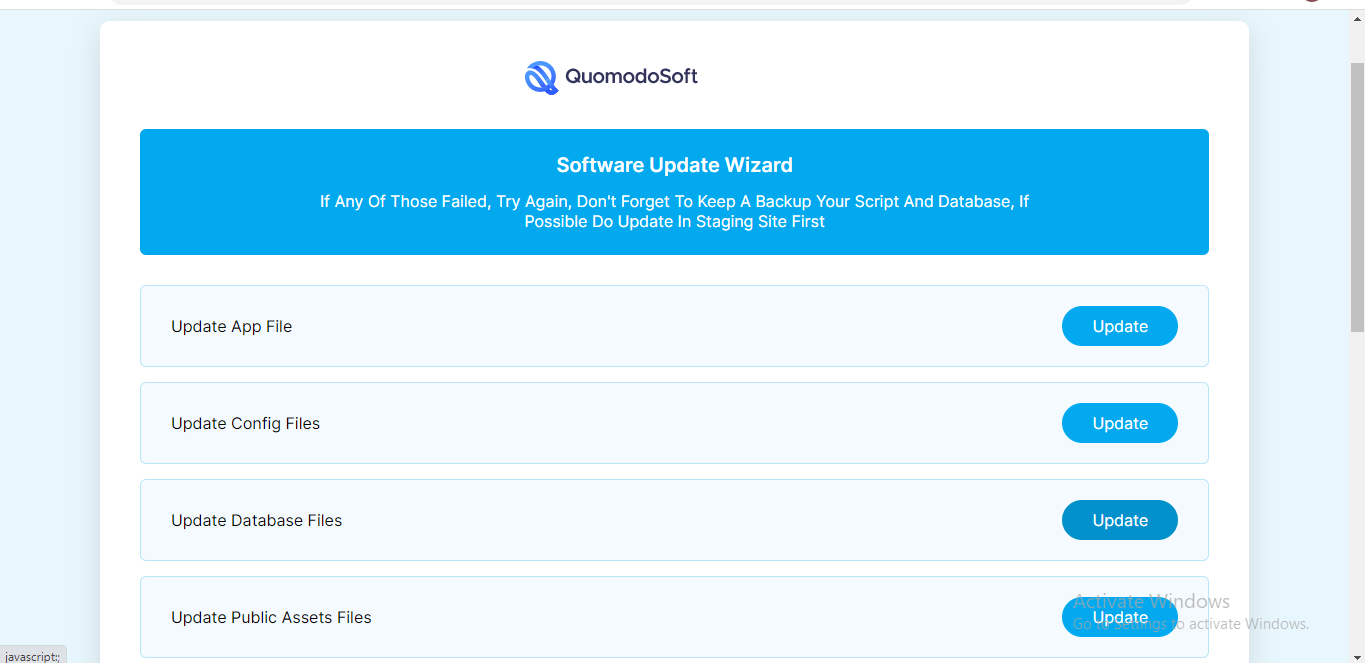
In this page you need to click the update button step by step. After successfully update you can visit your site and enjoy latest version See:

If you need any help from us, you can contact via our support email:
abdur.rohman2003@gmail.com
Our support will reply within 24-48 hours.
Front End: Browse
Website
Admin Panel: Admin Login
Admin Panel Login: admin@gmail.com | 1234
Agent Panel: Agent Login
Agent Panel Login: agent@gmail.com | 1234
This Flutter app can be hosted in Google Play Store and Apple App Store as your branded HomeCo-Real Estate Flutter App.
Flutter version must be: Flutter 2.10.3+ channel stable
Dart version must be: Dart 2.16+
Make sure your flutter and dart versions are correct. Follow the flutter documentation from https://docs.flutter.dev/get-started/install to install the given version of a flutter on your laptop.
● Install Android Studio from https://developer.android.com/studio
● Extract the source_code.zip. You will find this inside the main.zip
● Open the folder in your android studio.
● Even if you are building an app for ios, use android for the build.
● Then in your android studio terminal run:
flutter pub get **You need this to get all 3rd party packages from the pub.dev
● You can set your desired logo using flutter_launcher_icons
You must host your website, then go to lib\data\data_provider\remote_utl.dart and change the root URL to your website's root URL.
Example:
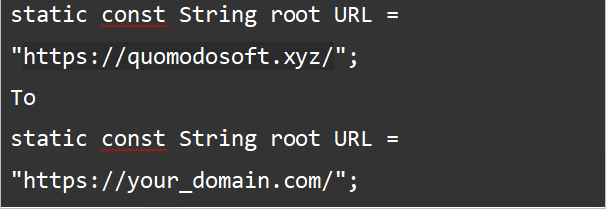
This is very important. Your app cannot have the same package name as other apps. If it does, the play store will not accept it as a unique application. So rename your app according to your business/brand name. Try to write a unique package name.
You can try this package.
https://pub.dev/packages/rename
https://docs.flutter.dev/deployment/android see the doc for reference.
In terminal run: flutter build apk
It will build an apk and show the folder. You can then install it on your phone to test or share multiple users for testing.
https://docs.flutter.dev/deployment/android see the doc for reference.
Signing the app:
To publish on the Play Store, you need to give your app a digital signature. Use the following instructions to sign your app.
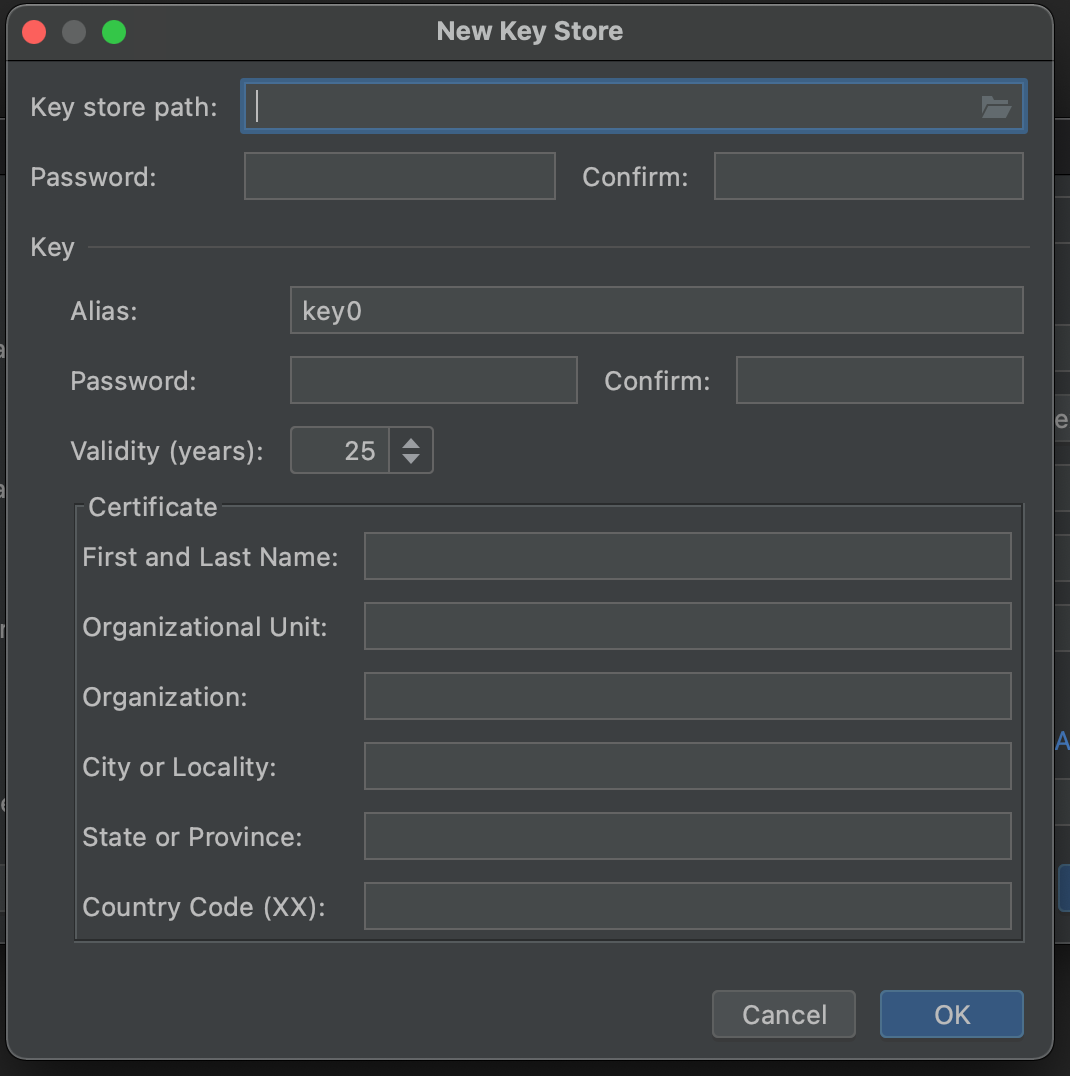
Go through the screenshots below carefully to understand how to generate a key and use it for the released signed app:
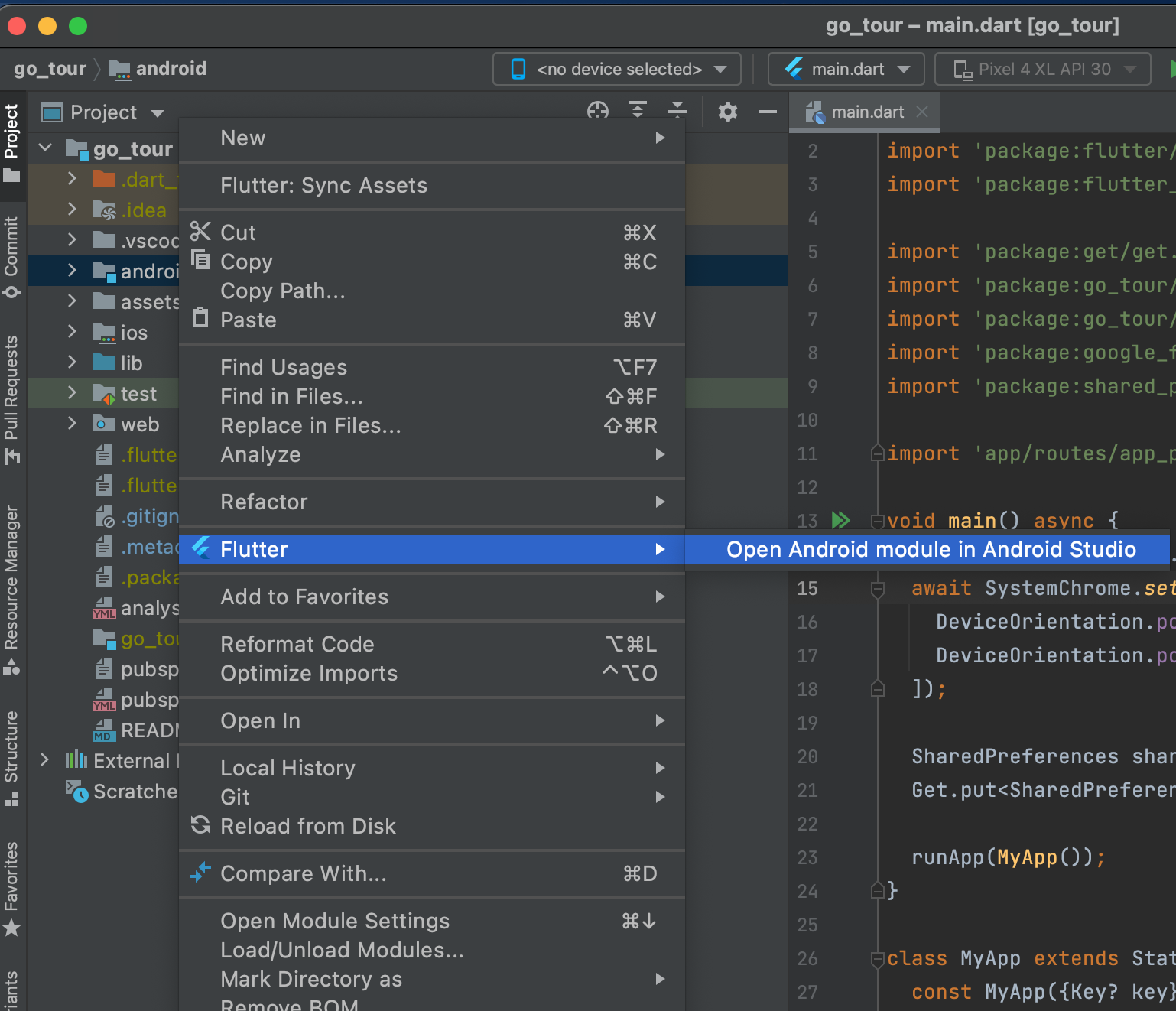
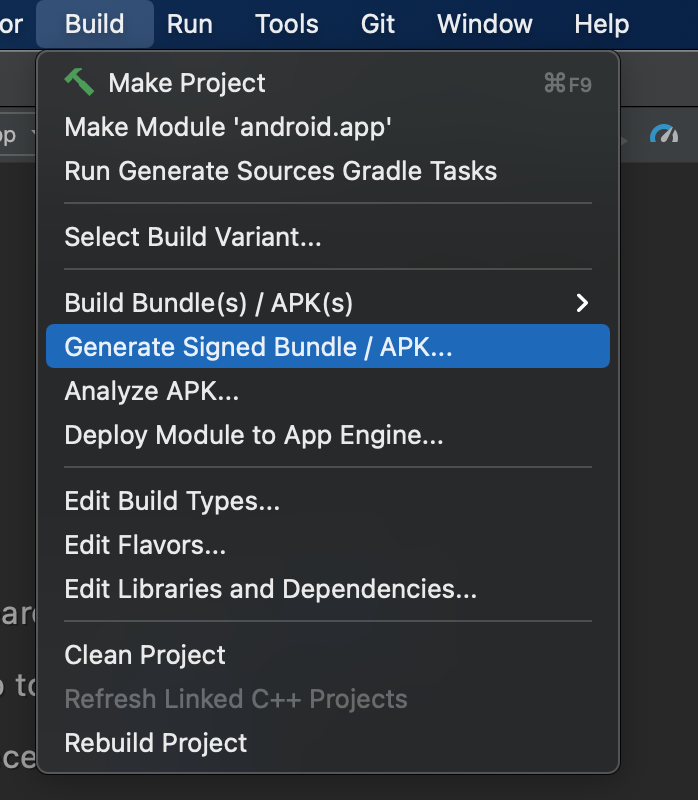
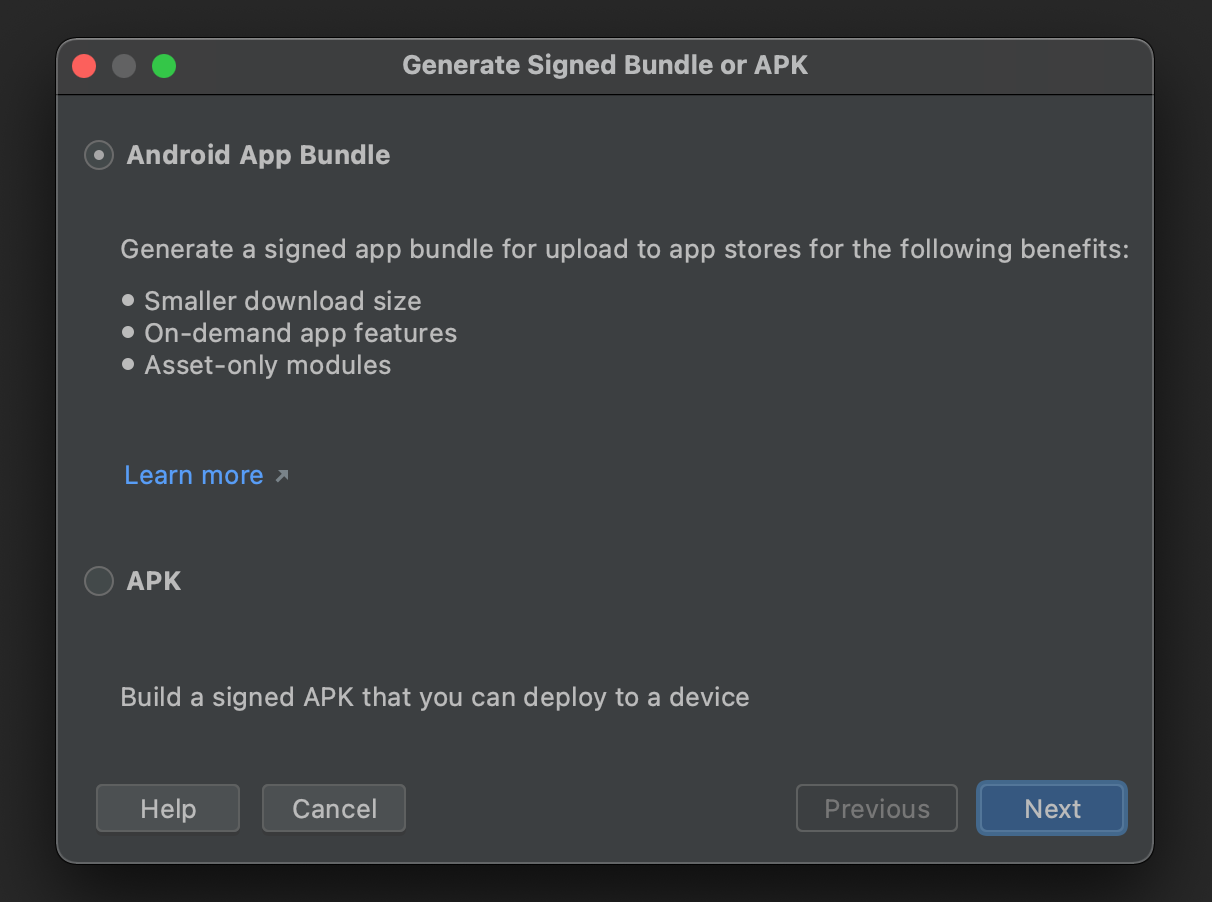
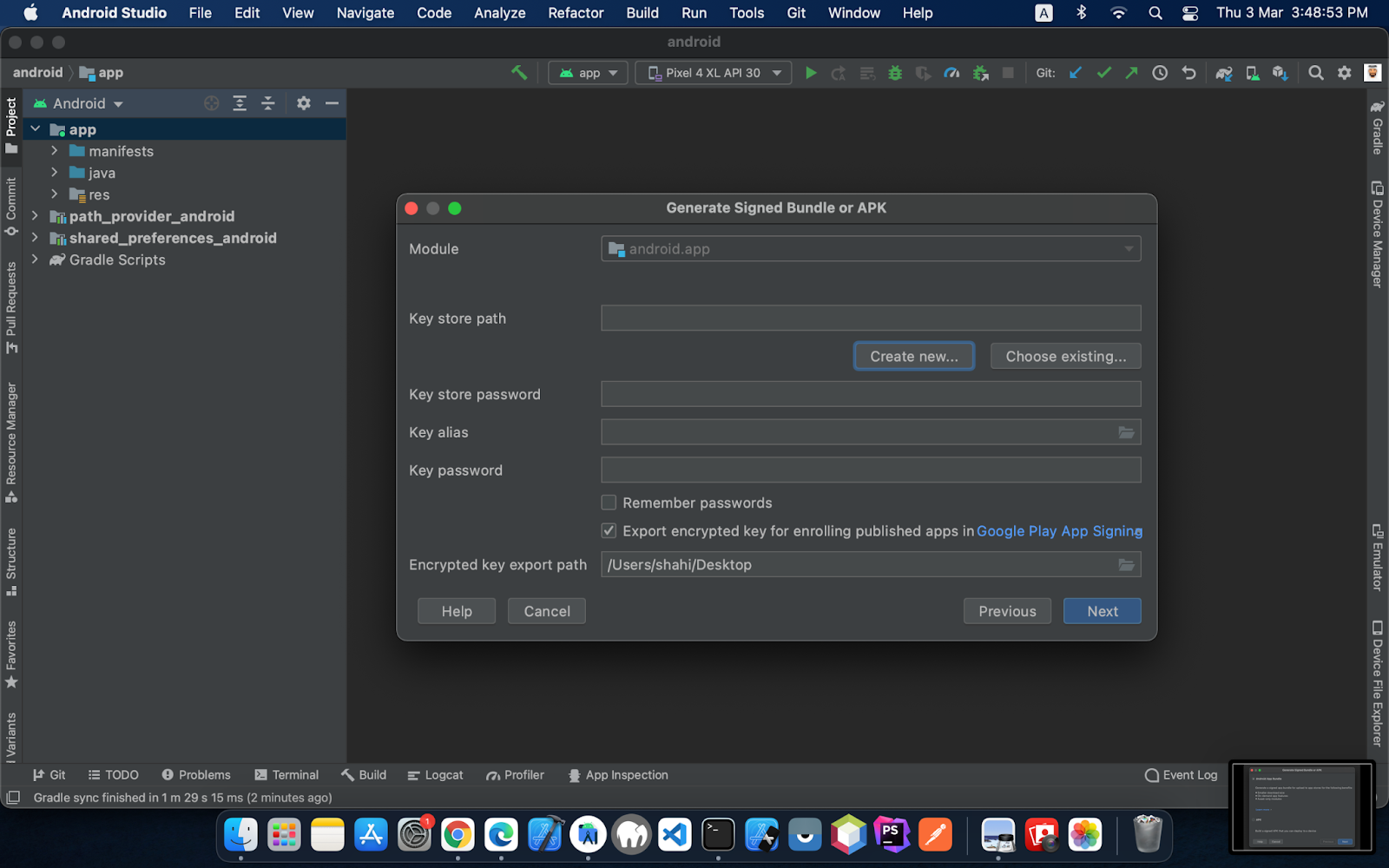
Then copy the key.jks from the root folder and paste it in the android folder.
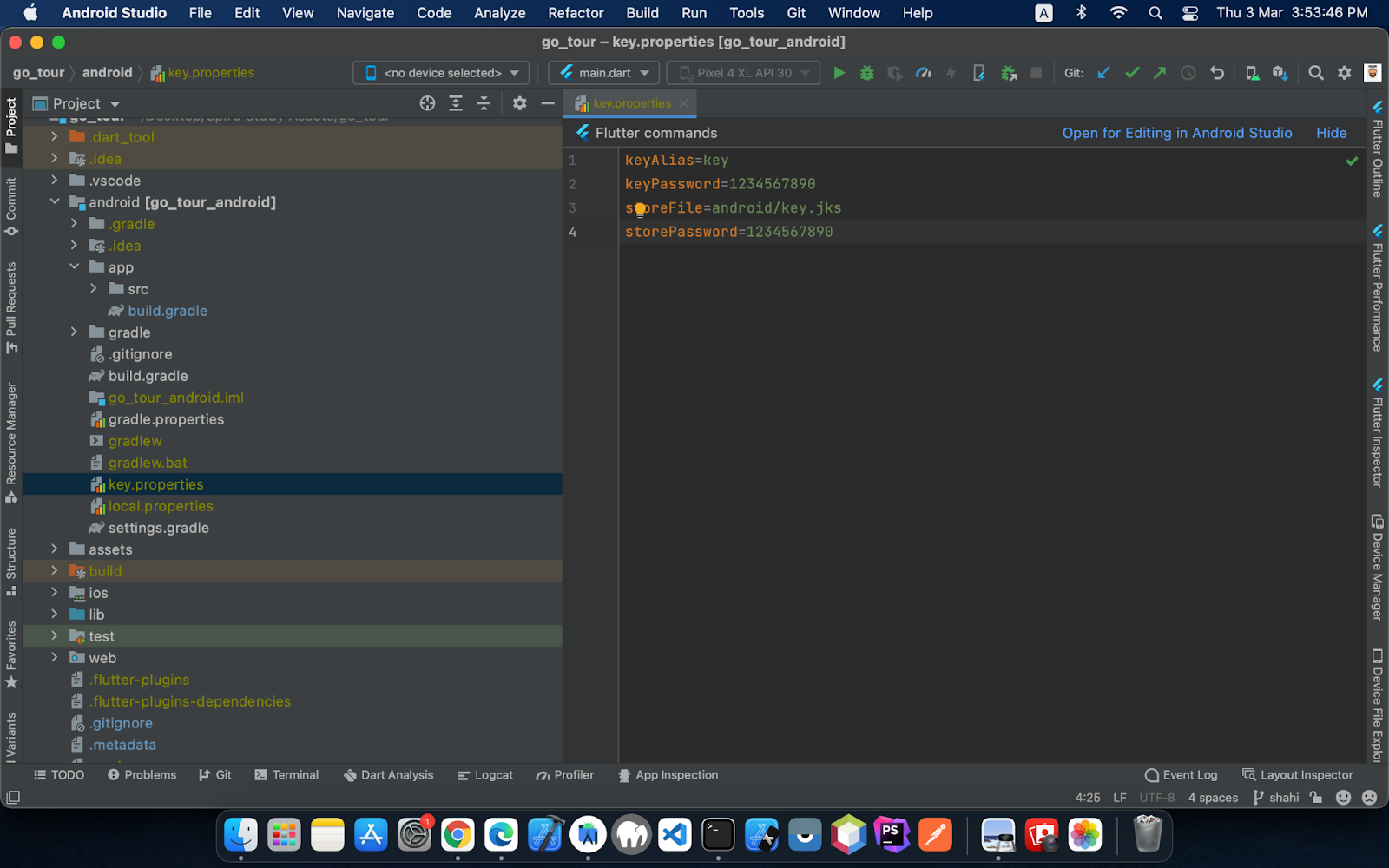
Create a new file key.properties in the android folder. Enter the information.

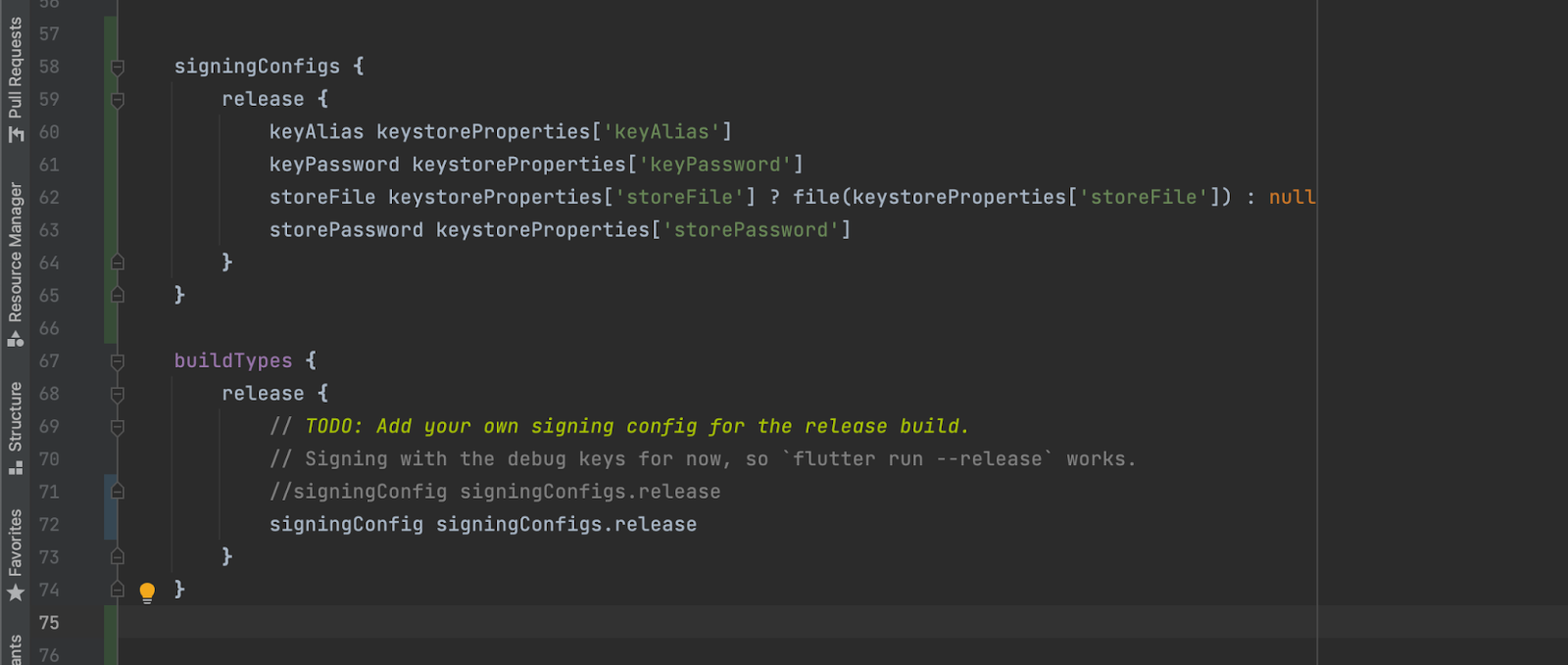
** If you lose the JKS file, you will not be able to release a new update of your app in the play store.
Note: You may need to run flutter clean after changing the Gradle file. This prevents cached builds from affecting the signing process.
Now you are almost done.
In your terminal run: flutter build appbundle
The release bundle for your app is created at <your app dir>/build.app.outputs/bundle/release/app.aab
Upload this app.aab file to your google play console.
Apple doesn’t allow to installation and distribution of apps like an android. To install it on your iOS device or distribute it, you have to deploy it on TestFlight or AppStore. For deployment, you can follow this link: https://docs.flutter.dev/deployment/ios
Note: In case you need any further help or have any confusion, please email us at abdur.rohman2003@gmail.com With an appropriate Subject: HomeCo-Real Estate Flutter App Flutter App Ui Kit
We will surely respond to your query and will solve the issue if it's relevant to Our Product.
Thank You!
quomodotheme
Social Login
Social Login(Gmail) credential can be set up from the admin panel. Go to "Setting" from sidebar. See:
To get google credentials. go to this link and create a new app :
https://console.developers.google.com